How to Unlock 2023 Toyota Tundra Smart Key with EoneBoss TLK1?
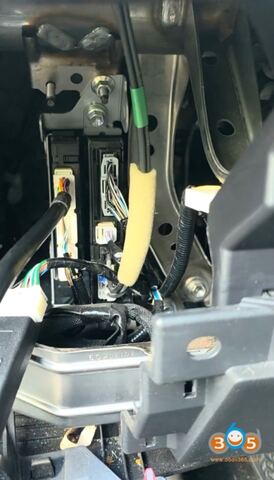
If you own a 2023 Toyota Tundra and need an extra smart key, you might think a trip to the dealership is your only option. However, with the right tools—specifically a Smart Pro programmer and a TLK1 adapter—you can add a second key yourself. Below is a guide based on a real-world procedure for reusing a smart key on this full-size pickup.
What You’ll Need
-
Smart Pro tool with appropriate cables
-
EoneBoss TLK1 (Toyota/Lexus key unlock device)
-
OBD connector and ECU top connector cable
-
Original working key for the Tundra
-
A used (or new) Toyota smart key you intend to program as the second key
Step 1: Connect the Hardware
Before starting any programming, connect the Smart Pro to the vehicle’s ECU using the first top connector (the one specifically for the Smart Pro cable). Also plug into the OBD-II port. The system will power up and communicate with the vehicle’s immobilizer and smart key module.
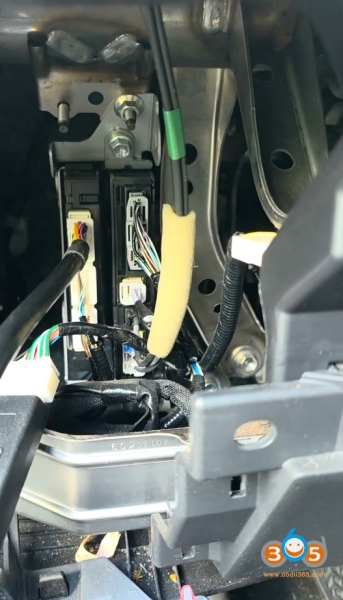
Step 2: Read Vehicle Data
Once everything is connected, the Smart Pro reads the vehicle’s existing key data. In the case of this 2023 Tundra, the system confirmed that the original key is recognized and the vehicle is ready to accept an additional key.
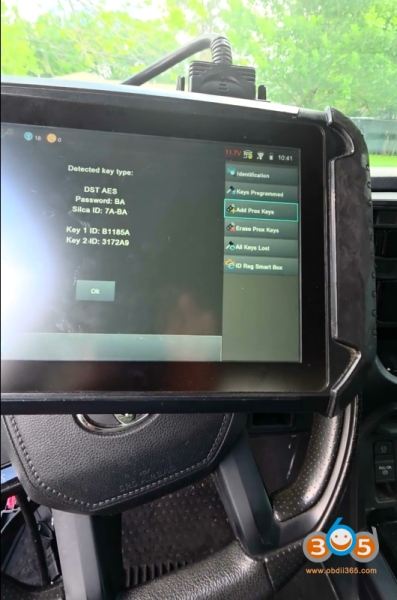
Step 3: Prepare the Used Key for Reuse
The second key you want to add may be a previously used Toyota smart key. The Smart Pro with TLK1 can erase its old data and prepare it for the new vehicle.
-
Place the used key in the Smart Pro’s sensing area.
-
The device will read the key and display: “Key recognition successful. Please program this device to the car as a new key.”
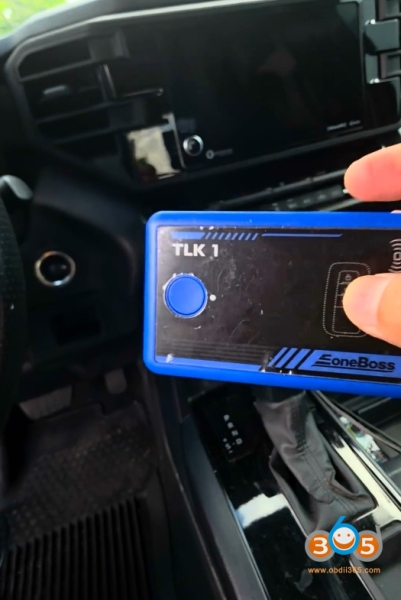
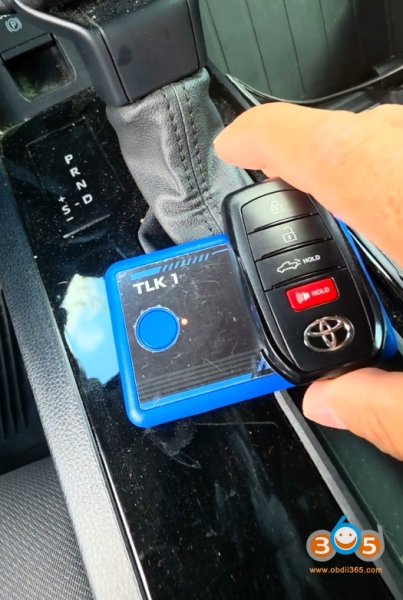
Step 4: Program the Key as New
Next, introduce the original key to the system to authorize the programming sequence.
-
Insert or hold the original key near the start button or in the designated slot.
-
Then present the second (used) key.
-
The vehicle will beep, confirming communication.
-
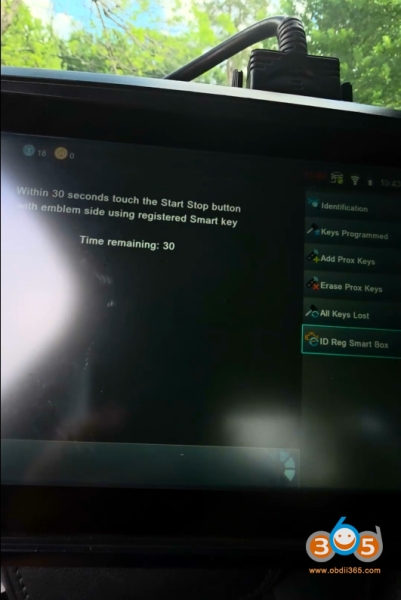
The Smart Pro will then show: “Success. Please put the key that has been accidentally deleted or locked into the device sensing area and press the button.”
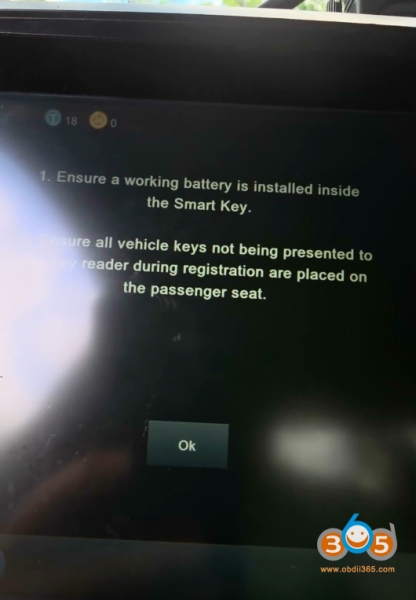
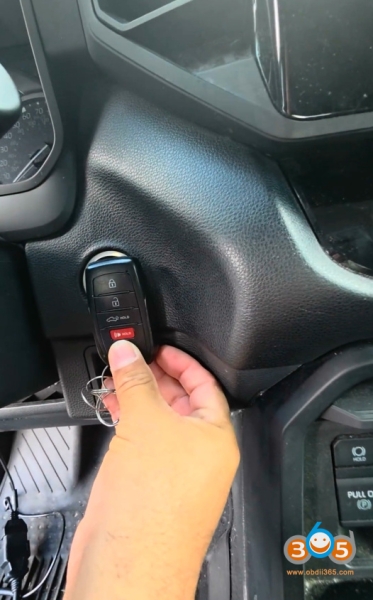
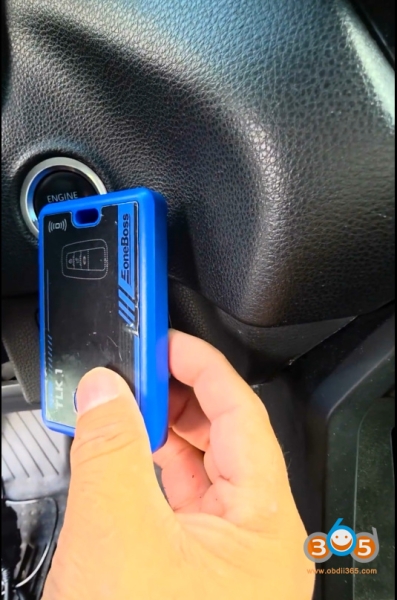
Step 5: Update the Key Data
After placing the used key back into the Smart Pro’s sensing area, the device will begin updating the key’s internal data. Within seconds, you’ll see: “The key update is successful. Please test the key function is working or not.”
Step 6: Synchronize the Key and Test Functions
Now it’s time to make sure both the remote locking/unlocking and passive entry (proximity) functions work.
-
Ensure the ignition is on (or the vehicle is in “ready” mode if a hybrid or push-to-start).
-
Using the Smart Pro interface, select “Add the first” (or similar option for adding an additional key).
-
The system will synchronize the second key to the vehicle’s body control module.
-
A final confirmation: “Success.”
Step 7: Verify Both Keys
Test the original key first—lock, unlock, and start the engine. Then test the newly programmed used key. Both should perform identically: remote functions, door handle touch sensing, and push-button start.
Conclusion
Reusing a smart key on a 2023 Toyota Tundra with a Smart Pro and TLK1 is not only possible but also straightforward when following the correct sequence. This method saves the cost of buying a brand-new key from the dealer and allows you to repurpose an existing compatible smart key. As always, ensure your tools are updated and that you have a working original key before beginning. If at any step the process fails, double-check your connections and key placement, or consult the Smart Pro manual for troubleshooting.
Disclaimer: Key programming procedures vary by region and vehicle specifications. Always refer to your tool’s user guide and comply with local regulations regarding key duplication and vehicle access.