How to add a BGA key with Xhorse VVDI MB Tool
Here is the instruction on adding a new BGA key using Xhorse VVDI MB BGA Tool Mercedes Benz key programmer.
How to use the VVDI MB Tool to add a BGA key:
Main steps:
Step 1: Collect EIS data
Step 2: Calculate BGA password online
Step 3: Read and Write a new key
Step 1: Collect EIS data
To read BGA password, we need to collect the EIS data first
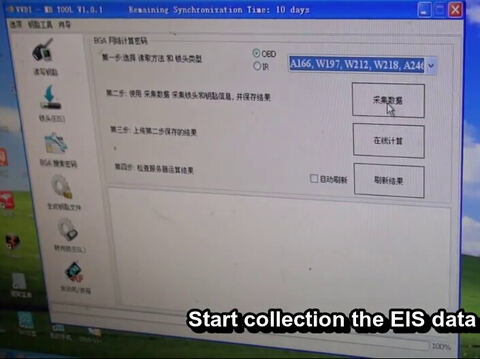
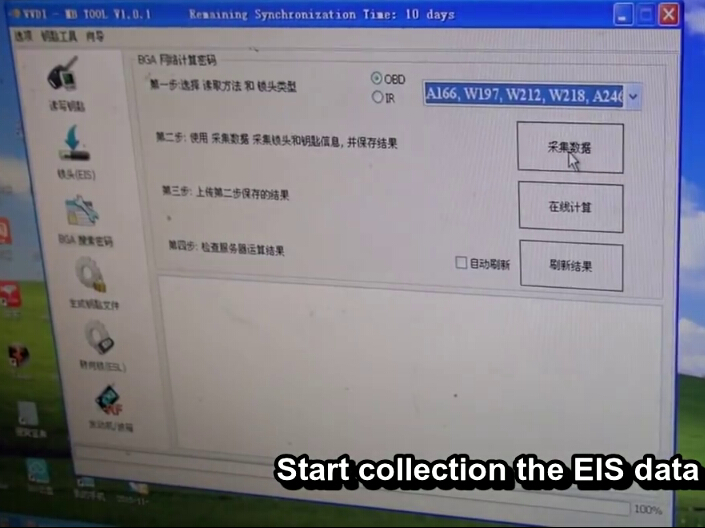
Open VVD MB tool software Select vehicle type, here A166, W197, W212, W218, A246 for example
Press “Data Collection”
Connect the MB Tool’s OBD connector with the EIS
Insert the key into the EIS, click Yes
Follow the following steps to collect the data
Wait the device initializing
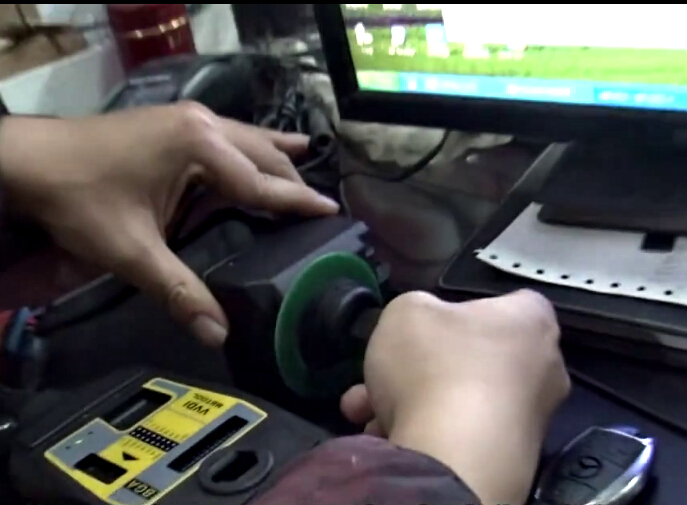
Insert the key into the IR reader infrared interface, then click yes (see connection picture below)

Start collecting EIS data, wait about 5 minutes
The red indicator light on VVDI MB Tool key programmer will flash
Insert the key into the EIS, wait 30 seconds
Insert the key into the device infrared antenna,then click OK
Save the collected EIS data (here we named it OBD_FFFFFF_1)
Collect data complete. Start to calculate BGA code online
Step 2: Calculated BGA password online
Select “Online Calculation”
Upload the data just saved to the server

The software needs to take 3 minutes to calculate the BGA code
Tick “Reflesh automatically” and press “Query result” to get result to check whether the password was calculated
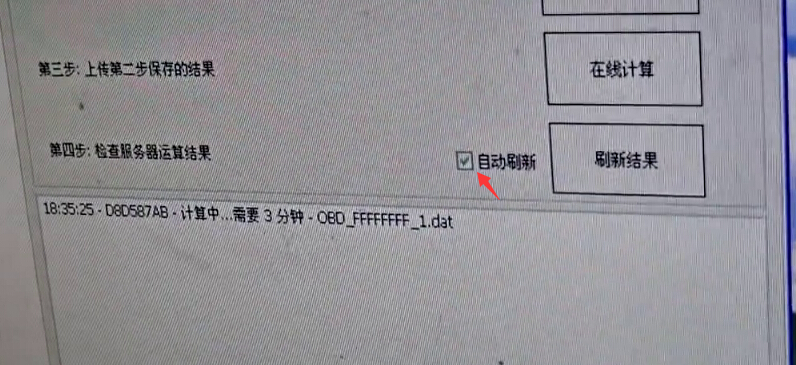
Server show password calculate failure, so we have to calculate the BGA by repeating the steps above
Follow the system prompts to 1.Connect the OBD lead to the VVDI MB Tool and the other end with EIS 2. Insert the key into the EIS
Click OK
The system starts to collect the data and re-calculate the BGA password again
Insert the key into the VVDI MB Tool’s IR reader, click OK
wait about 5 minutes
Then insert the key into the EIS
Wait about 30 seconds
Insert the key into the device infrared antenna, click OK
Save EIS data, start to calculate BGA code again
Click “Online Calculation”
Select the second file that was saved (OBD_FFFFFF_2)
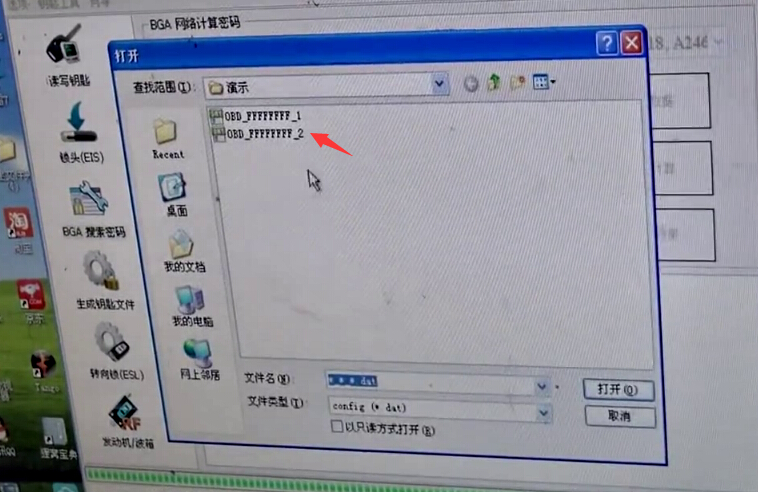
Wait another 3 minutes to calculate the BGA code
Clicks reflesh automatically, the BGA code calculation is succeeded
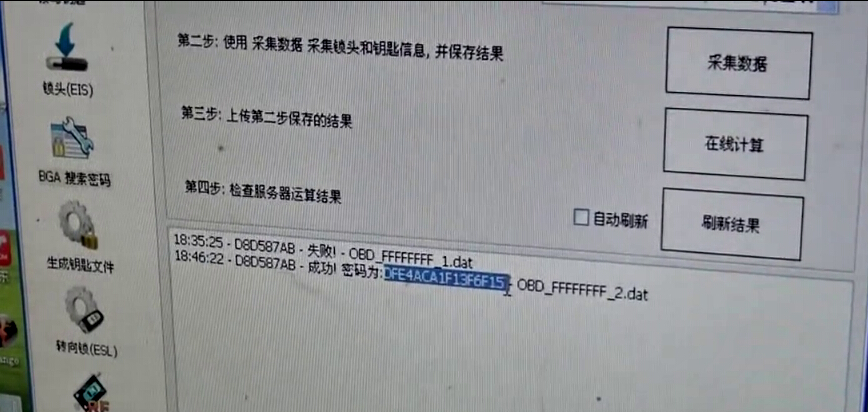
Copy the BGA password
Select “EIS” function, select vehicle model
Click “Read” to read EIS data by OBD and fill in the password
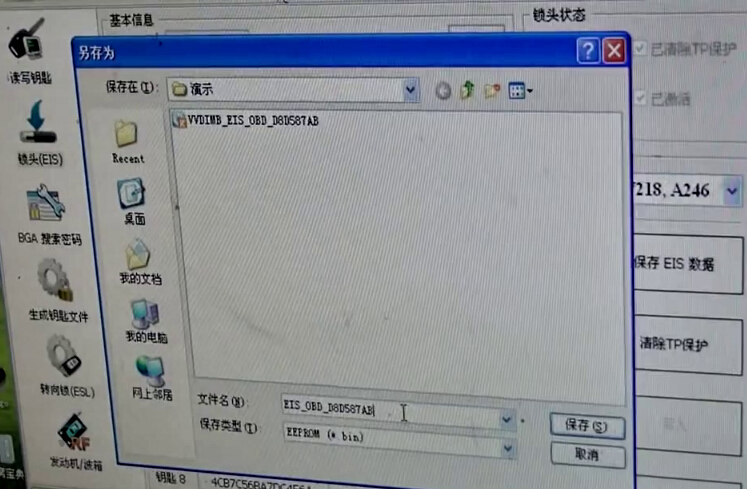
Paste the BGA code and press “Save EIS data”
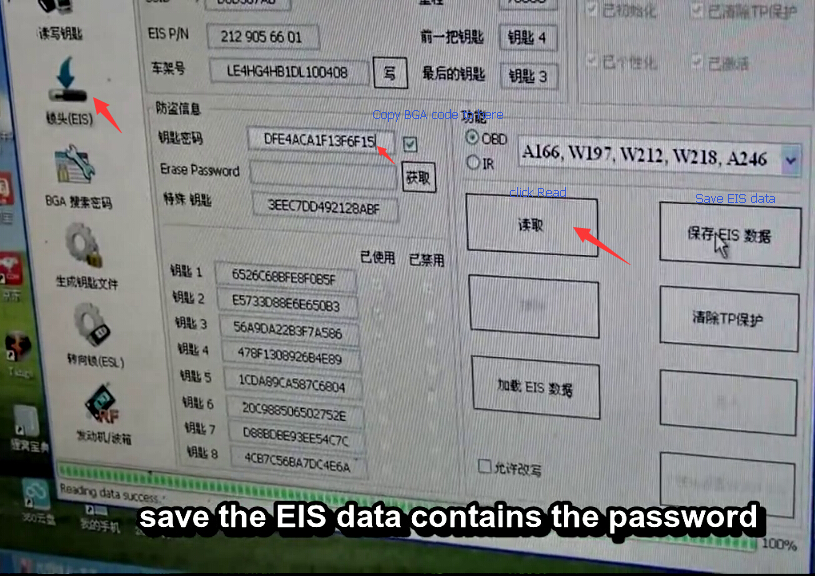
Save the EIS data contains the password
The system then will ask to save one more as HC05 format, save the data again
Select “Generate Key File” function
Upload the EIS data contains the BGA code (VVDIMB-EIS-OBD)
Click “Generate Key File” button, save data, generate NO1-NO8 key data

Step 3: Read and Write a new key
Select “Read/Write Key” function
Select key type BE-IR key
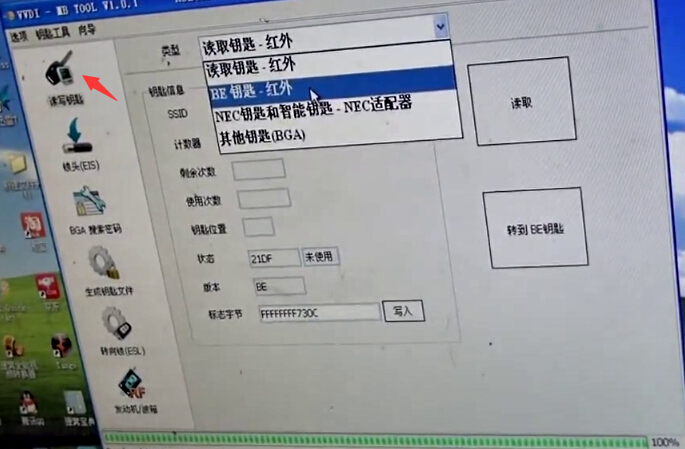
Take out the original key from the IR reader, insert a new key into the IR Reader
Select key position for key file. Load the NO7 key file and make a new key
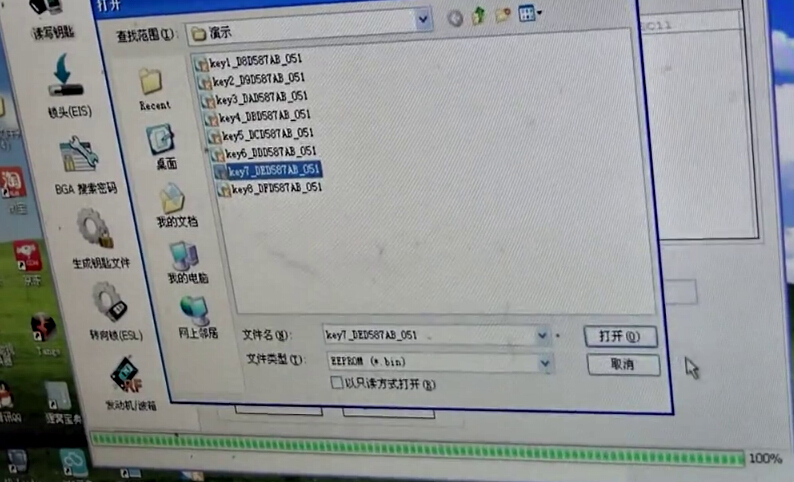
Click Write
Click Read
Add a key successful
Check the key if it works, insert the new added key into the EIS
Please pay attention to the position of the key position 7, read the EIS data again
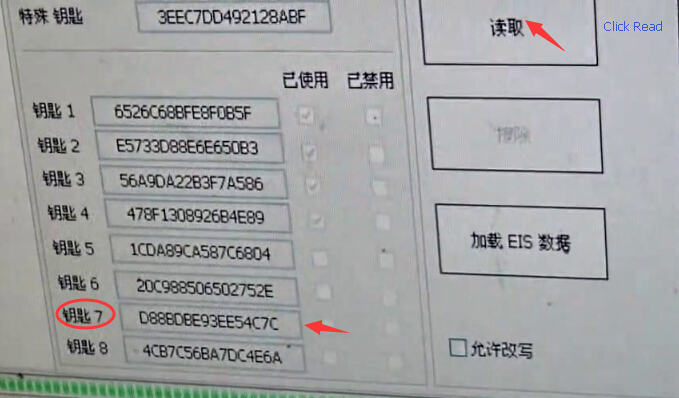
The data is changed, add a new key success
Insert the new key into the EIS