Program Benz W203 All Keys Lost by VVDI MB BGA
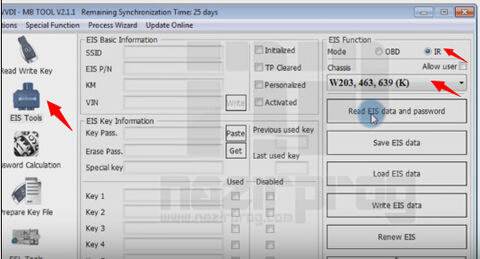
Here is the instruction on how to program key for Mercedes Benz old W203 EIS all keys lost by VVDI MB BGA Tool key programmer (new version goes to v2.1.4).
Procedure:
Step 1: Read EIS Key Password
Well connect VVDI Benz and laptop etc
Open VVDI MB BGA software
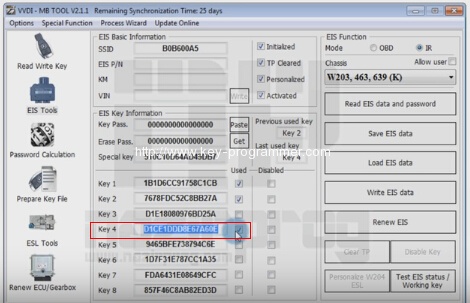
Select EIS tools
Select IR in EIS function
Select Chassis W203,463,639 (K)
Click on Read EIS data and password
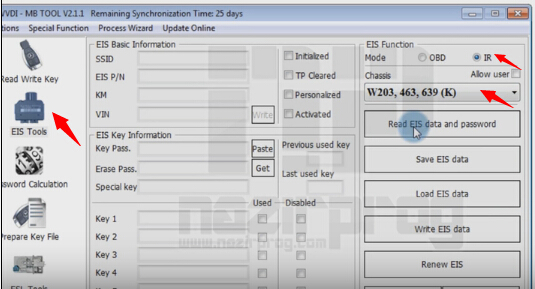
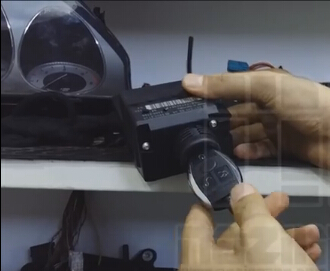
Insert IR adapter to car. Take out and insert again if already inserted. Remain 28 seconds.
You can check the VVDI BGA button status, it shows Reading data success. EIS is normal.
If the software prompt Do you want to read password via IR. Press Yes to continue.
Read password via IR need about 1-4 minutes.
Select key used position
Read EIS key pass success.
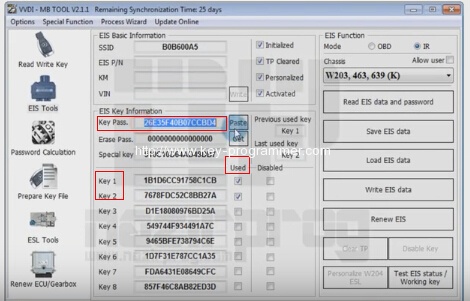
Select Save EIS data
Press OK to save HC05 format file.
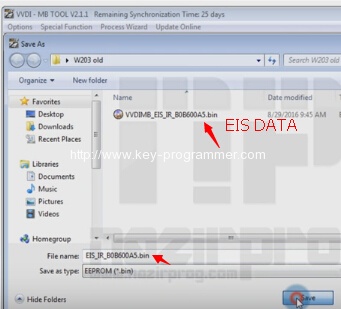
Step 2: Prepare Key File
Select Prepare Key File function
Click on Load EIS file
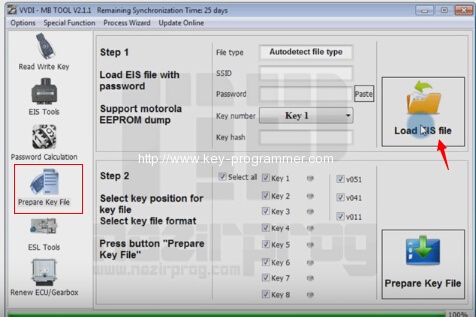
Upload EIS data just saved
Tick one used key option: Key 4 and v51
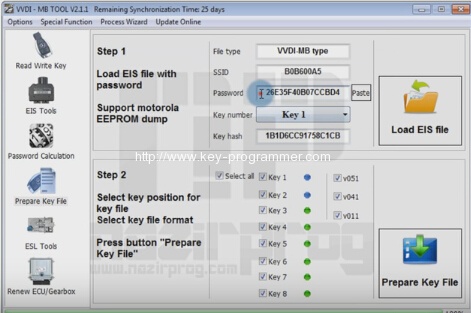
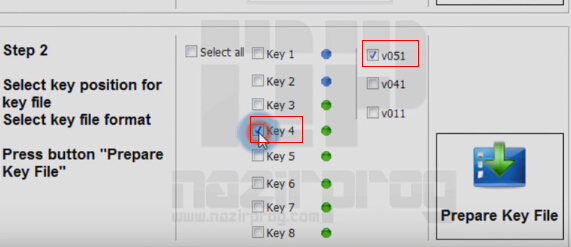
Select Prepare Key File
Save key file
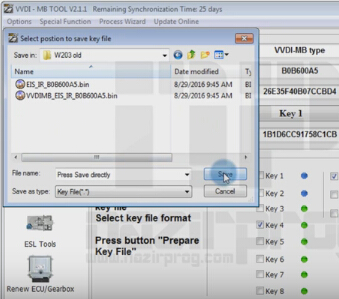
Step 3: Read Write Key
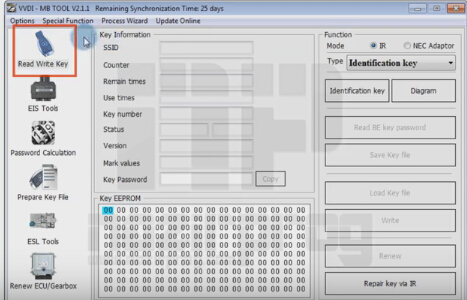
Select Read Write Key
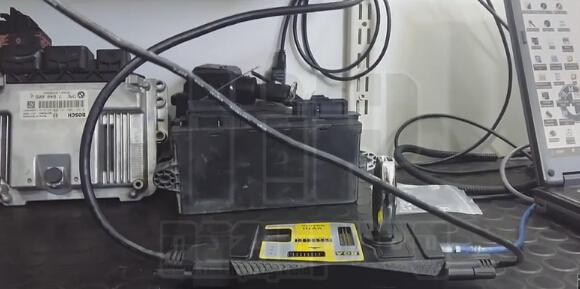
Put smart key on VVDI MB Tool
Click on Identification key on software
Check unused key status.
Select Load Key file
Open key file just saved.
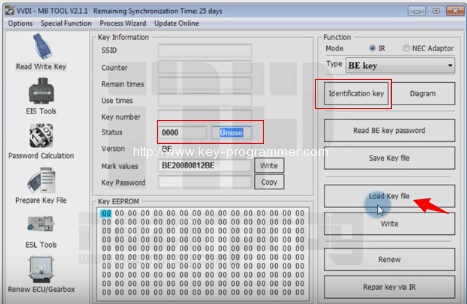
Show Key eeprom data
Click on Write
writing data success
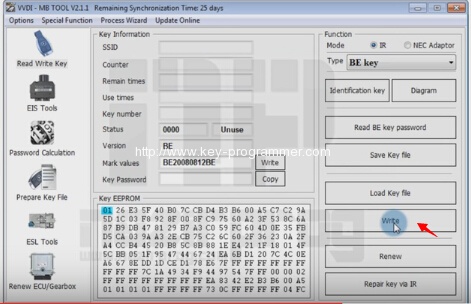
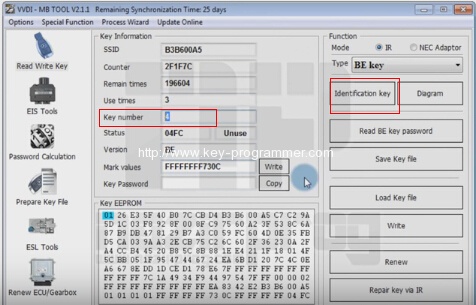
Click on Identification key again
Chekc key number
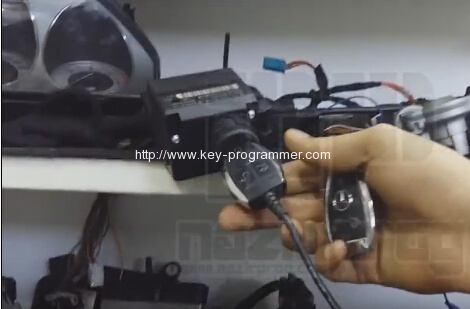
Remove both keys form VVDI Benz and EIS
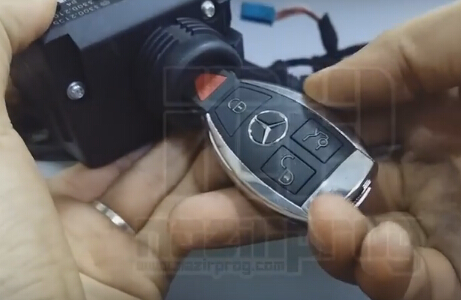
Insert IR key into EIS
Switch on and off to check
Select EIS Tools in software
Select IR
Select Chassis
Select Read EIS data and password
Insert IR adapter to car. Take out and insert again if already inserted. Remain 28 seconds.
Select no to read password this time

New key has been program successfully.
Done!