Xtool X100 Pad License Exception and Bluetooth Error Solution
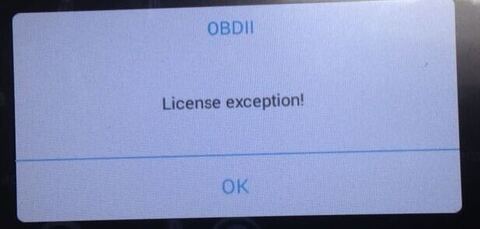
Here is the proper solution to Xtool X100 Pad key programmer “License Exception” error when launch Xtool APP.
Error message:
“OBDII
License exception!”
Obdii365.com engineer solution:
Delete XTOOL file and run an upgrade. Do as following:
Step 1: Connect X-100 Pad to PC and power on X100 Pad
Step 2: Activate X-100 Pad
Press Login account and login with email address
Enter “Activation Code” which you can find on the user manual

Complete all information and click on the “ACTIVATE” button
Atcivation complete. Go to x100 pad main menu.
Then open resource Manager and delete the XTOOL file there.
Step 3: Run an upgrade
X100 Pad updated directly online using WiFi or USB connection.
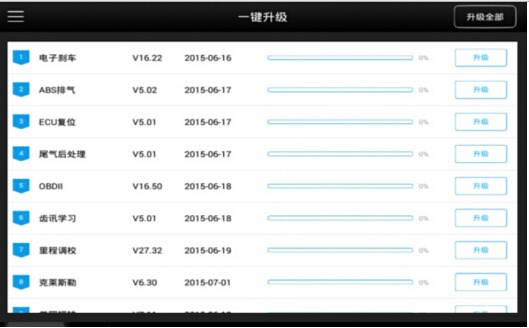
To access the update application, open the Xtool X-100 pad application and click “UPDATE”
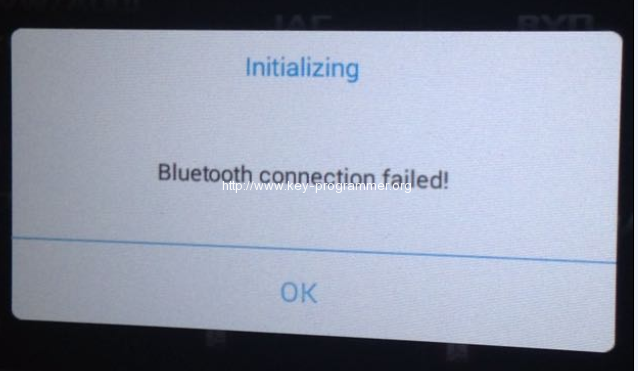
Note: If you cannot connect X100 Pad to Bluetooth after upgrade, it shows error message:
“Initializing
Bluetooth connection failed!”
Solution:
Connect X100 PAD to vehicle via Bluetooth, search Bluetooth device in setting again.