How to install Xhorse VVDI Key Tool Application on iOS Step by Step

Here’s the step-by-step guide to install, register and set up Xhorse VVDI Key Tool Bluetooth Application on Android/iOS devices. Keytool App can be used for car remote control and chip related operations by connecting to the VVDI KEY TOOL device through Bluetooth and provides data retrieval and customer service as well.
If your APP not switch to English, change your phone language to English first. Or you can change App language after registration.


Step 1: Download App
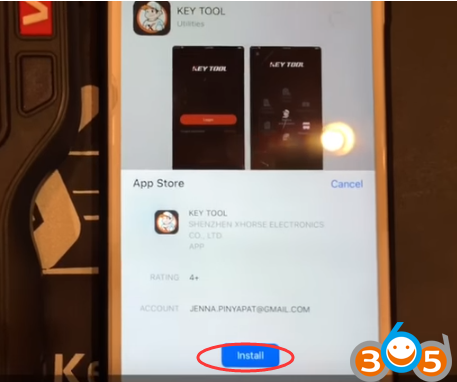
Open Apple Store, search VVDI Key Tool, press Get
Click Install to install application
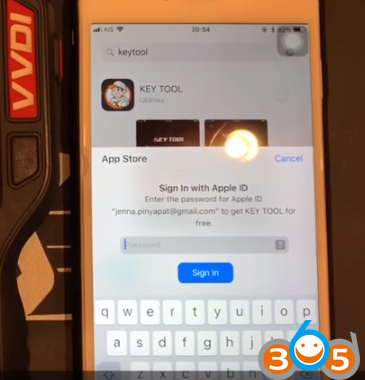
Fill Apple ID password
Download completed.
Step 2: Register App
Open Key Tool App
Accept notification selection
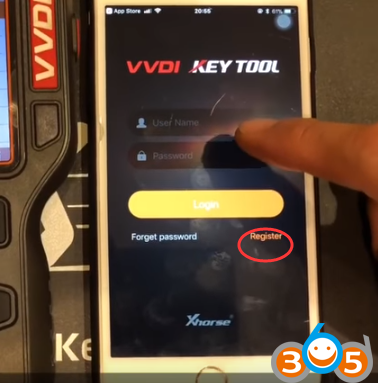
Press Register
You can register by telephone number or email, we choose email
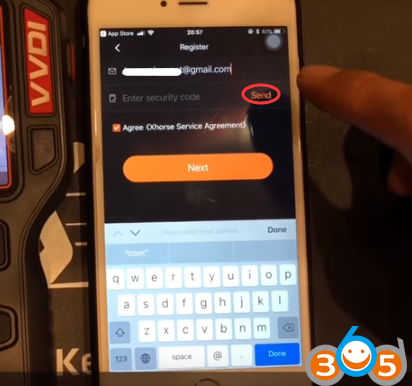
Fill in email, click Send to send the security code
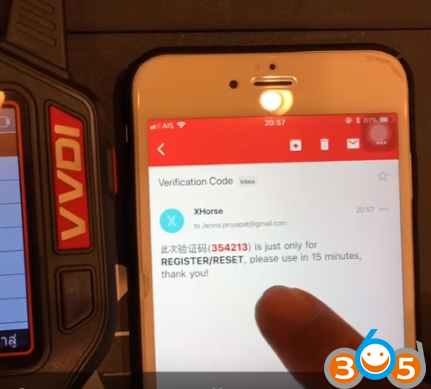
Check security code (6-digit) from your email
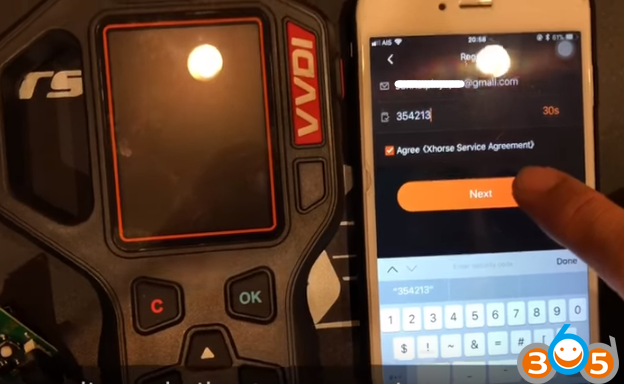
Then enter the security code within 60 sec
Click Next
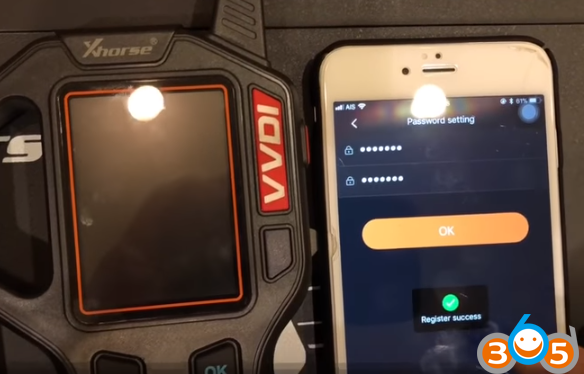
Set your password then press OK
Register success
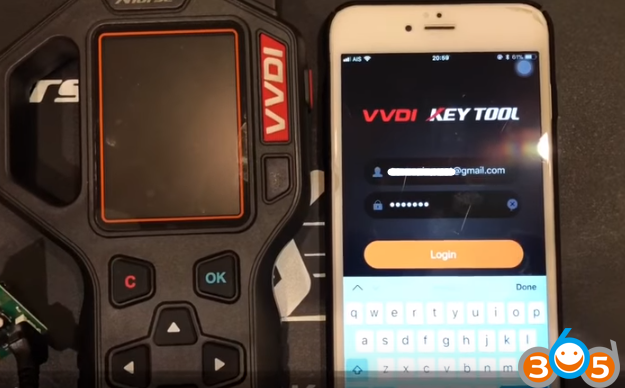
Step 3: Set up Bluetooth
Now login with your register email and password
Software function mainly includes transponder generating, transponder cloning ,transponder editing, remote generating, remote cloning, remote refreshing, bonus points mall, customer service, upgrade bulletins,etc.
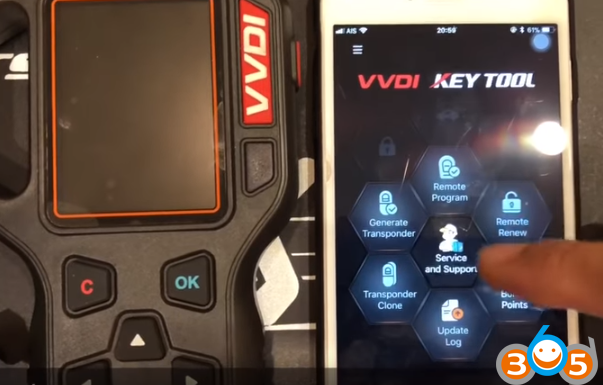
Login success
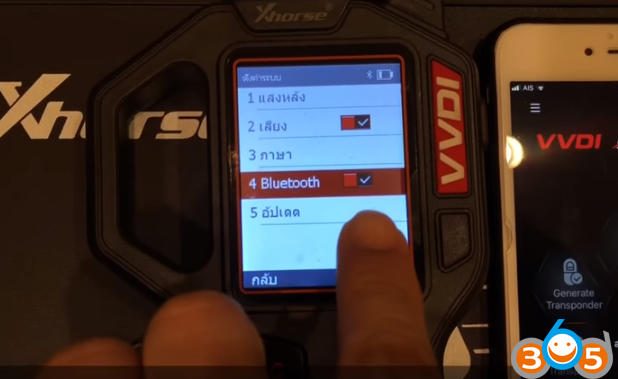
Open Bluetooth function in VVDI Key tool and smart phone
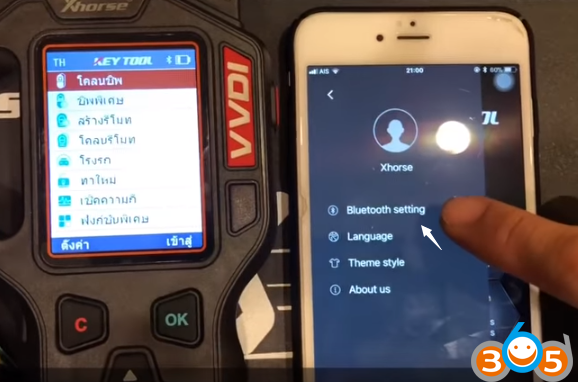

Bluetooth setting, choose VVDI KEY Tool SN to connect

Downloading device offline database from vvdi key tool to smart phone

Wait for 5 minutes, download 100%
Step 4: Generate Remote
Try to generate remote
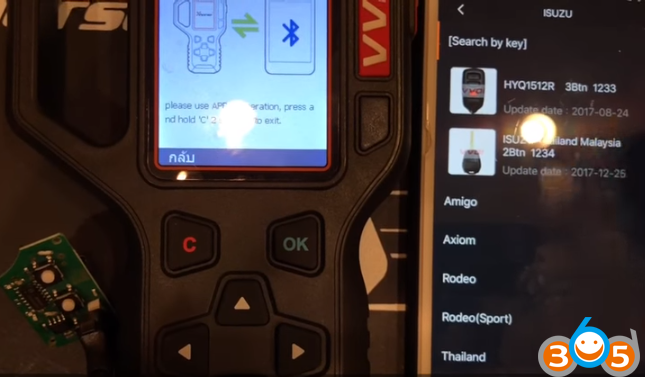
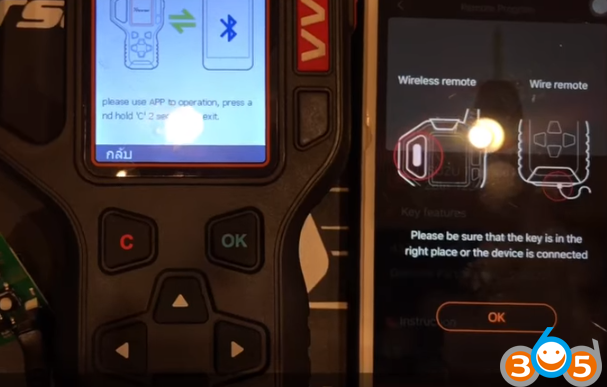
Select ISUZU 433MHz X/XN remote 2 button 1234
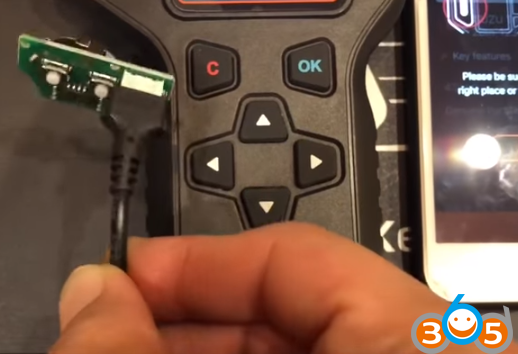
We have connect the wire remote
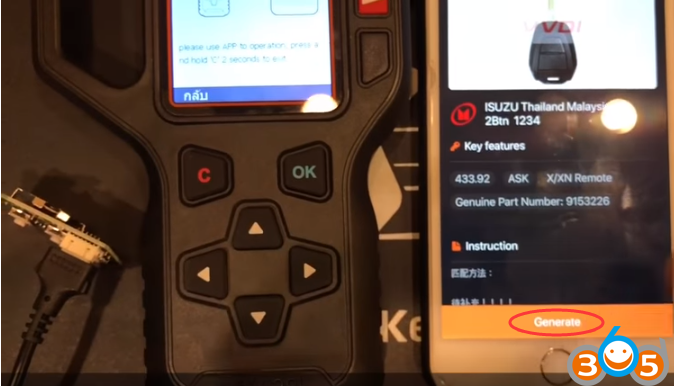
Press Generate
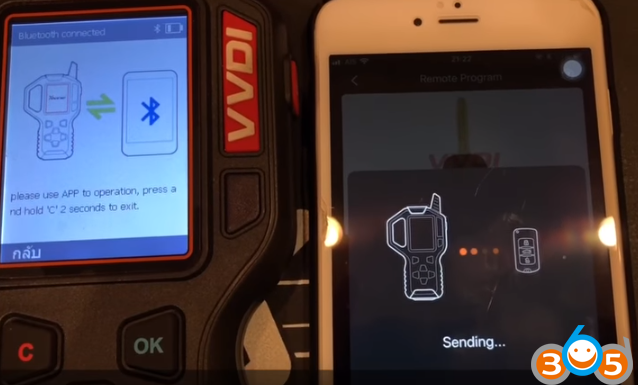
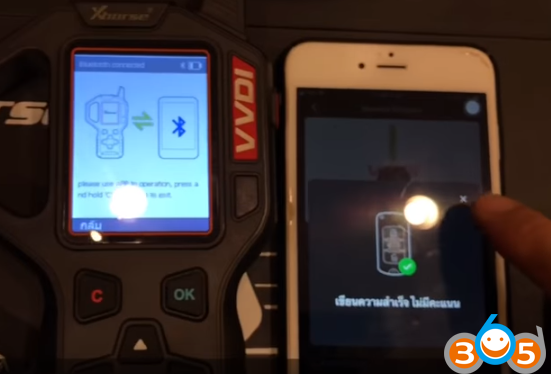
Sending data and writing success
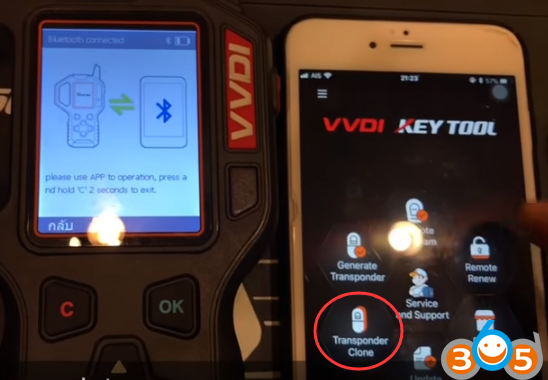
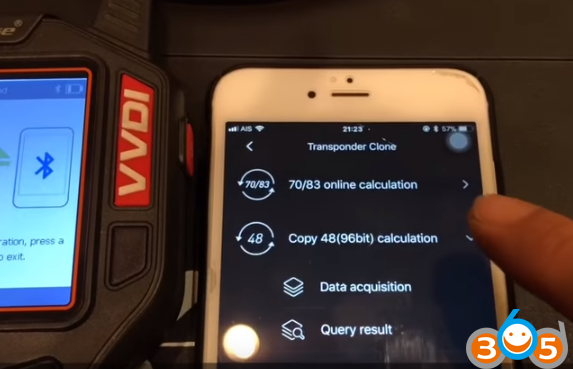
Then check the Transponder Clone function online for chip 70/83/48.
Other function all activated.
How to Install Bluetooth App for Xhorse VVDI Key Tool on iOS