How to Add Mercedes W211 Key with CGDI Prog MB
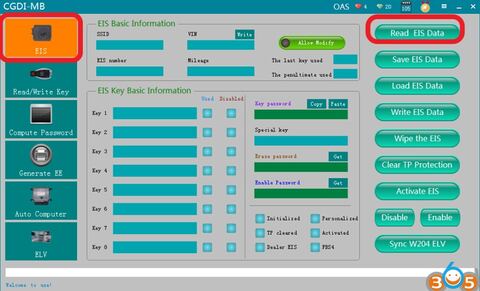
How to add new key to Mercedes W211 (copy key with key) using CGDI Prog MB key programmer.
Connect the CGDI MB, the OBD connects the vehicle, opens the door, and keeps the vehicle voltage stable (12V).
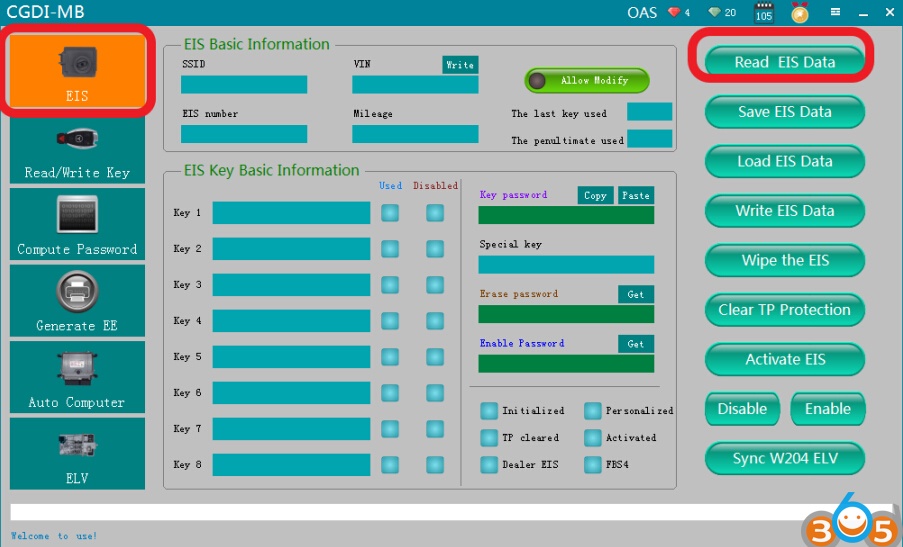
open software,click“Read EIS Data”
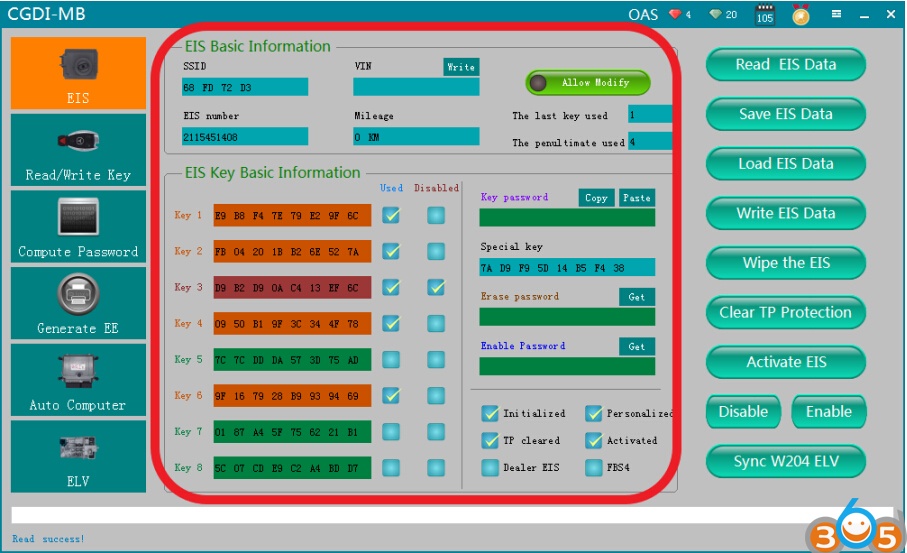
Read data success,show related information
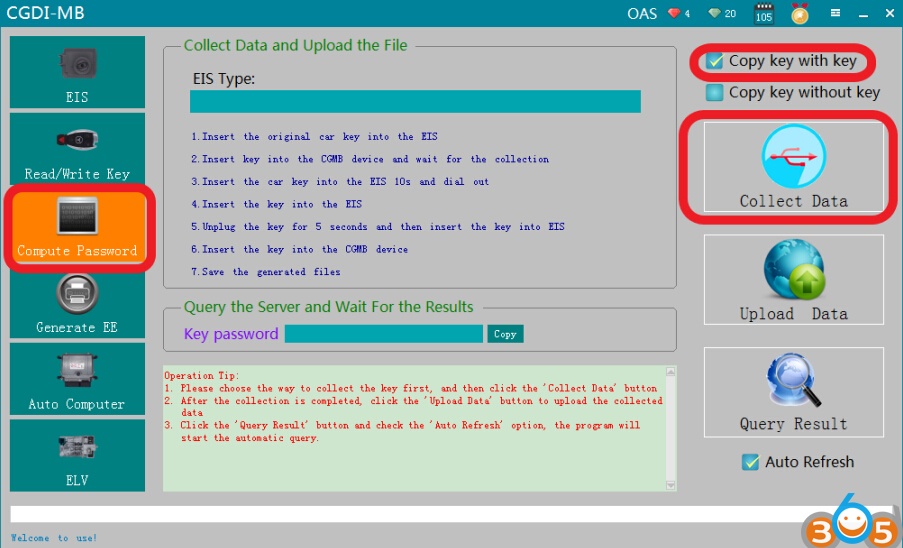
Turn to “Compute password”,choose“ copy key with key”,then click“Collect Data”
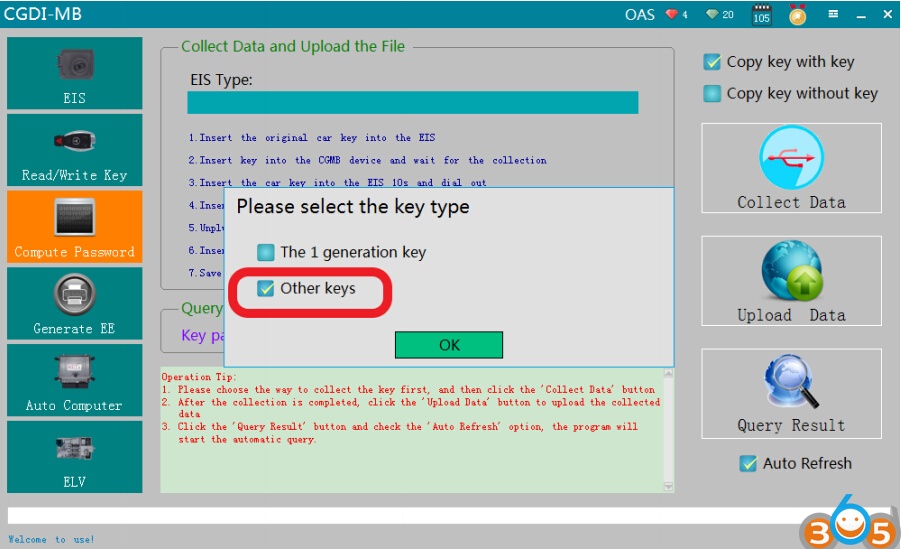
choose“other keys”, Click ”ok’
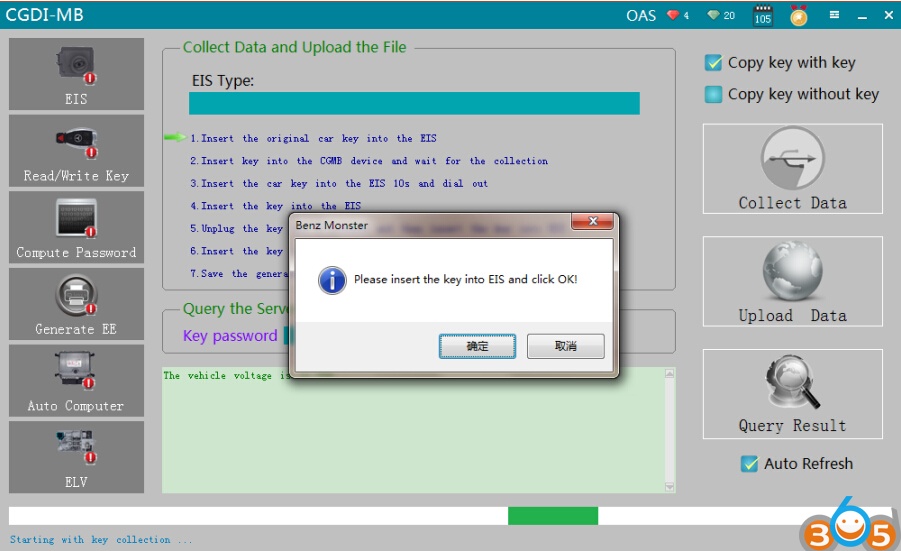
please insert the key into EIS and click ok
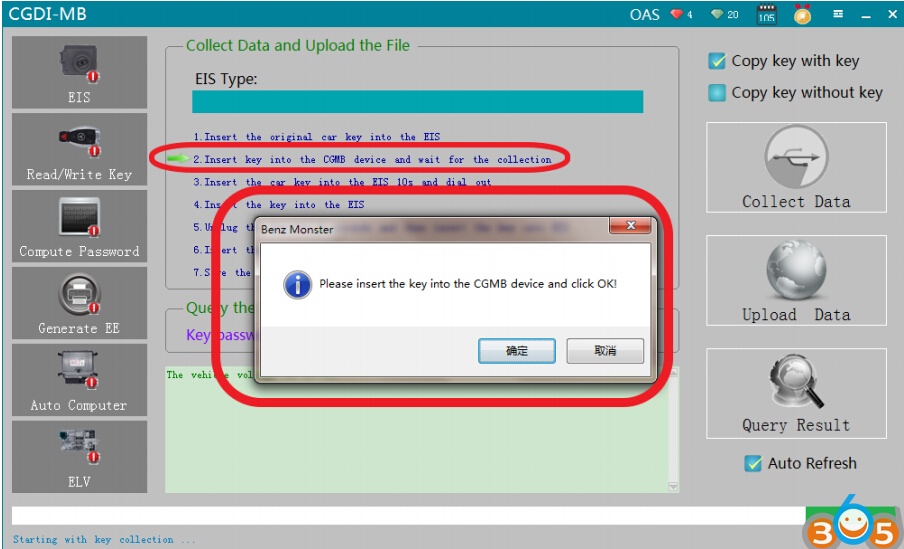
please insert the key into the CGMB device and click ok
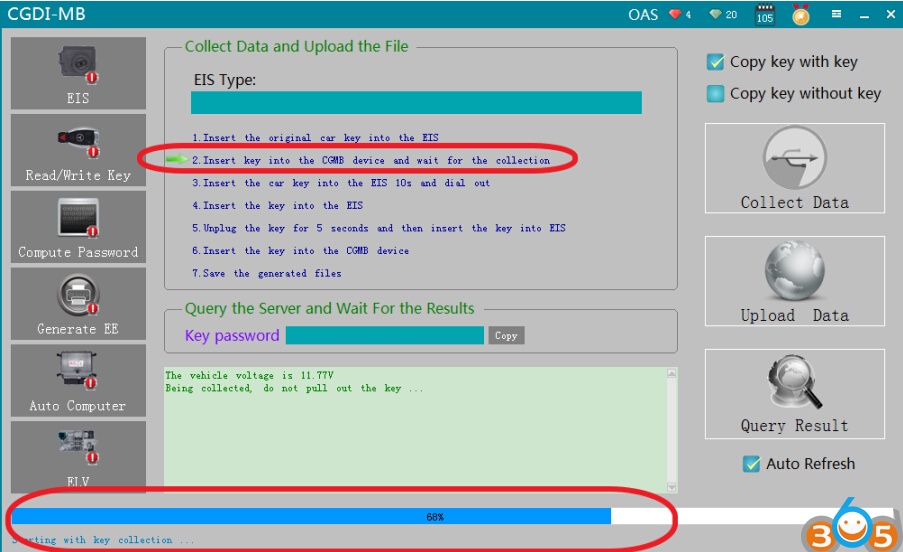
It is collecting the key data
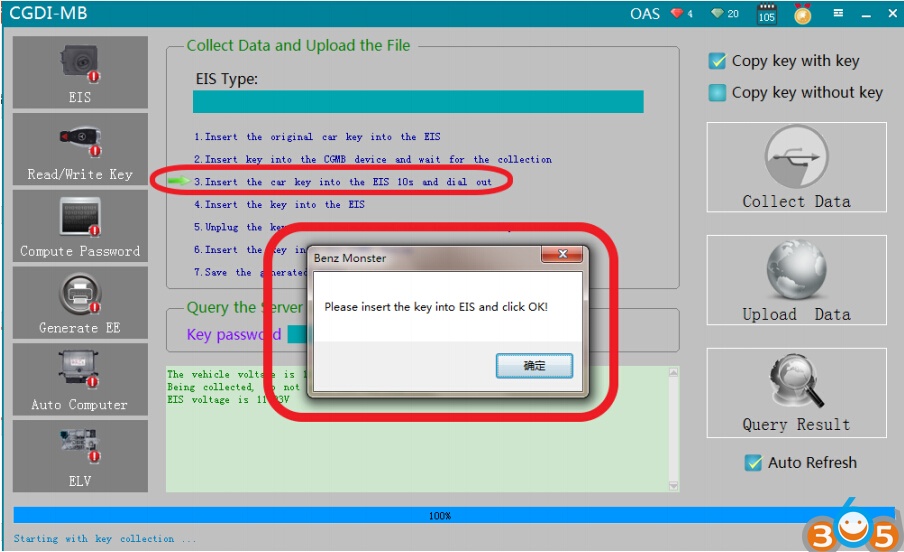
Key collection finished,please insert the key into EIS and click ok
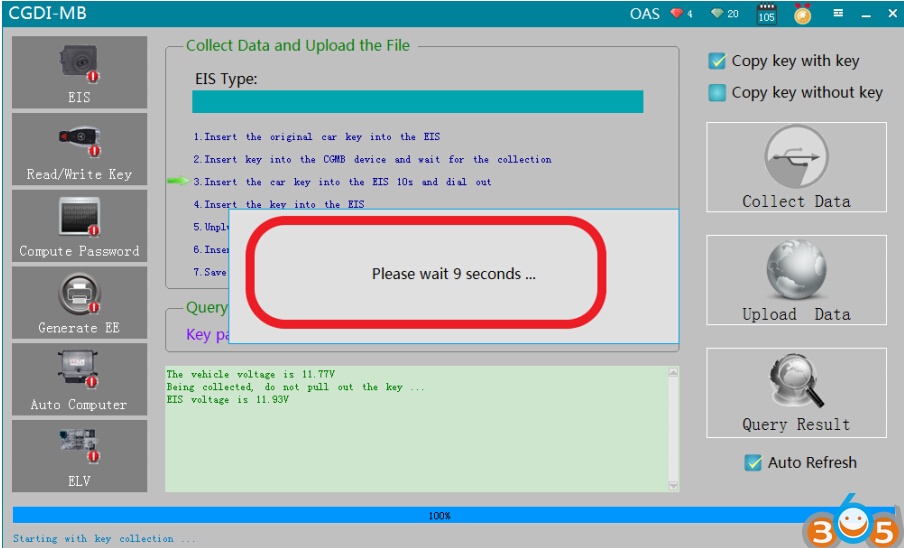
please wait 9 seconds
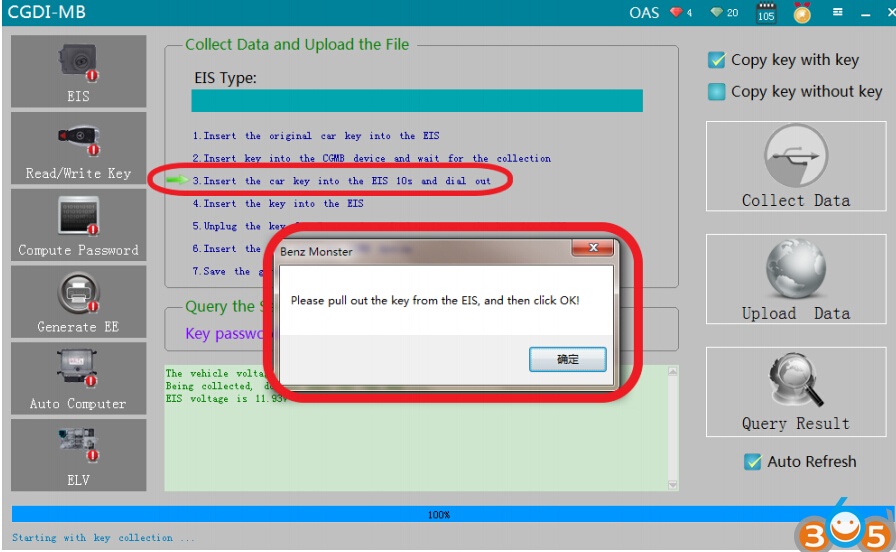
please pull out the key from the EIS, and then click ok
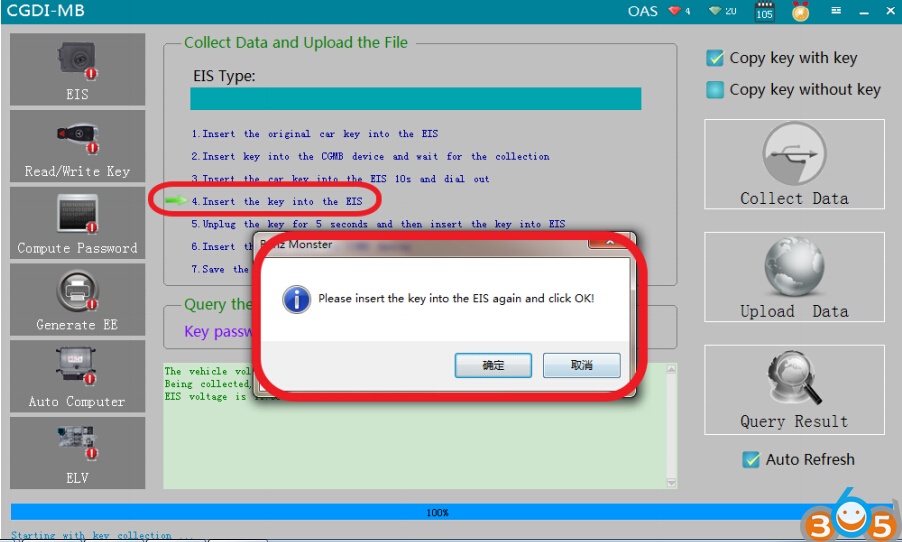
please insert the key into the EIS again and click ok
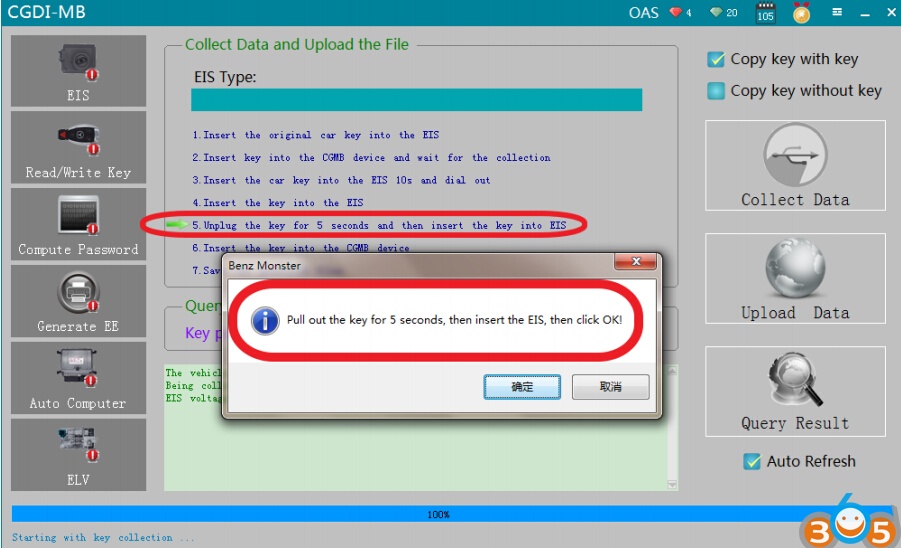
Pull out the key for 5 seconds,then insert the EIS, then click ok
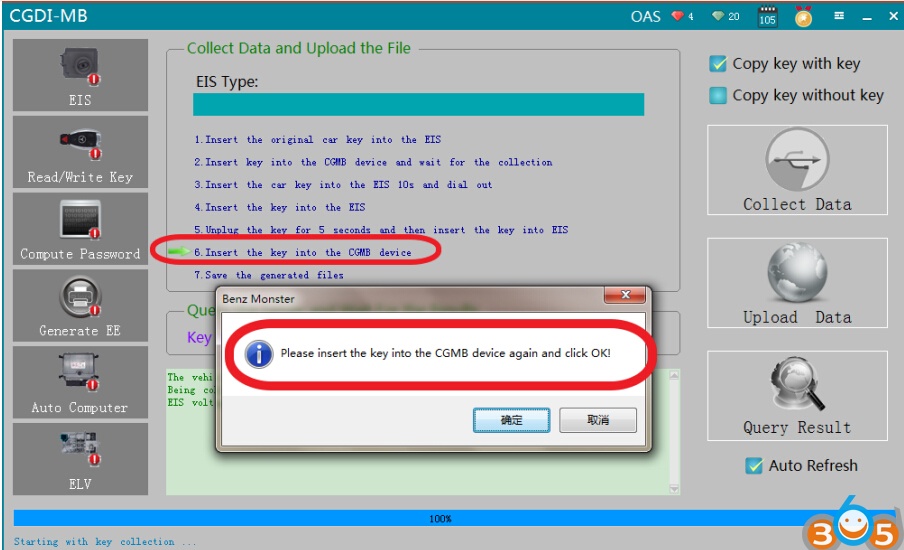
please insert the key into the CGDI MB device again and click ok
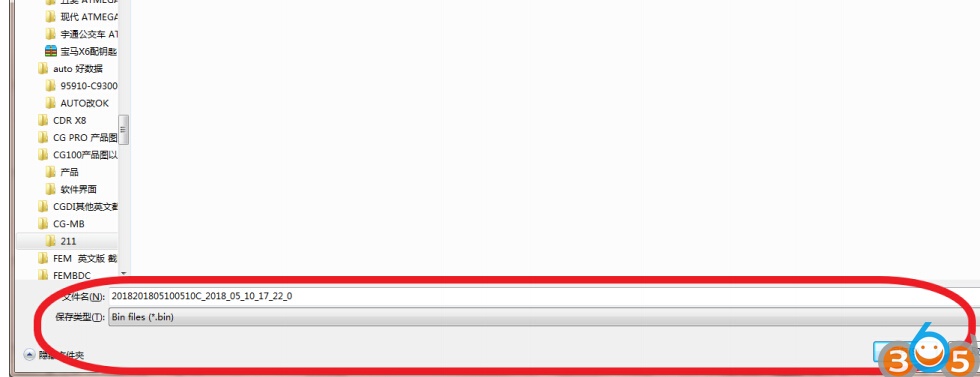
Collect success, save data, default file name
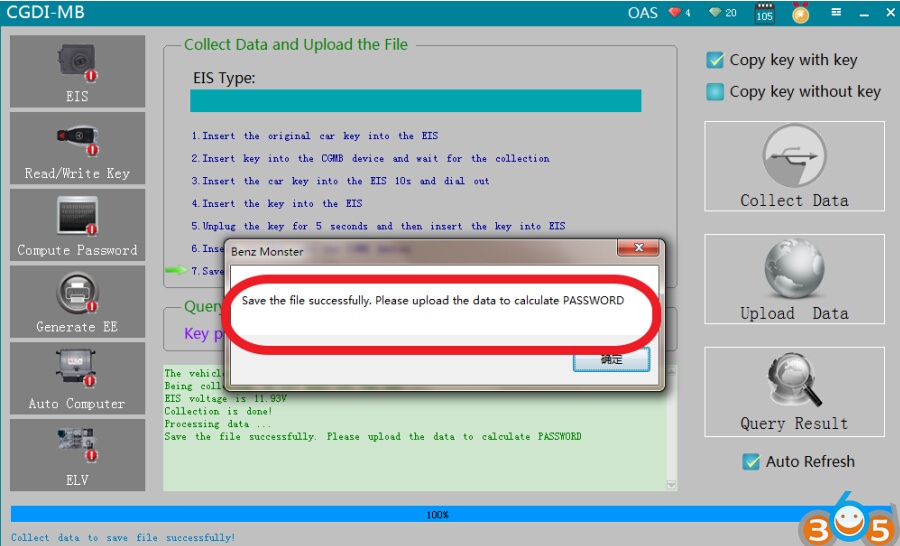
Save the file successfully,click ok
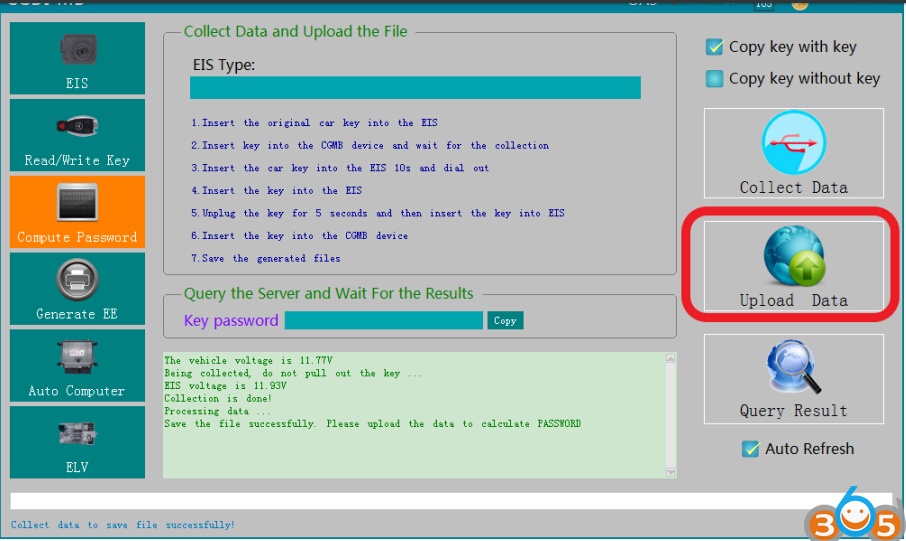
Click ” Upload Data ”
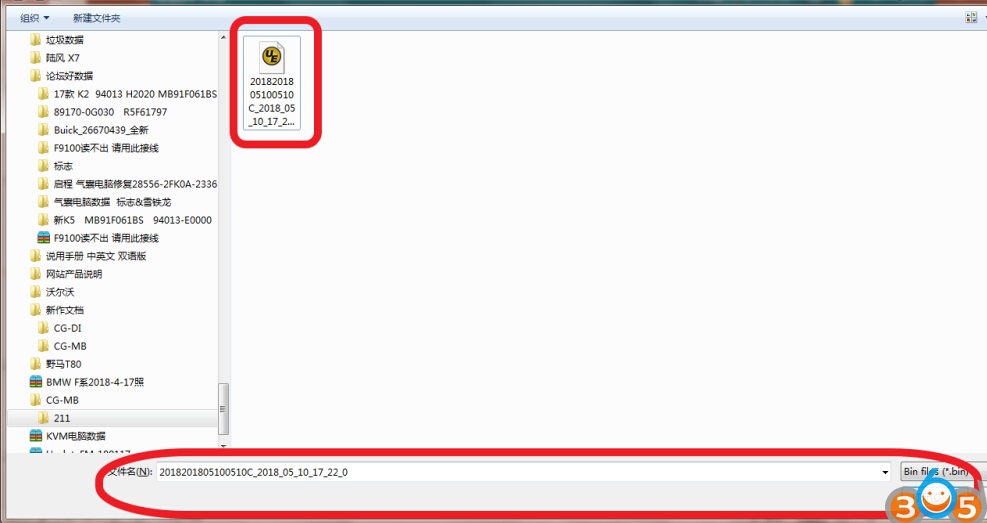
Open the file just saved in last step
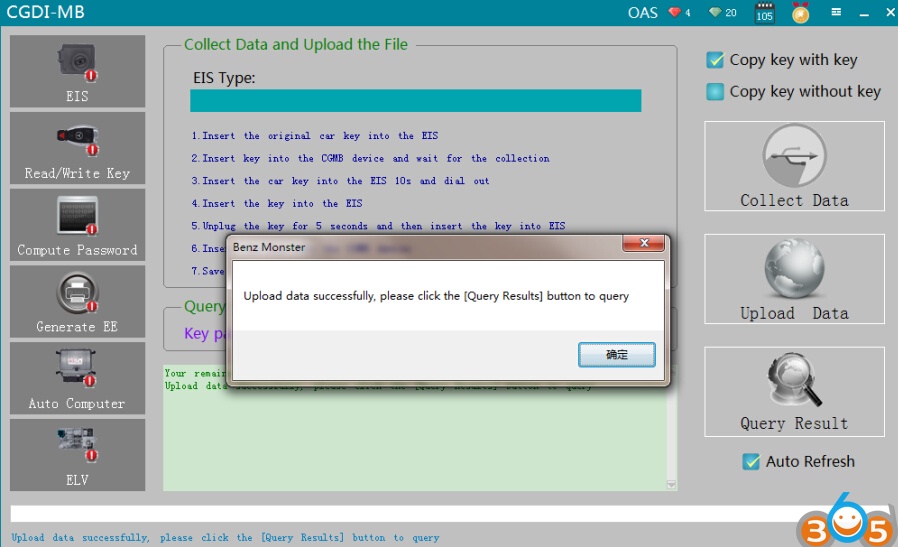
Upload data successfully
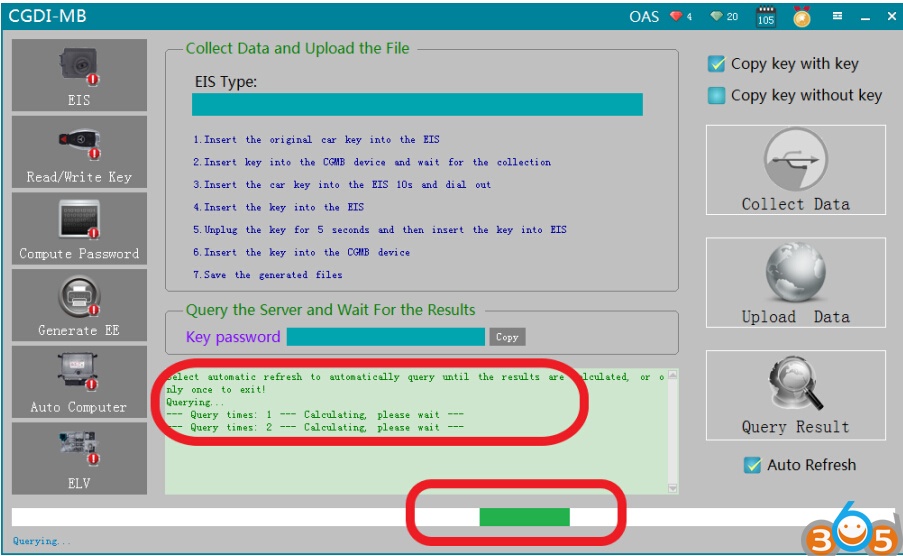
Click“Query Result”, please wait patiently
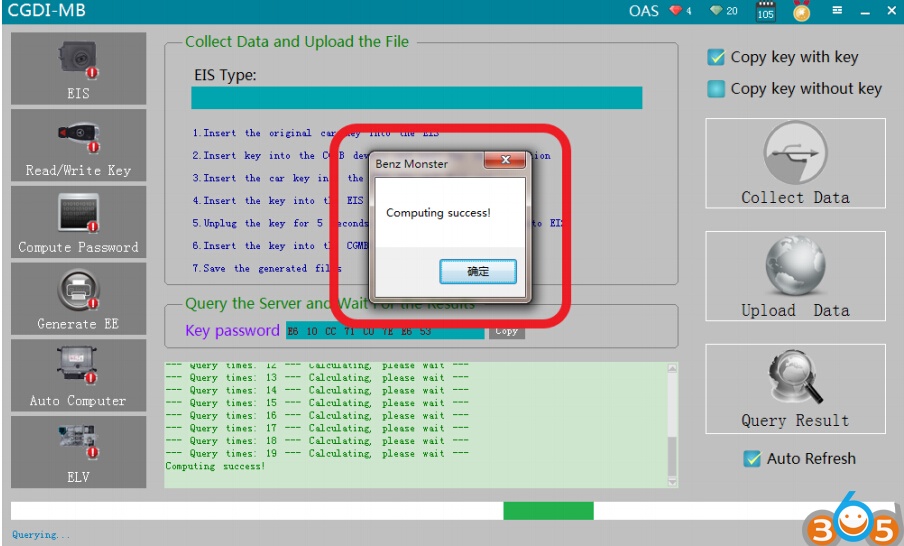
Computing success,click ok
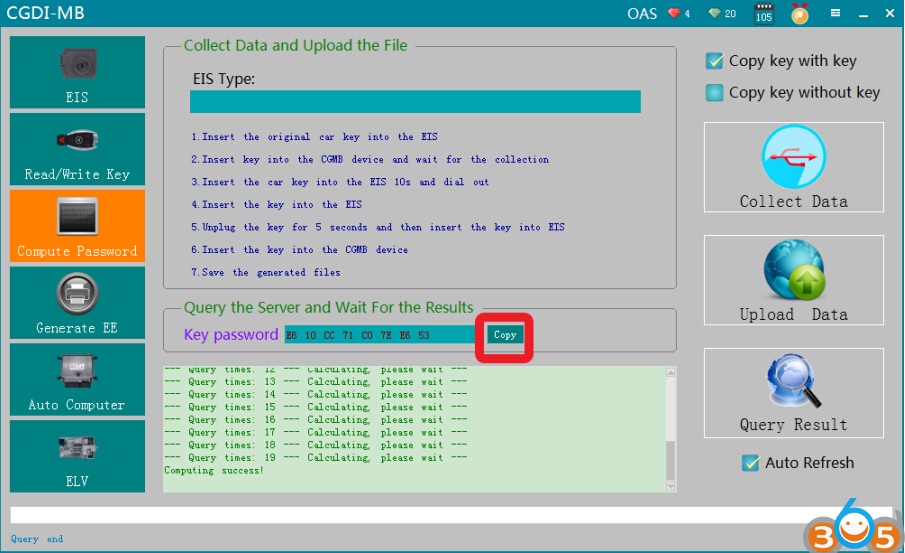
Copy password
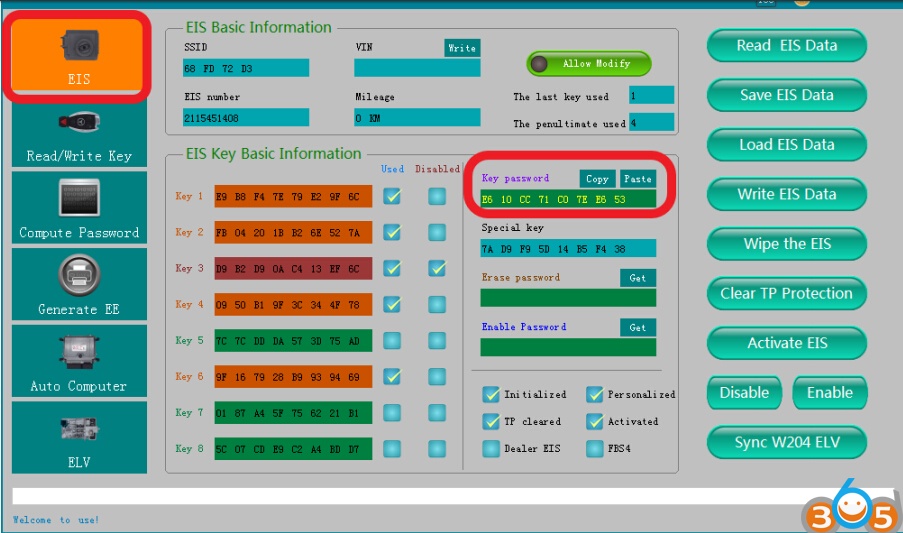
Go to the EIS interface and paste
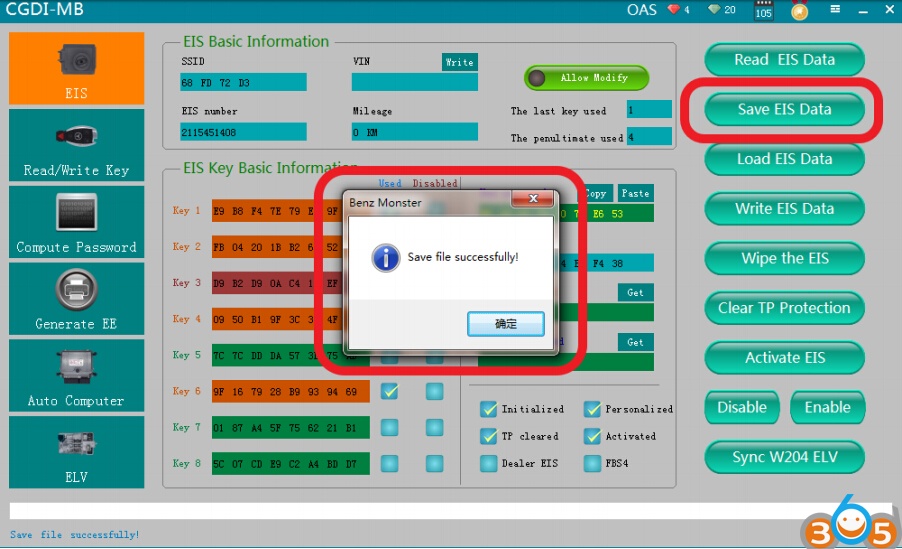
Save EIS data
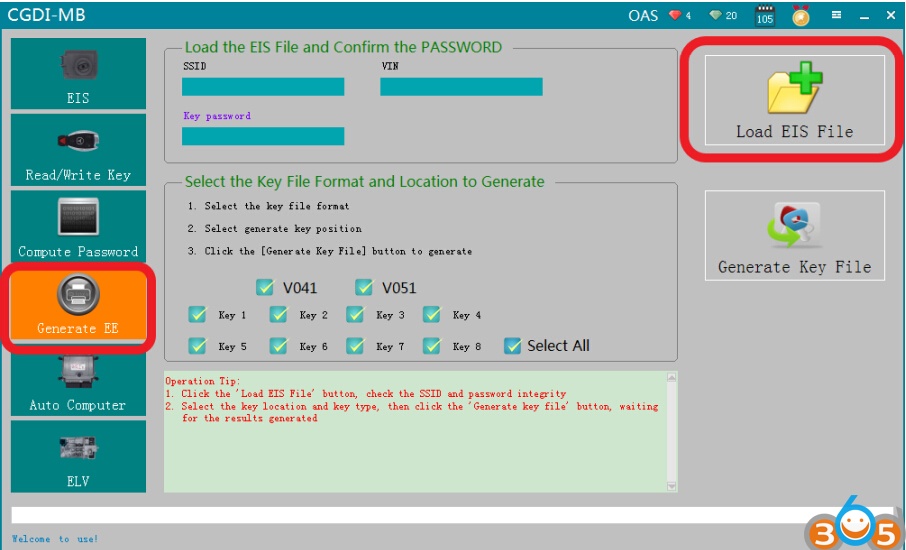
Turn to“Generate EE”,Load EIS file just saved
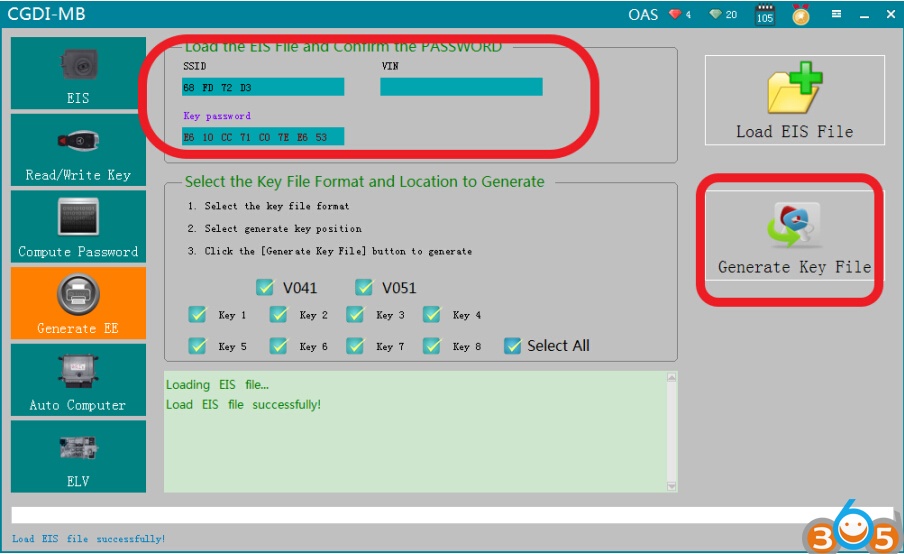
Check the information and click“Generate key file”
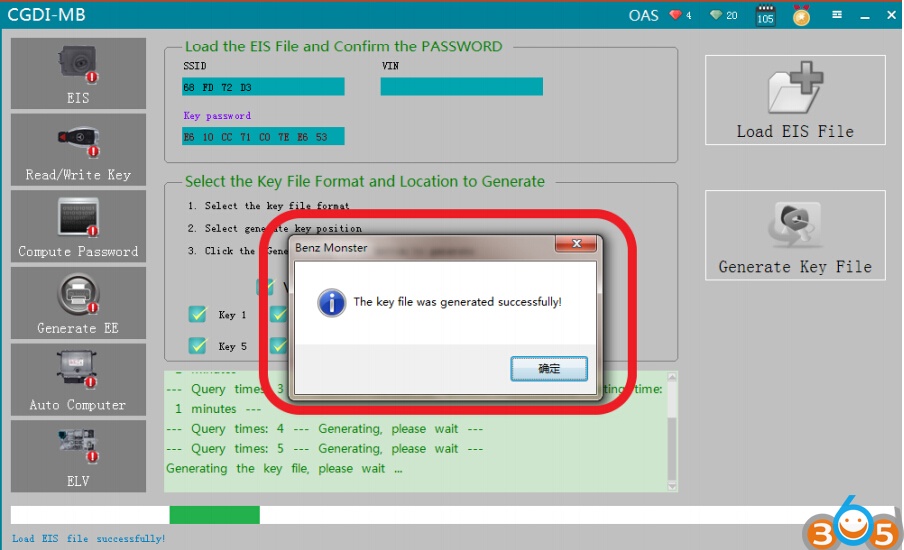
Generated file successfully and save the file
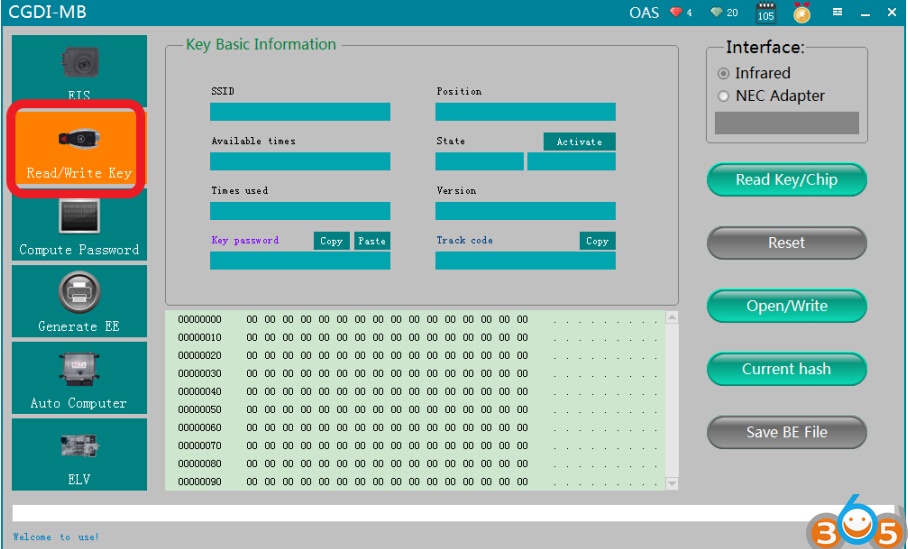
Go to “Read/ write Key
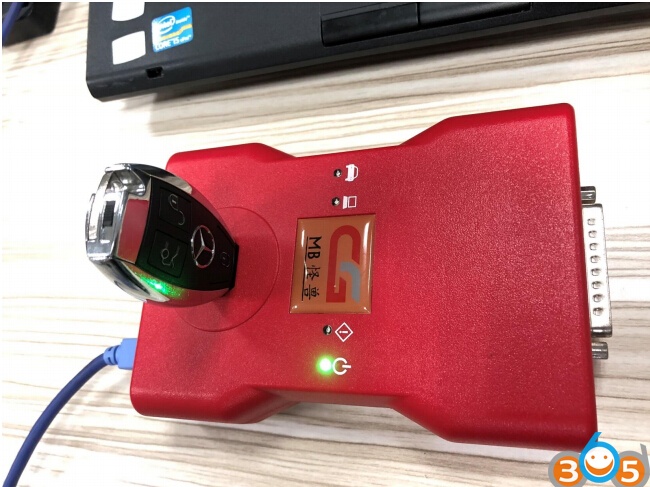
Put new key into CGDI Prog
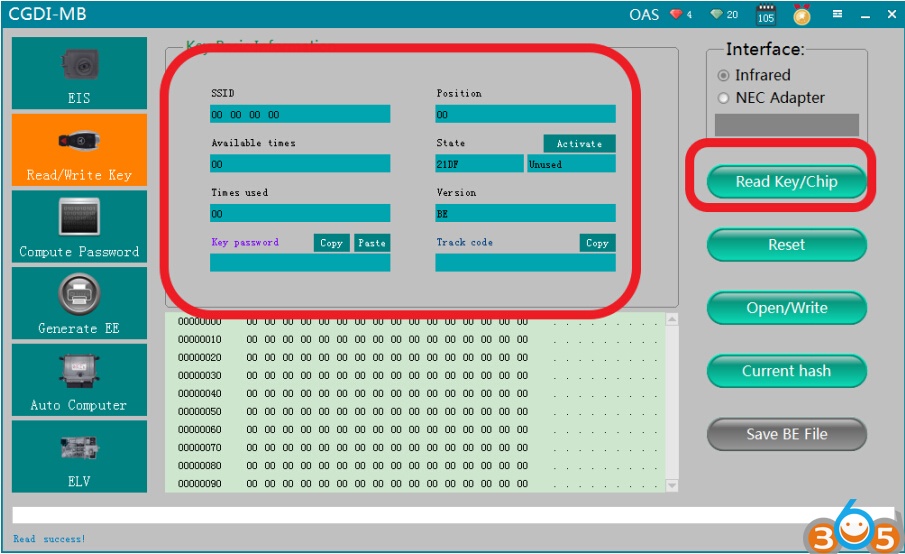
Show key information after reading
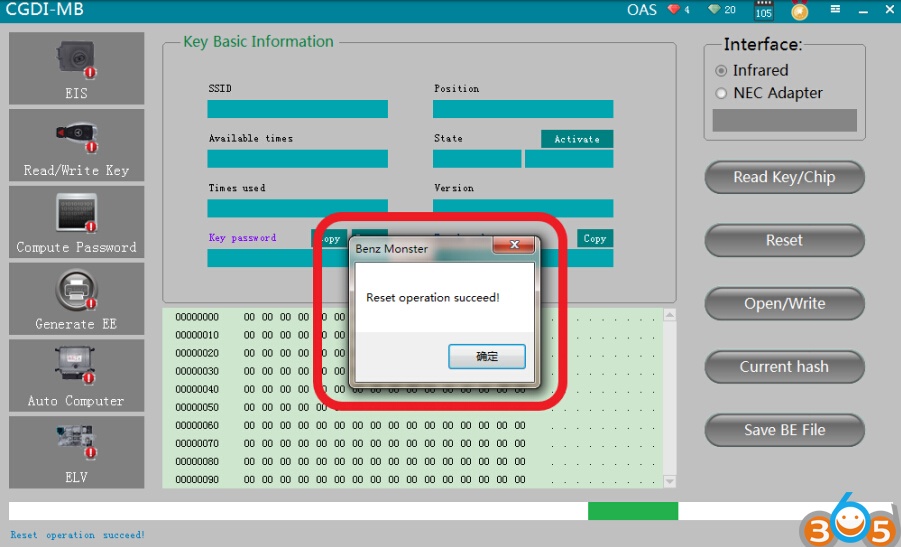
Click“Rest/wipe”, prompt ”Reset operation succeed, click ok
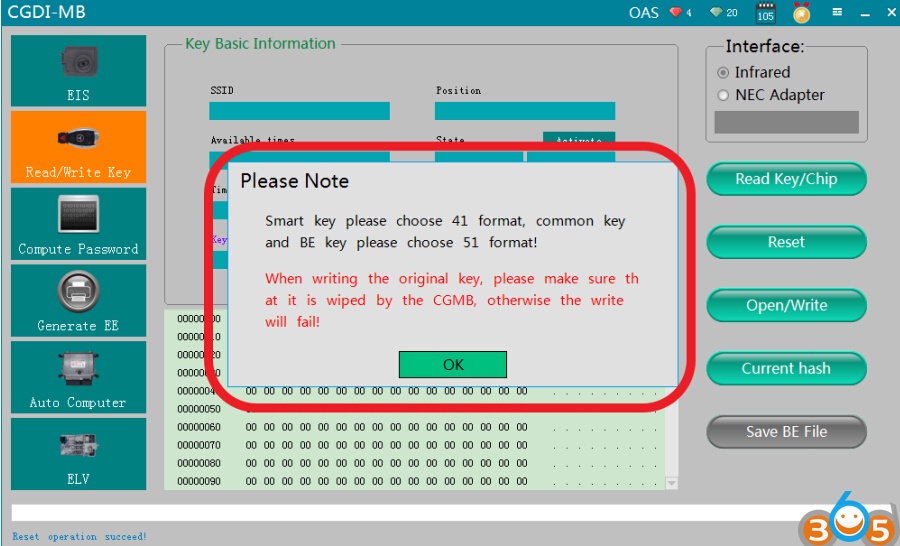
Click“open/write”,please note the prompt
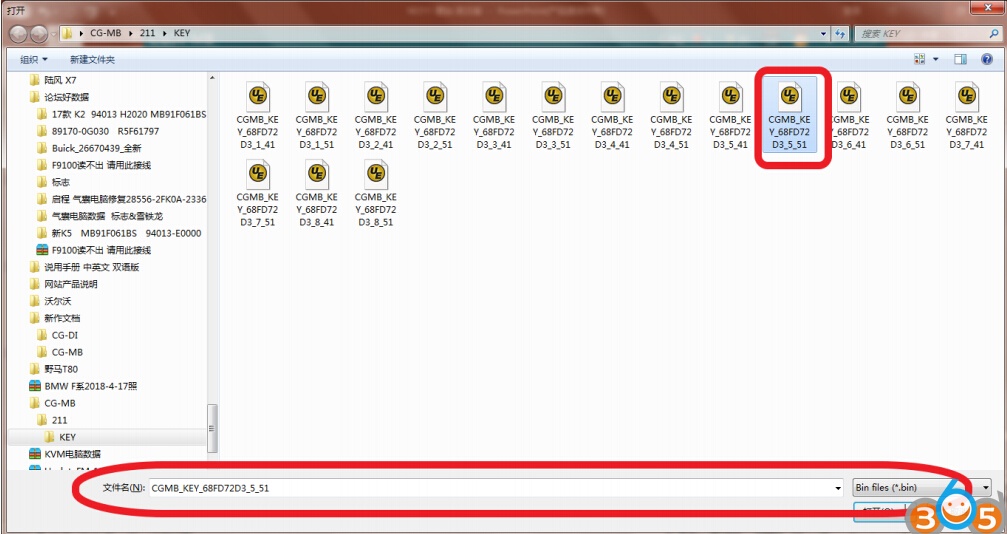
Choose an unused key position
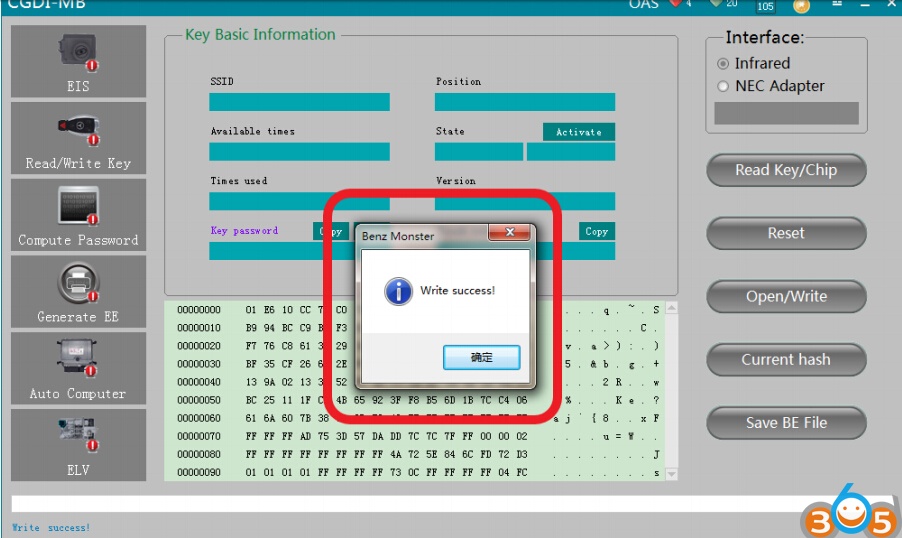
write success
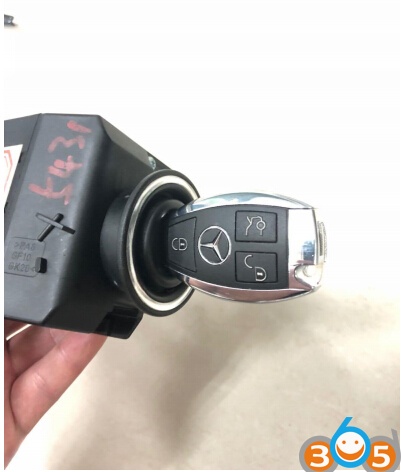
Insert the new key into EIS and start
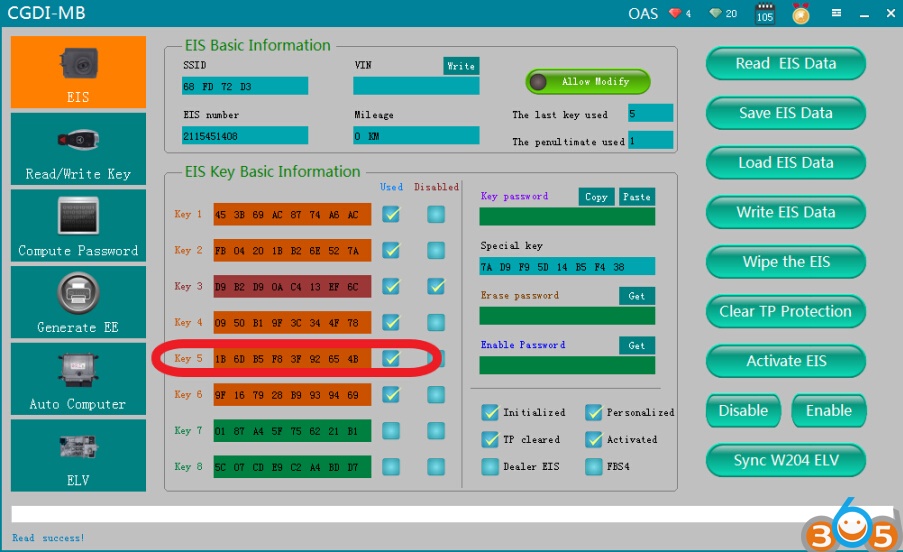
Read EIS again. show that key position was used.
Program success.