Yanhua Mini ACDP "Configure ACDP device WIFI failed" Error Solution
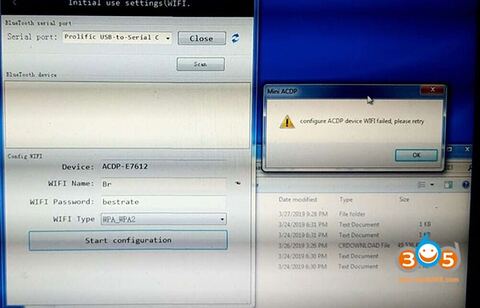
This is obdii365 tech support for Yanhua Mini ACDP with the following error message when connected to the mobile:
Configure ACDP device WIFI failed. Please retry
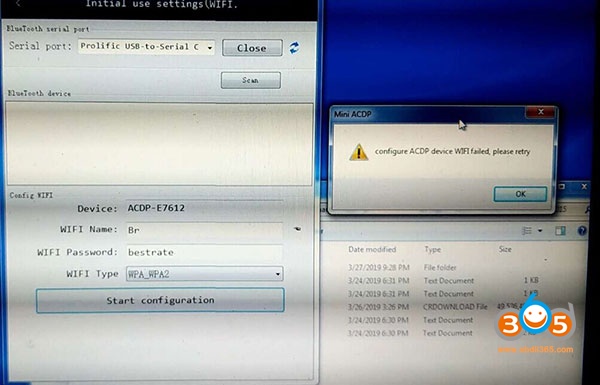
Yanhua ACDP tech support from obdii365.com:
You don’t select the right serial port for your ACDP bluetooth adapter.
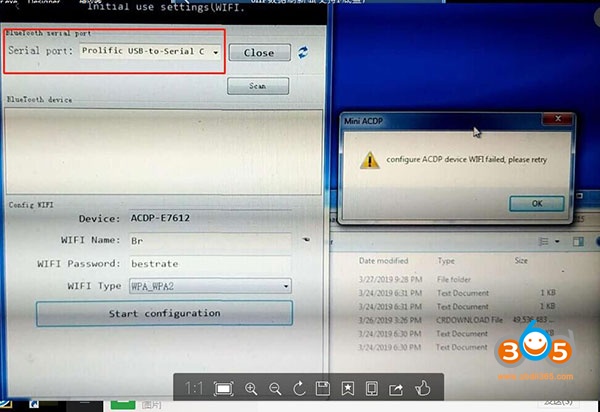
Please select a USB serial port
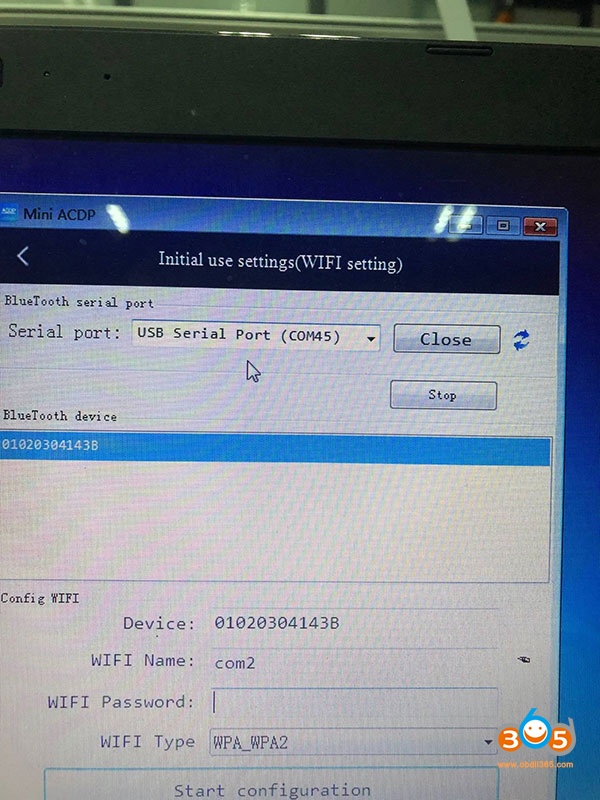
Good to know: ACDP Bluetooth setup instruction
Step 1. Bluetooth adapter connection
Step 2. ACDP initial use setup
Step 3: Device ID binding
in detail…
Step 1. Bluetooth adapter connection
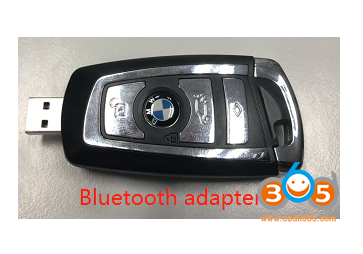
Plug the Bluetooth adapter into the PC USB port ( Make sure the driver is installed) and the PC is connected to WIFI
This is the Bluetooth adapter
source: http://www.obdii365.com/wholesale/yanhua-mini-acdp-bluetooth-adapter.html
Step 2. ACDP initial use setup
Run ACDP software on the PC desktop

Go to Mini ACDP setting – initial use settings
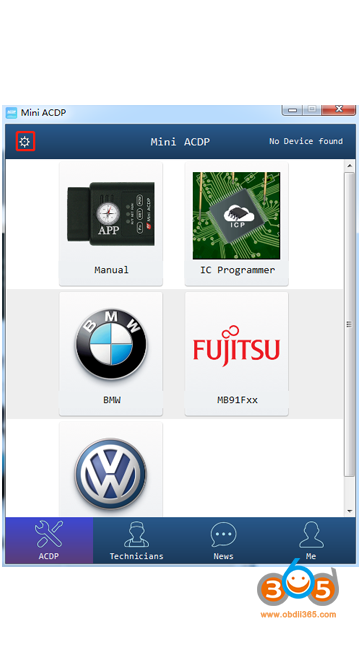
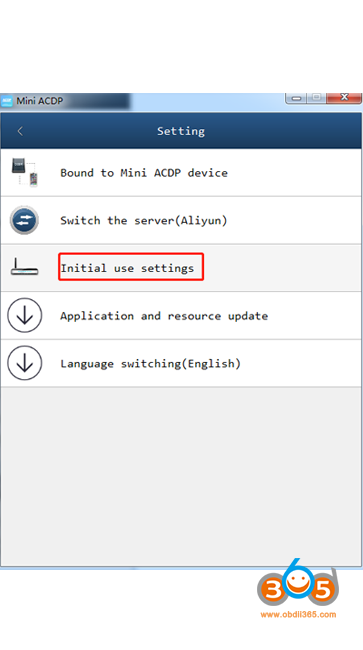
Initial use settings (ACDP)
- the pc is connected to the wifi and confirm it has access to the internet
- acdp hardware access power adapter
- press and hold the “SET” button on the acdp device for about 7 seconds until the device buzzer’s
sounds, then release the “SET” button and click on “Next”

Initial use of settings (WIFI configuration)
If the PC is a laptop with WIFI access function, read [note 1]
If the PC is connected through a WIFI router with wired network, read [note 2]:If the PC with WIFI access function, Connect the PC to WIFI.
If the PC without WIFI access function, Connect the WIFI adapter with the PC USB, Connect the WIFI
and follow the steps below
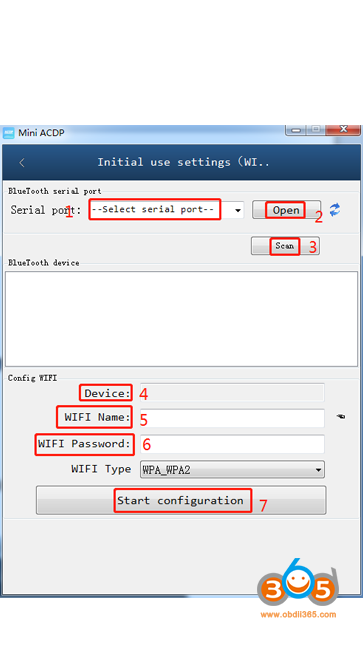
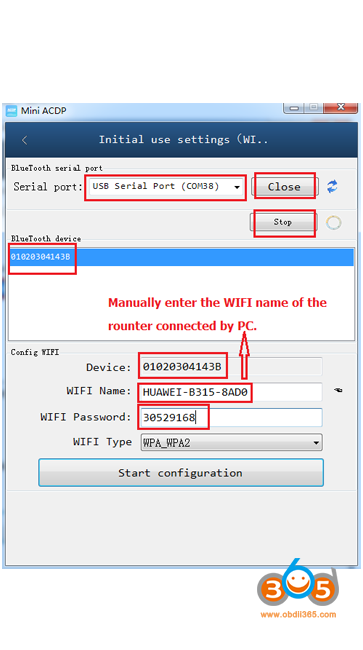
- select serial port
- open
- scan
- device
- wifi name
- wifi password
- start configuration
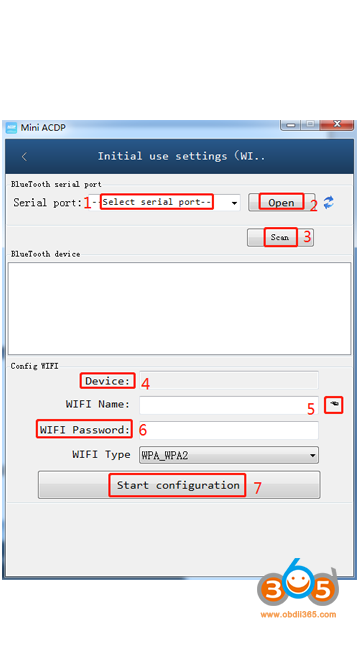
Yanhua ACDP Bluetooth connection success!
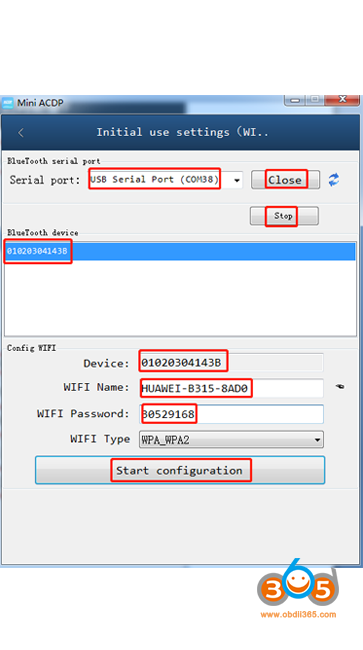
[note 2] If the PC without WIFI access function, the PC is connected through a WIFI router with wired network. Follow the steps shown as below.
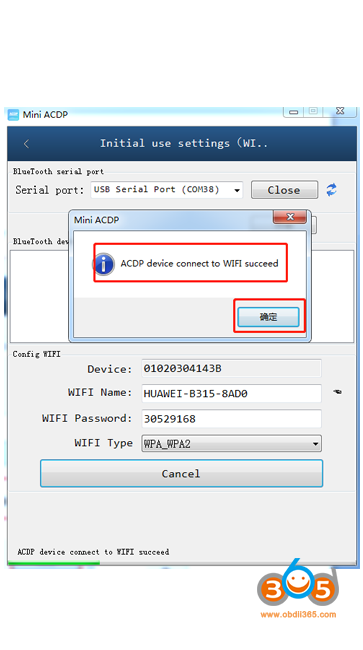
ACDP WIFI connection success!
Step 3: Device ID binding
Go to id binding after wifi connection is done
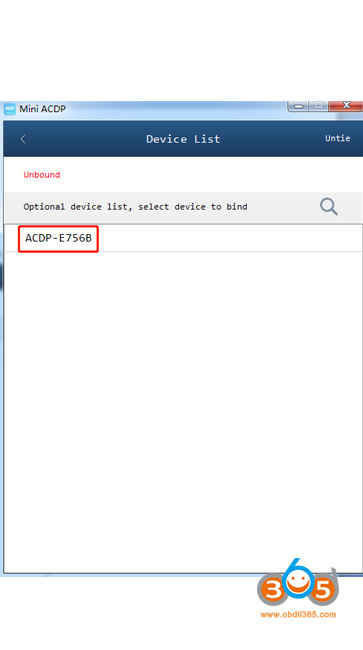
Select device ID to bind
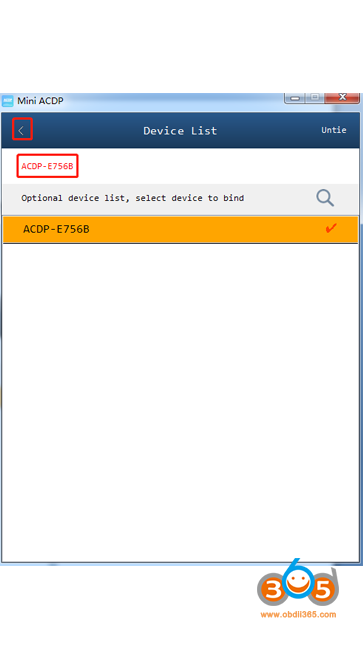
Confirm the device id and back
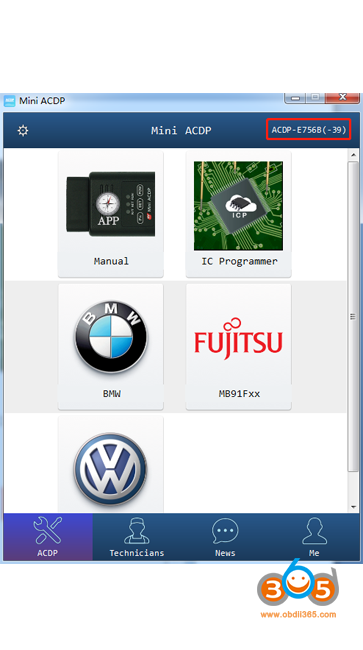
Confirm the device is bound and connected successfully
Job’s done!
That’s all about ACDP bluetooth setup.
For more details, pls watch the Youtube video
ACDP tech support: http://www.obdii365.com/producttags/yanhua-acdp.html