How to Add Land rover KVM XEP100 Key with CG Pro?
CG Pro 9S12 programmer adds Jaguar/Land rover KVM key programming (no need other devices) in previous software upgrade. Here’s a demo guide on adding a new key to Land rover KVM XEP100.
Step 1: Read KVM data
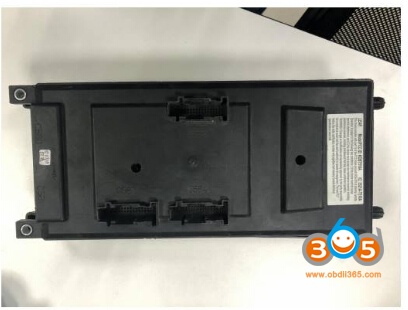
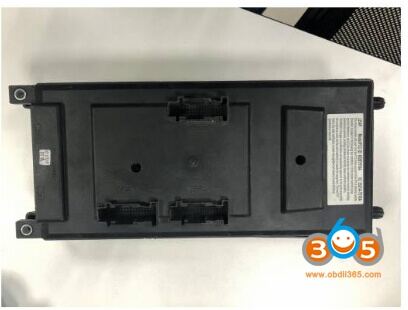
BCM computer

RFA computer XEP100
Remove the BCM and RFA computer from the vehicle
Check the wiring diagram in CG-Pro software
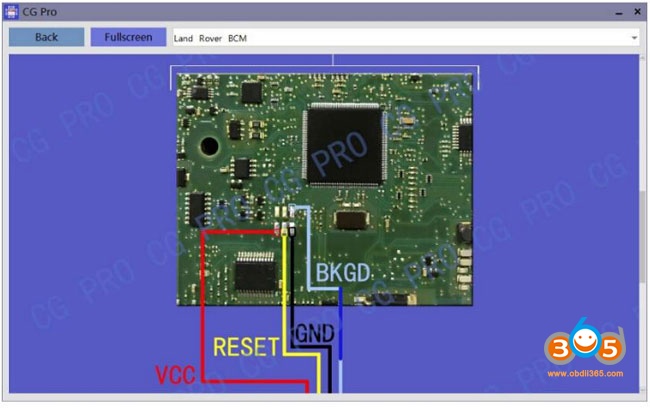
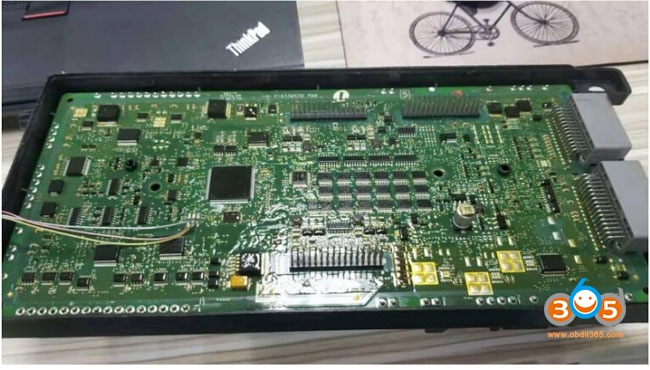
wiring to BCM
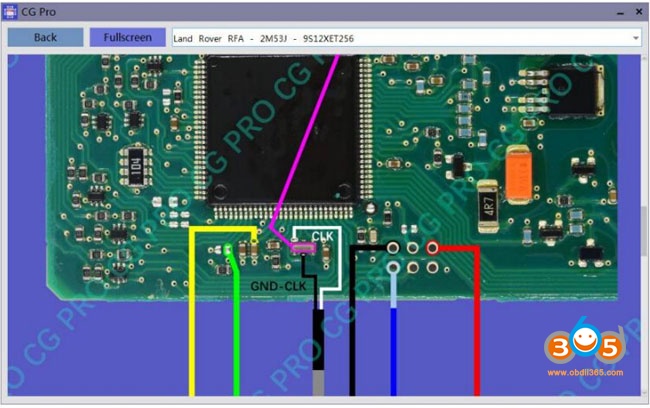
wiring to RFA 2m53j 9S12XET256
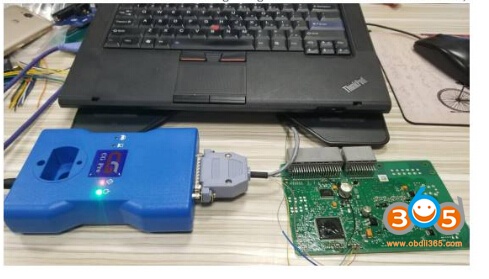
Connect CG Pro programmer following the wiring diagram
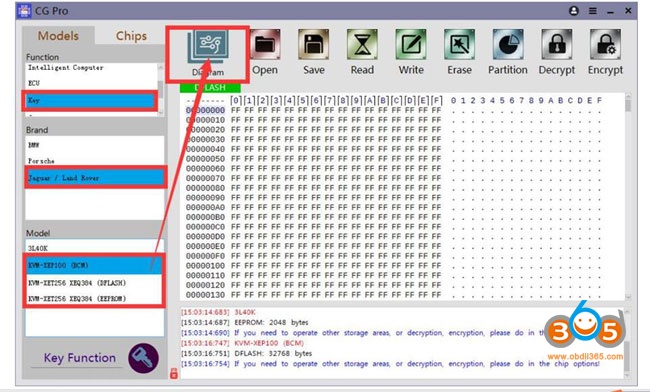
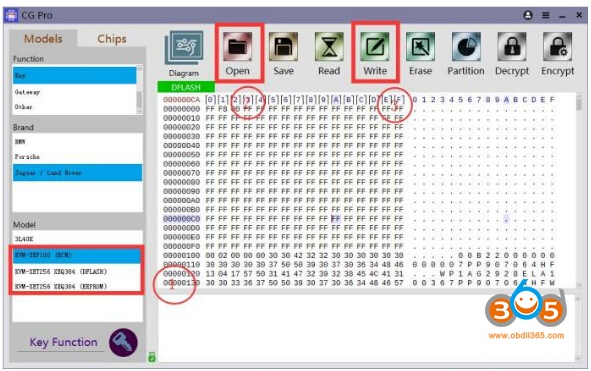
Select Key->Jaguar/ Land rover->KVM-KEP100 (BCM) to read BCM data
Then read KVM-XET256 DFLASH and EEPROM data one by one
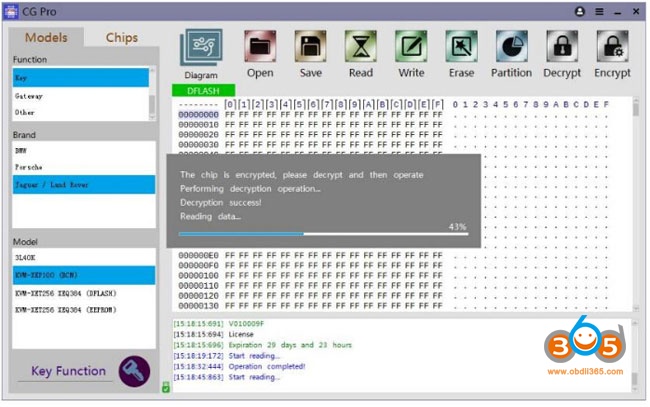
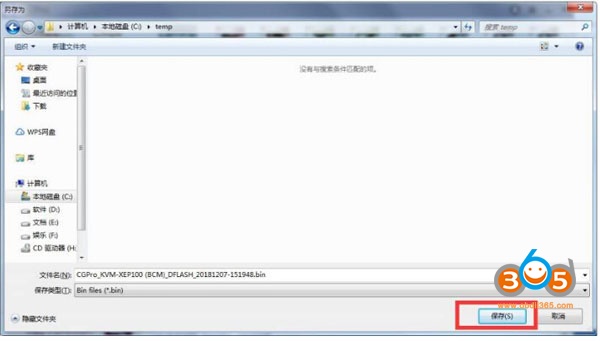
Save BCM, DFLASH and eeprom data
Don’t remove the wiring. We need to write data later after write key.
Step 2: Write Key
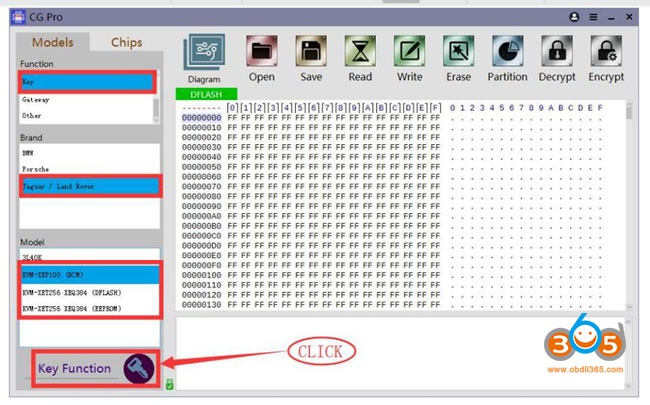
In CG-Pro software, select Key Match->Jaguar Land rover, select corresponding KVM model, click on the key function to program key
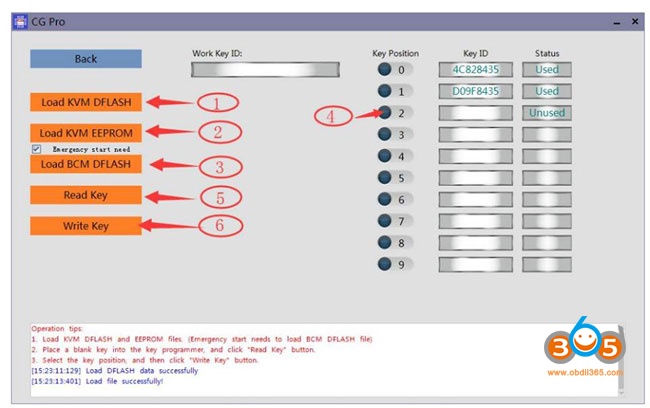
Load KVM DFLASH
Load KVM EEPROM
Load BCM EEPROM
If your vehicle equipped with emergency start, you have to tick the 3rd option and load BCM data
Select a key location
Click Write Key
Write key success
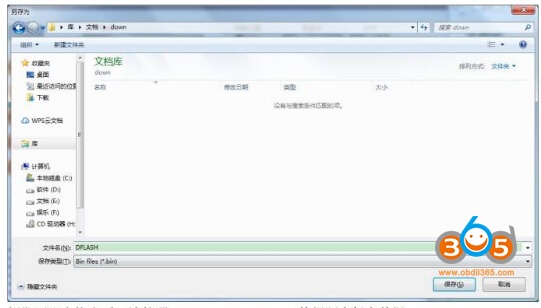
Save new key data after write key.
Step 3: Write data back
Go back to CG Pro software
Open new key data just saved
Write data
Done.