How to use CGDI MB to Program CGDI ELV Emulator Step by Step
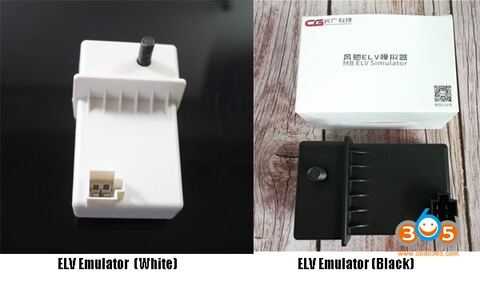
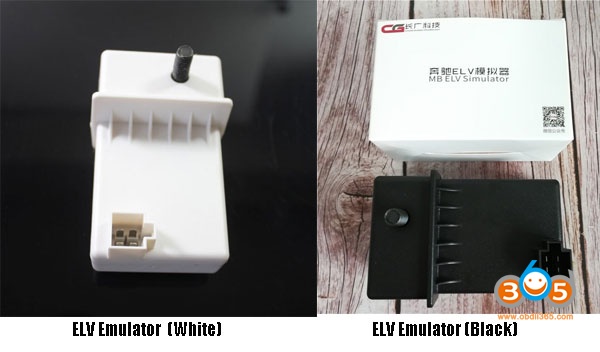
How-to: program CGDI ELV Emulator with CGDI Prog MB Benz key programmer step by step.

In CGDI MB Software, choose Compute Password option->Collect Data-> The 1 generation key
We start with insert key in EIS
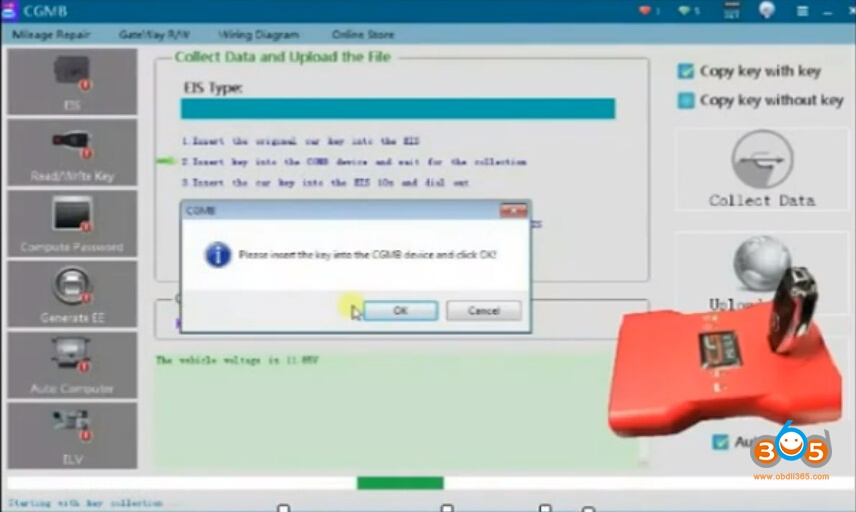
Remove key and insert it in CGDI IR shown as picture
We have to wait till its is 100% loaded without touching the key
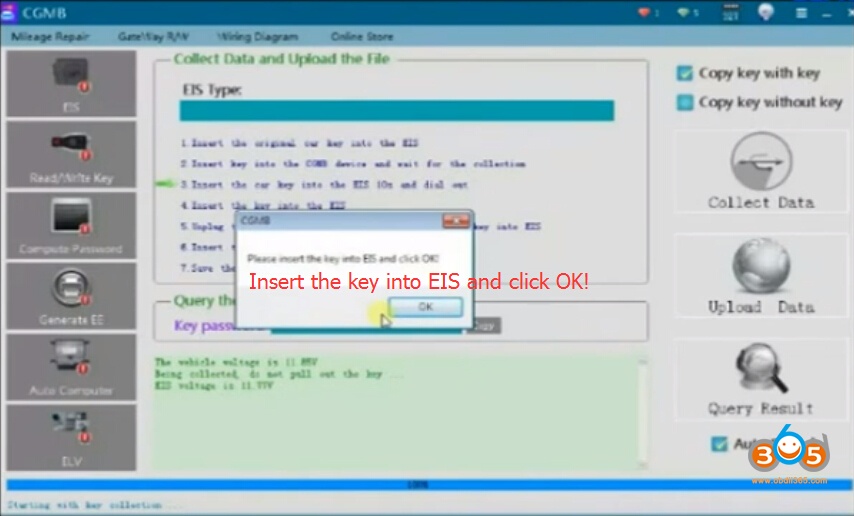
Remove key from CGDI MB and insert it back in EIS
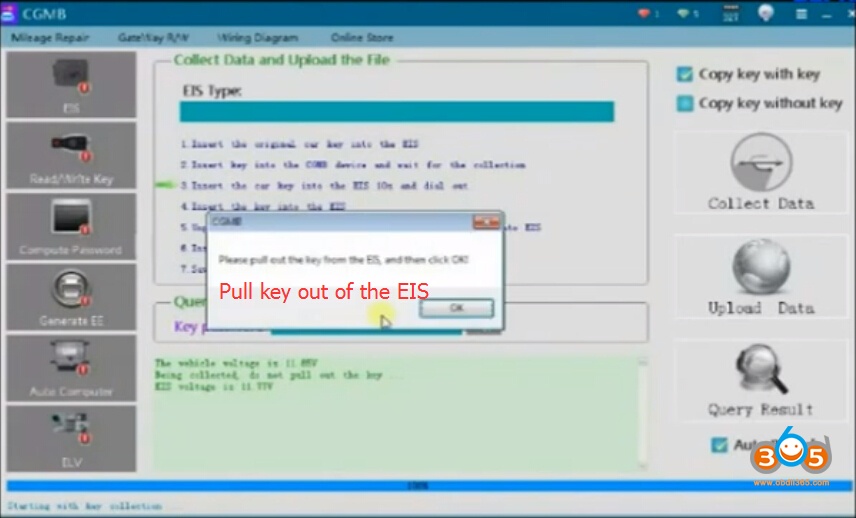
Pull key out of EIS
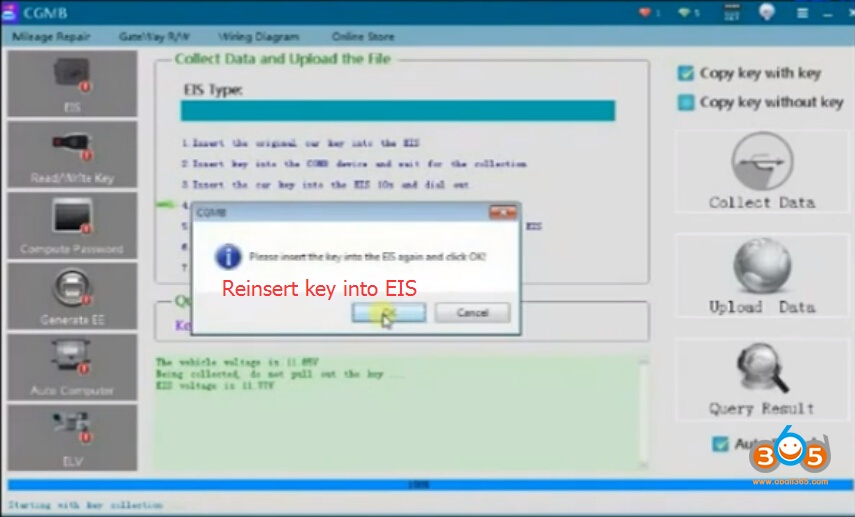
Reinsert key into EIS
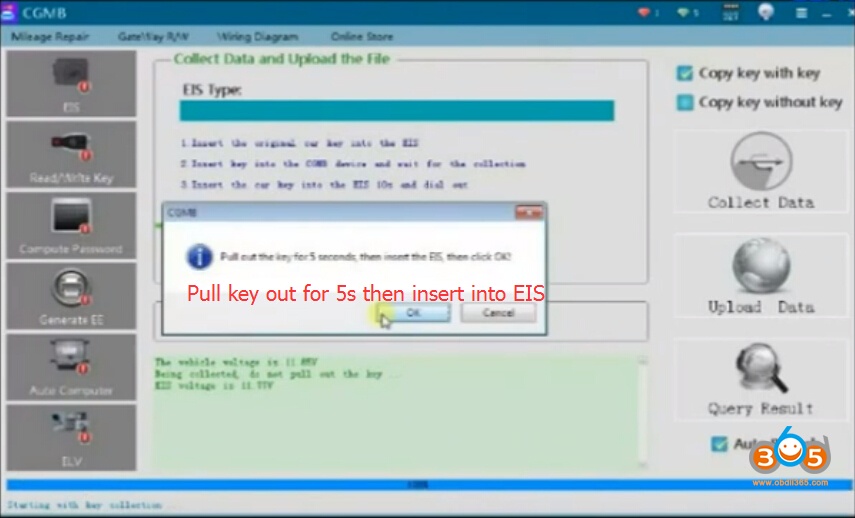
Pull key out and count to 5 seconds then insert it back again, then press OK
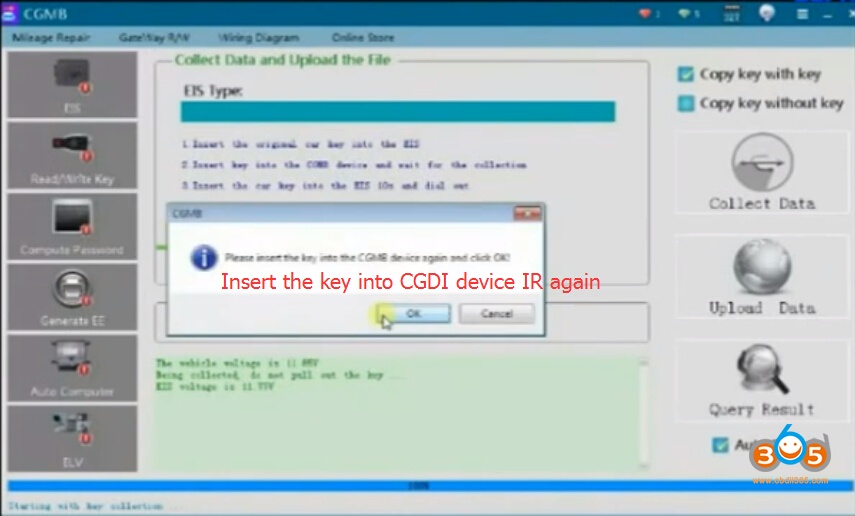
Insert key into CGDI IR
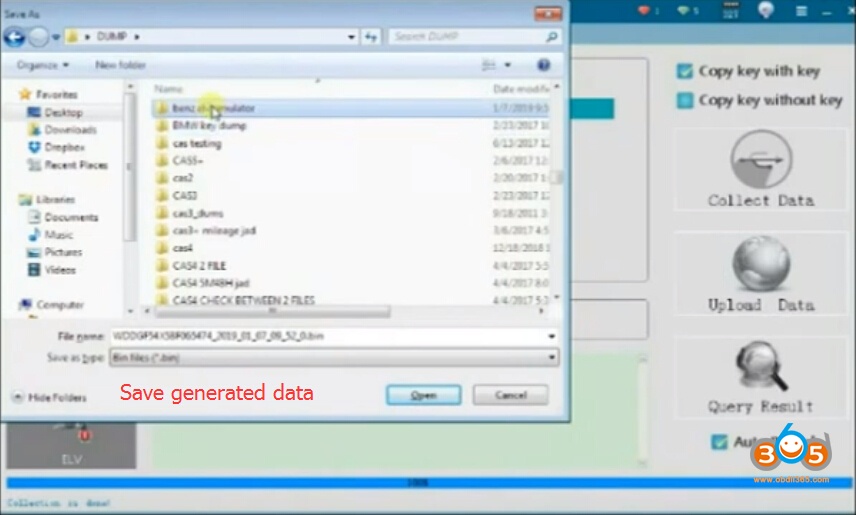
Save generated data, choose wherever you want to save data
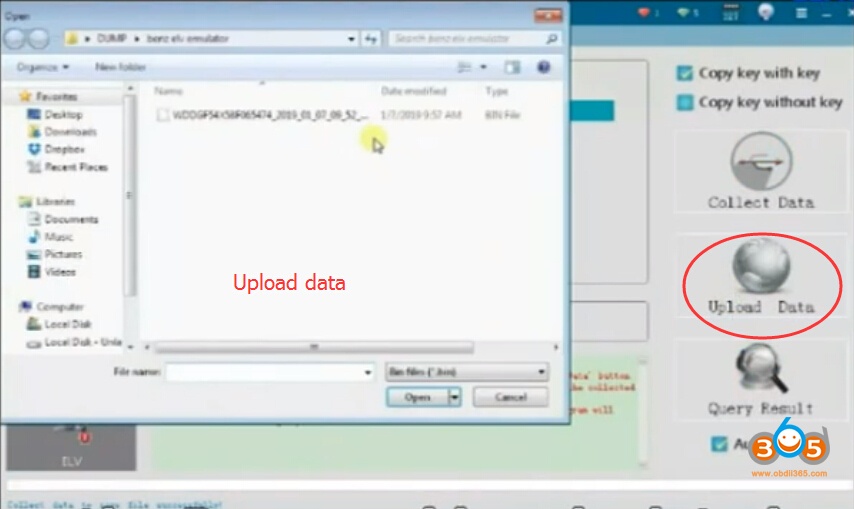
Then we can upload the data to server
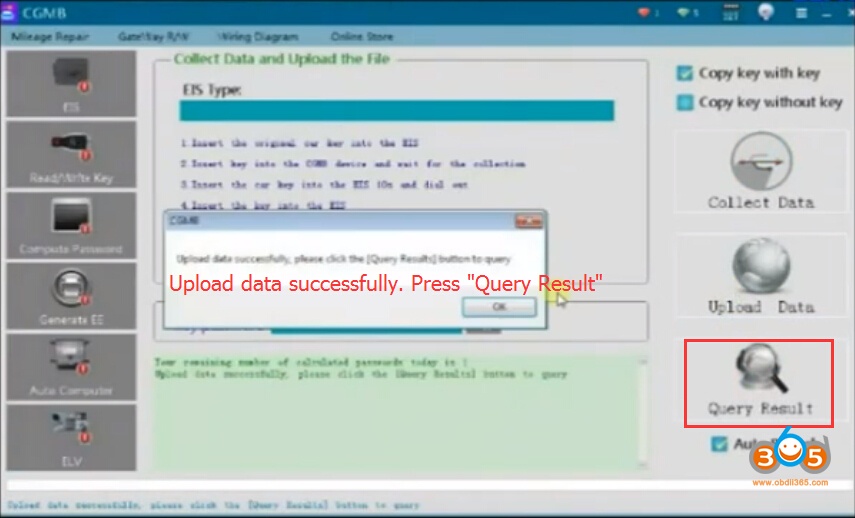
Press Query Result and wait till the password is calculated
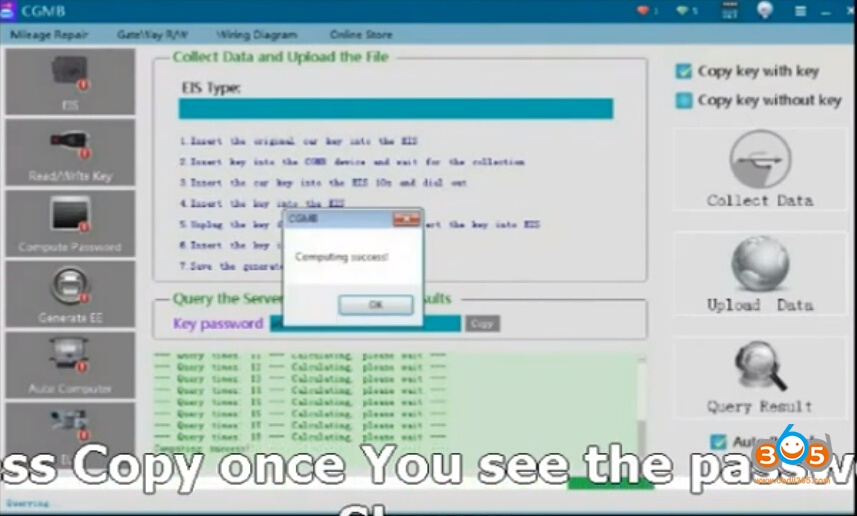
Calculate pass success. Press Copy button
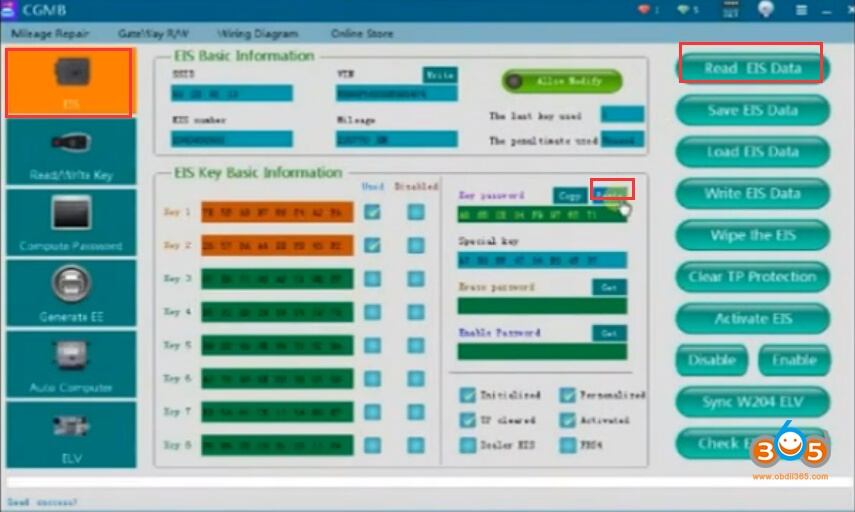
We choose EIS now and press Read EIS Data
Then paste the copied password previously

Save EIS data

Now we go to ELV option
Choose Simulator
Load EIS data saved previously
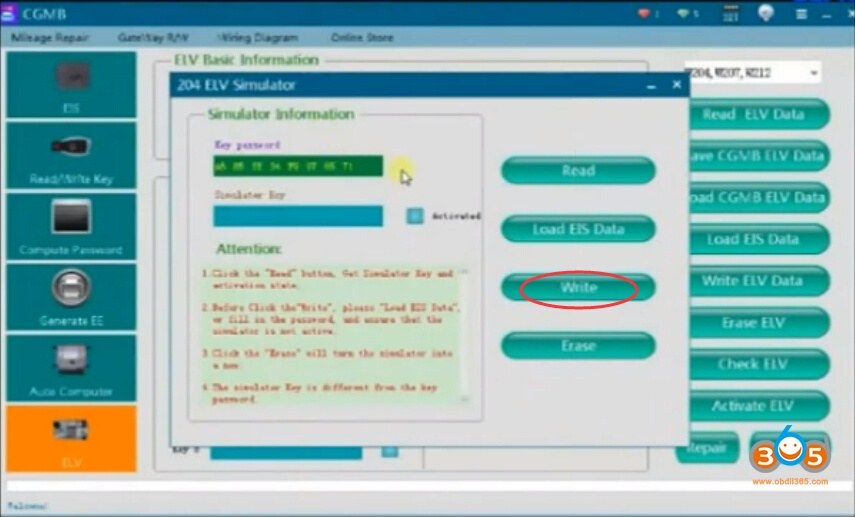
Press Write
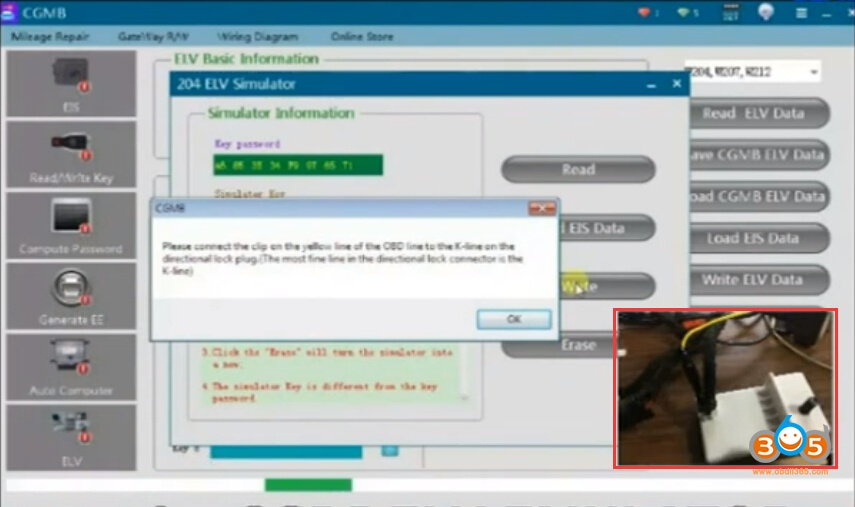
It will give you message Connect the yellow Kline from the OBD cable to the CGDI ELV emulator
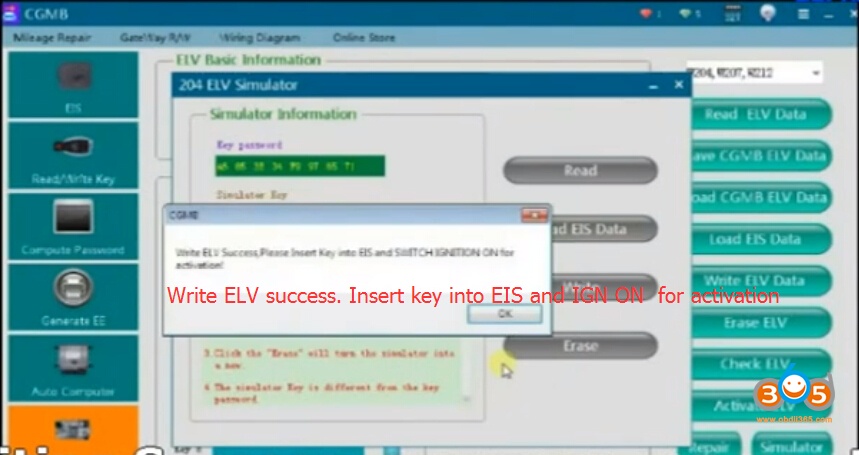
Writing success, now you can use the emulator
Turn on ignition switch to activate it.
Done.