How to Configure iPhone 12 Hotspot for Yanhua Mini ACDP?
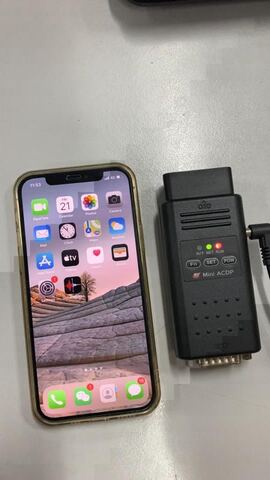
Problem with iPhone 12 Hotspot Set Up for Yanhua Mini ACDP: I can connect to a home or business network with no problem, only Hotspot don’t bind at the end of the settings.
Here, Yanhua took a video showing how to setup a hotspot on iPhone 12, so that Yanhua Mini ACDP works.
Step-by-step procedure in words and images:
Supply power to Yanhua Mini ACDP.
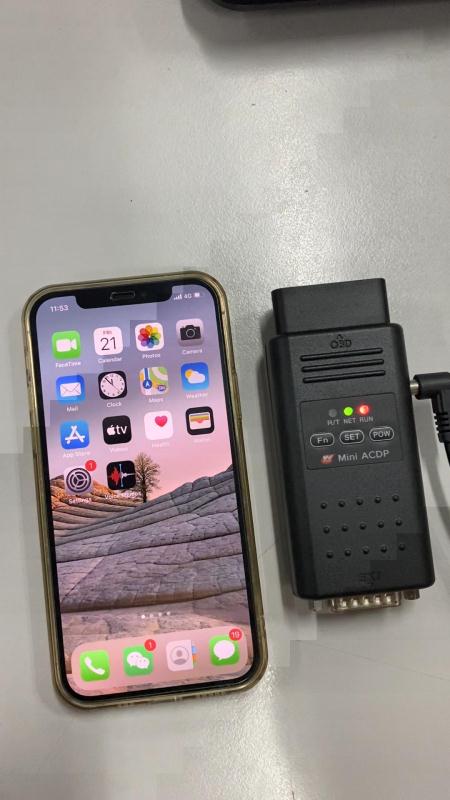
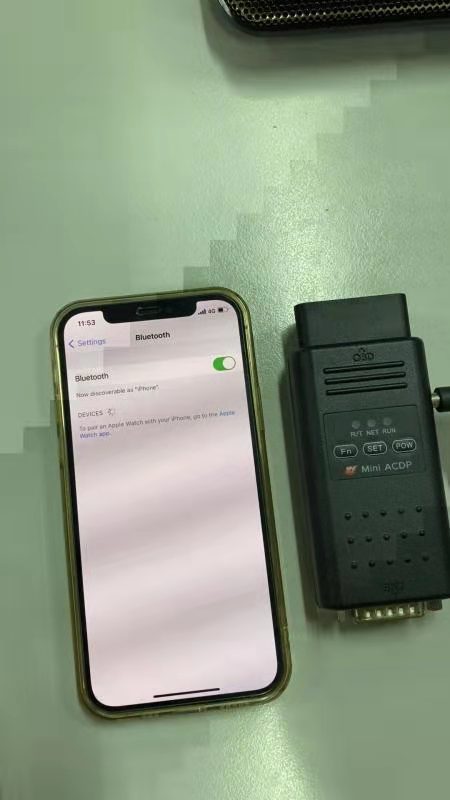
Open “Setting” of iPhone 12, tap “Bluetooth” and turn it on.
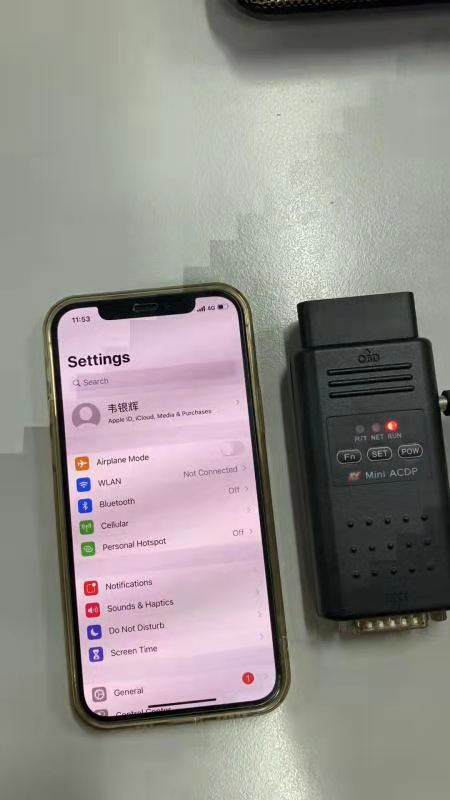
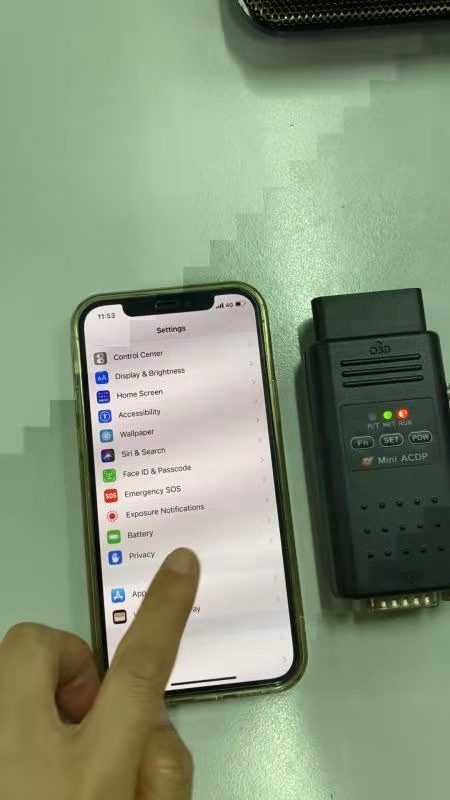
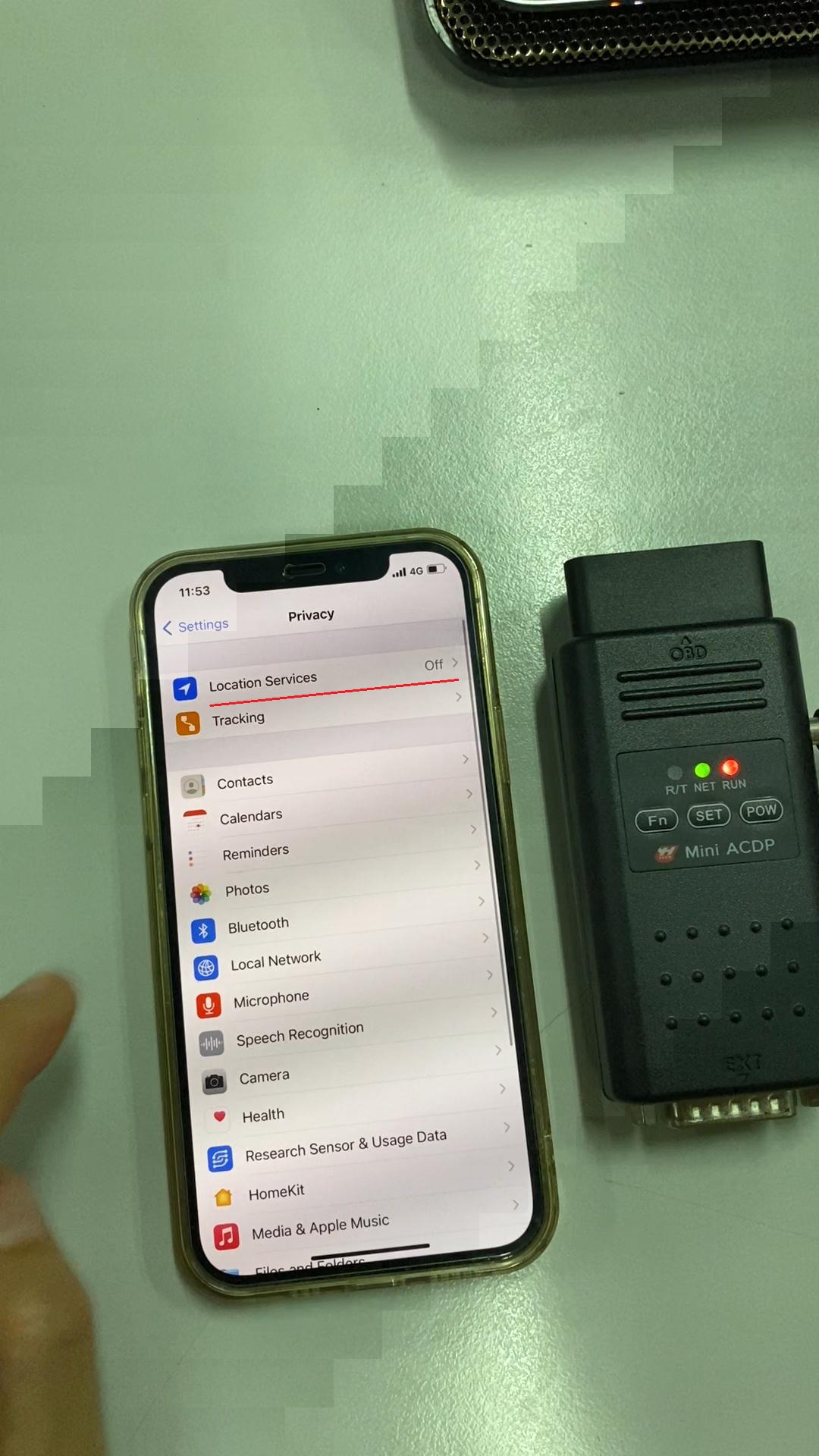
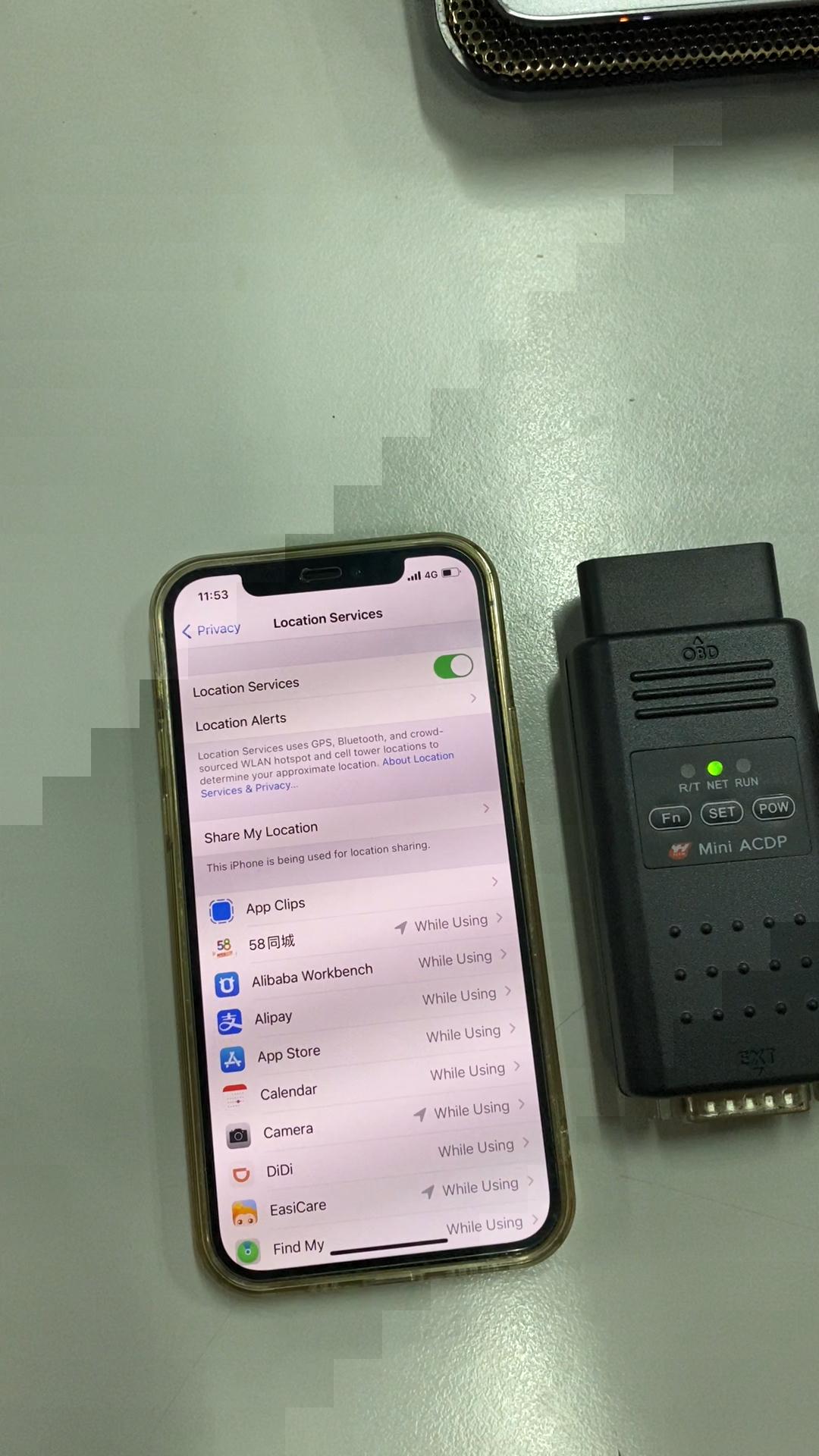
Scroll down and find out “Privacy” and tap “Location Services”, then turn on “Location Services”.
Back to find out “Personal Hotspot” and turn on “Allow others to join” and then turn on “Maximize Compatibility”.
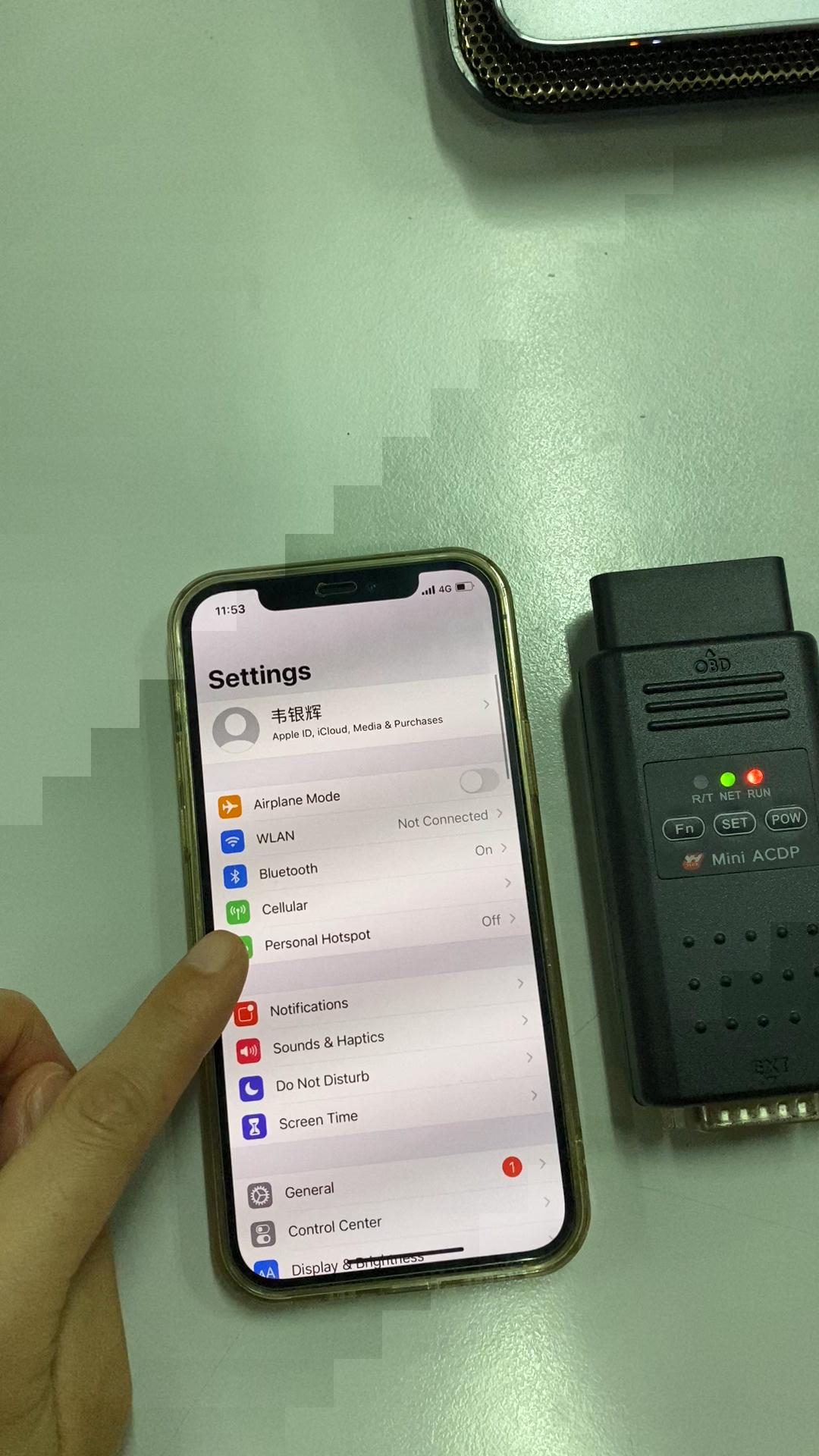

Open “Wlan Password” to reset and click on “Done”.

Hotspot is set up done.
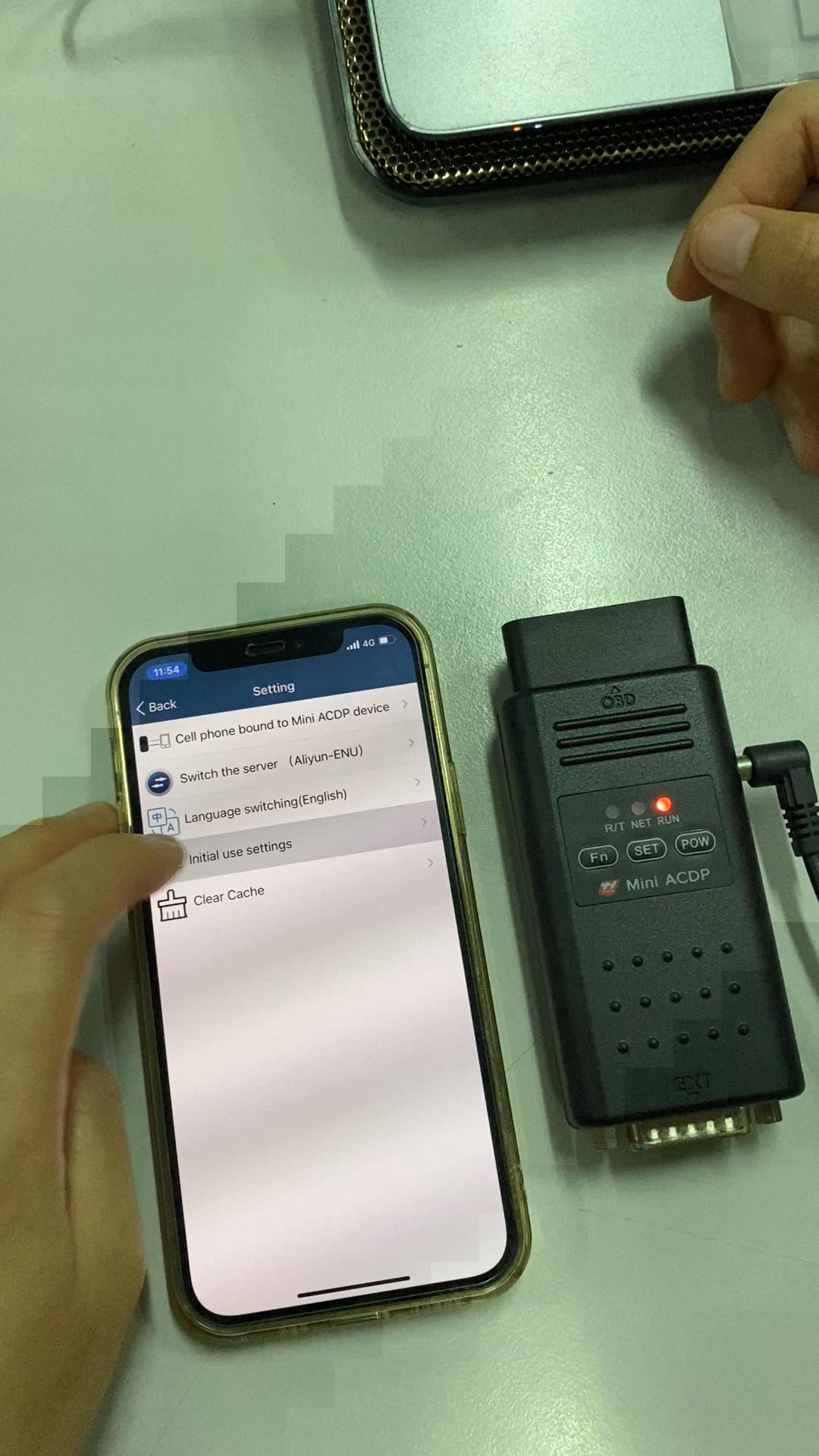
Open “Mini ACDP” APP, go to “Setting” and tap “Initial use settings”.
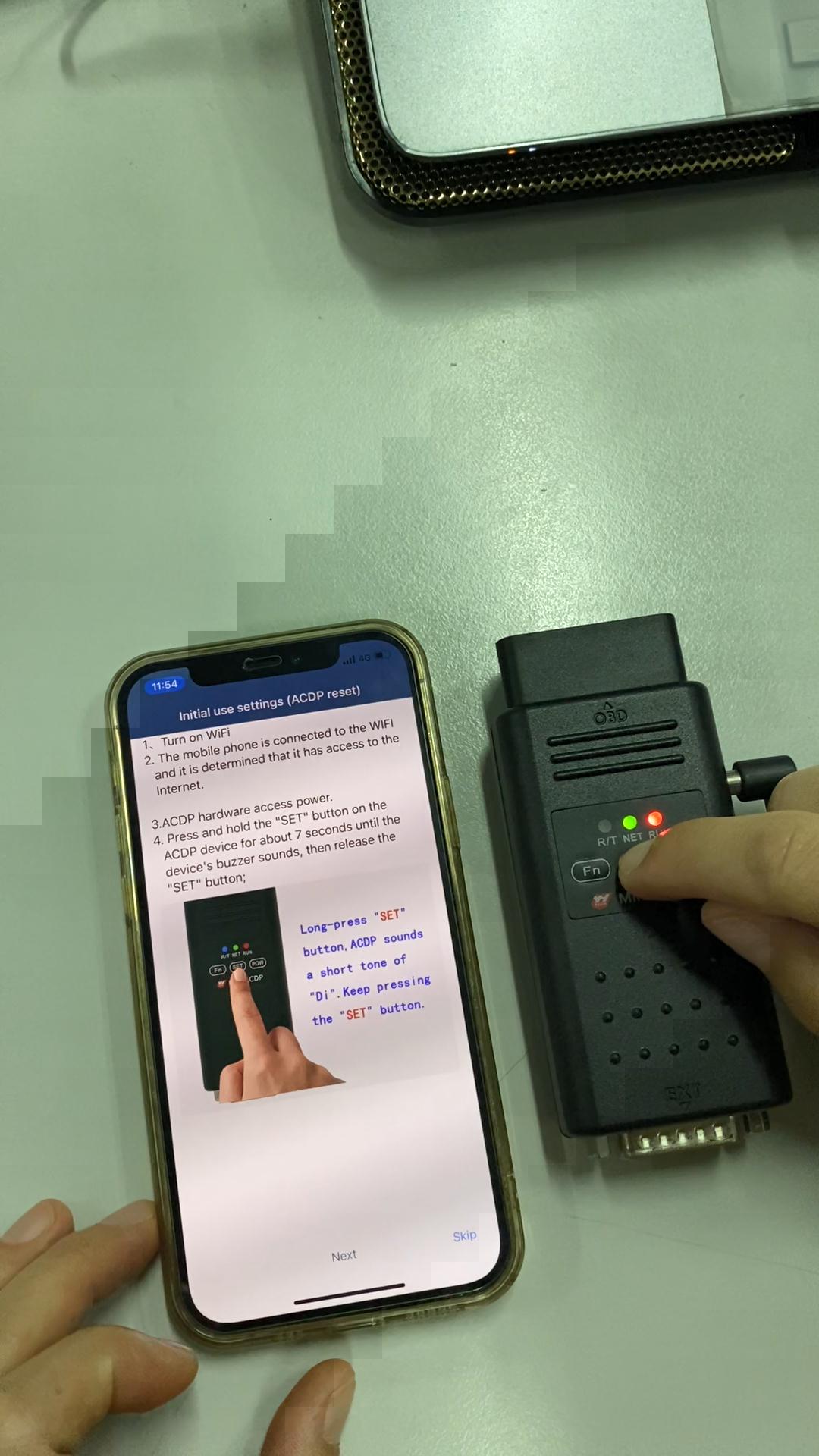
Press and hold the “Set” button on the ACDP device for 7 seconds until the device’s buzzer sounds, then release the “Set” button.
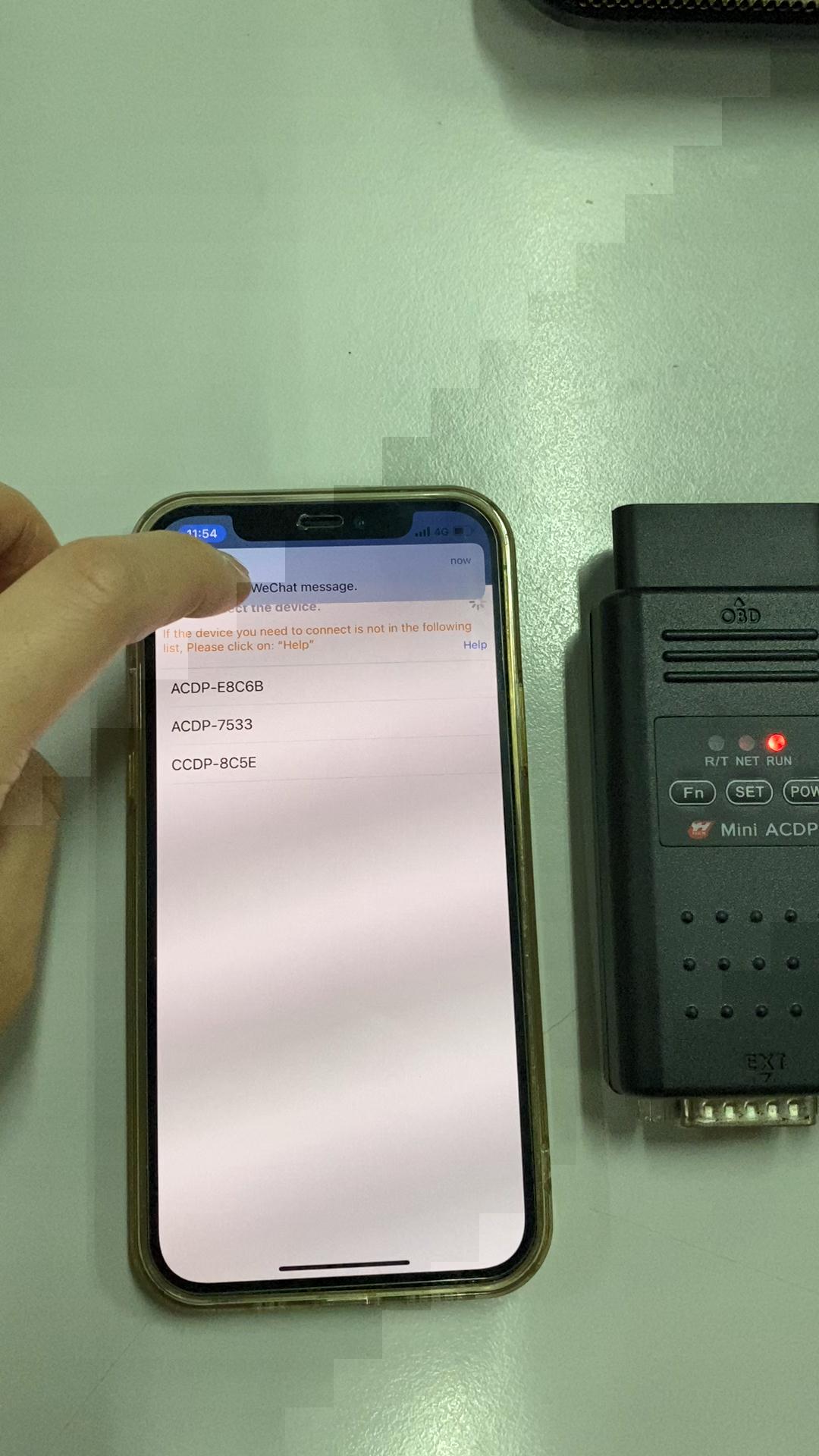
Pease select the device, refer to the serial number back of ACDP device.
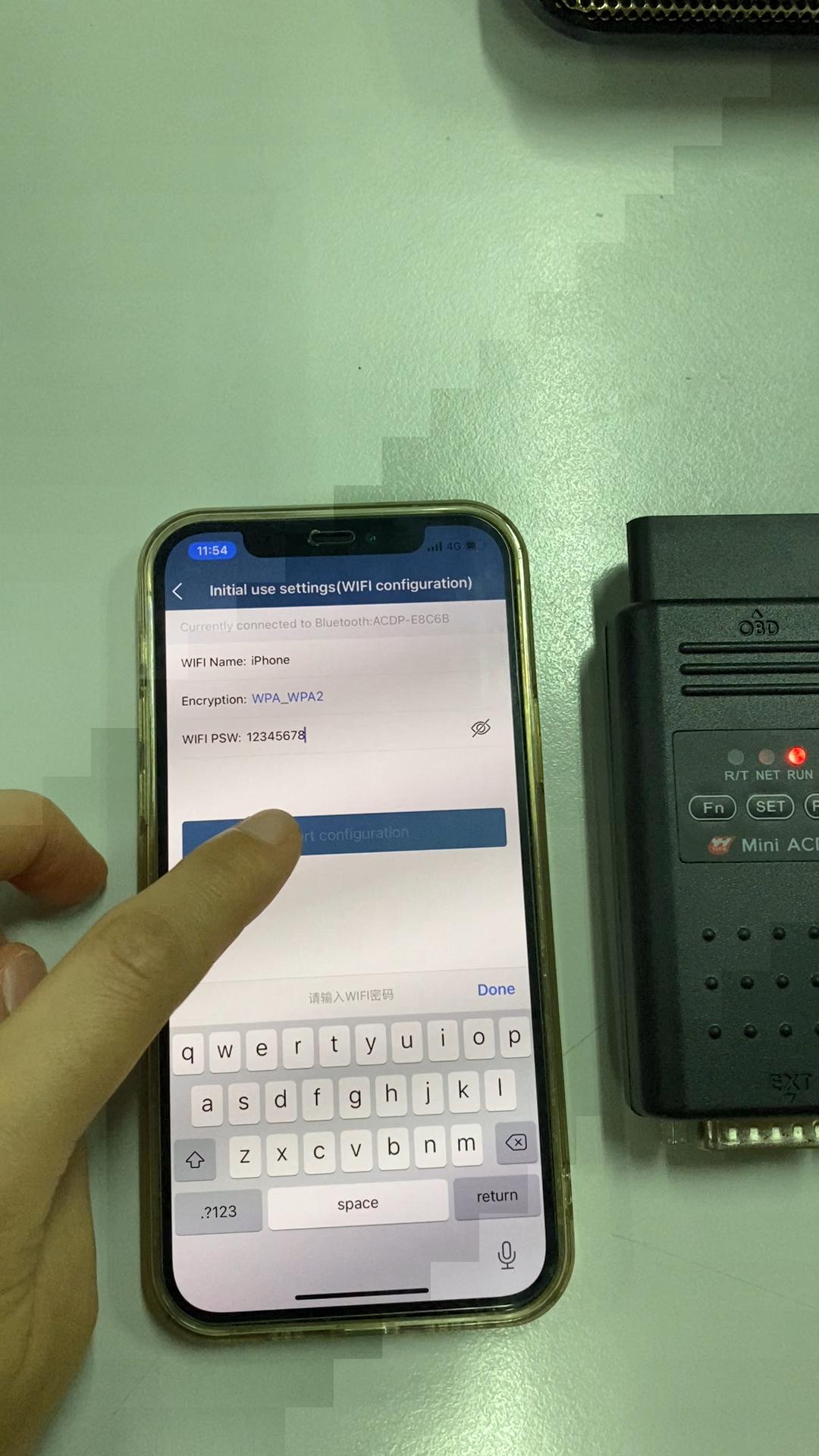
Start configuring the wifi until succeed.
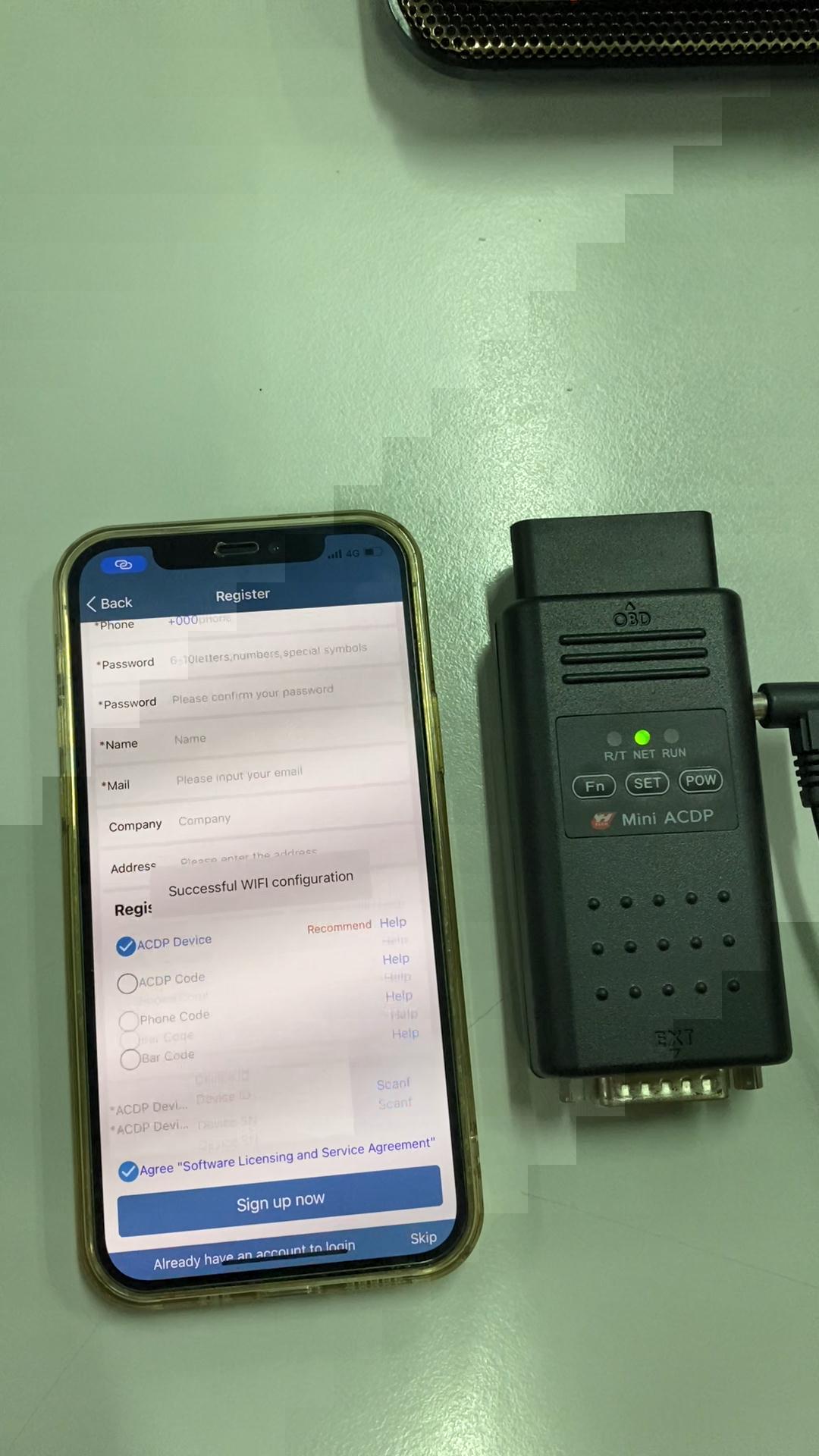
Job is done.