How to Update Autel MaxiIM KM100 Software and VCI?
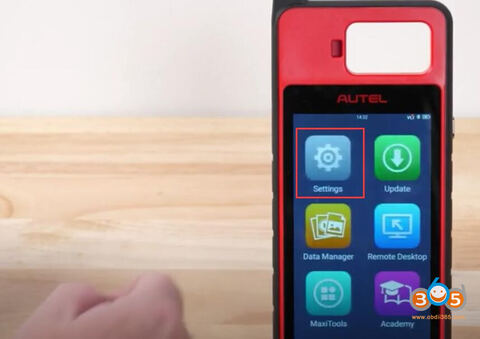
Autel tutorial: how to register and update Autel MaxiIM KM100 software and VCI.
Part I: Register KM100
Turn on KM100
Accept disclaimer
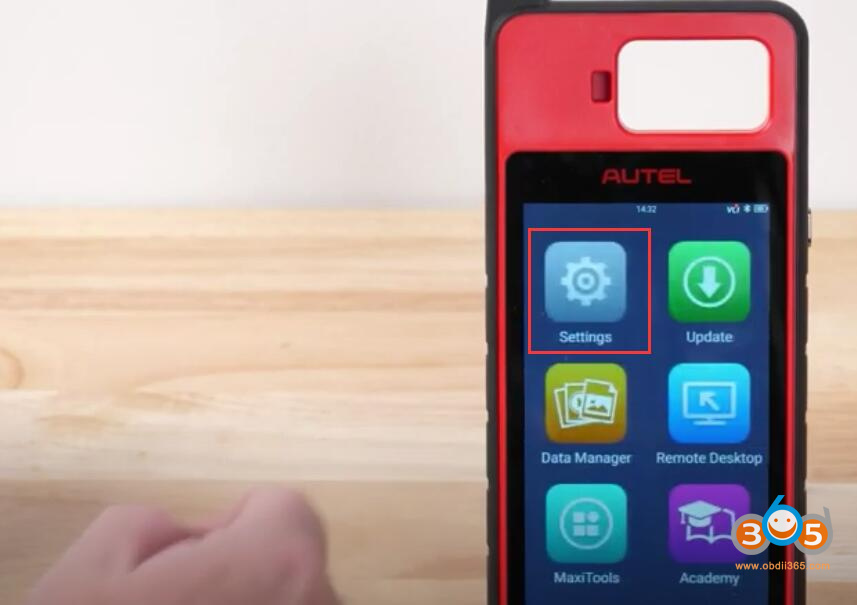
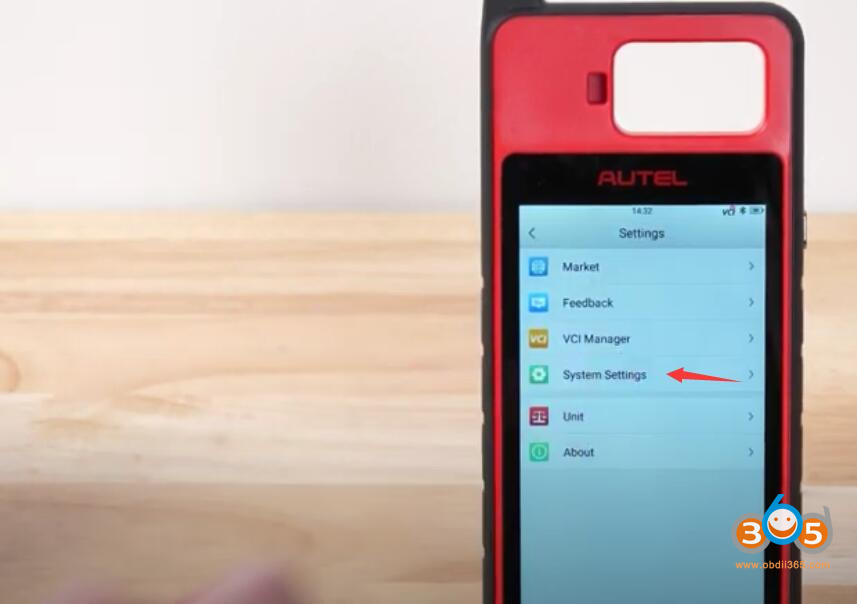
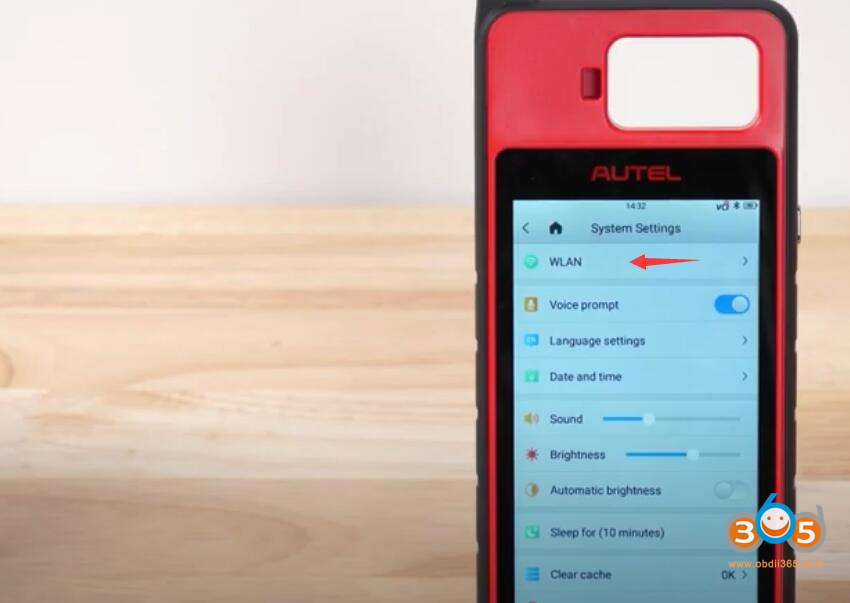
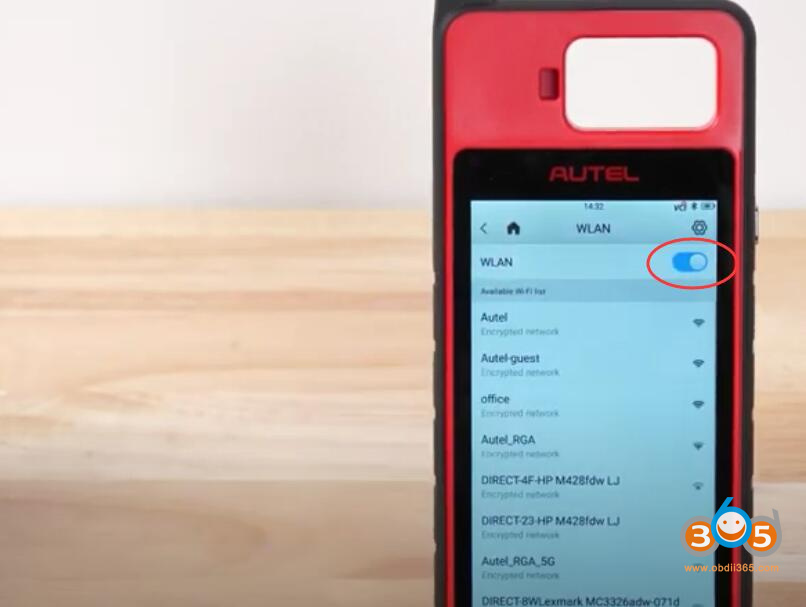
Go to Settings>>System Settings>>WLAN
Connect Autel KM100 to Wi-Fi.
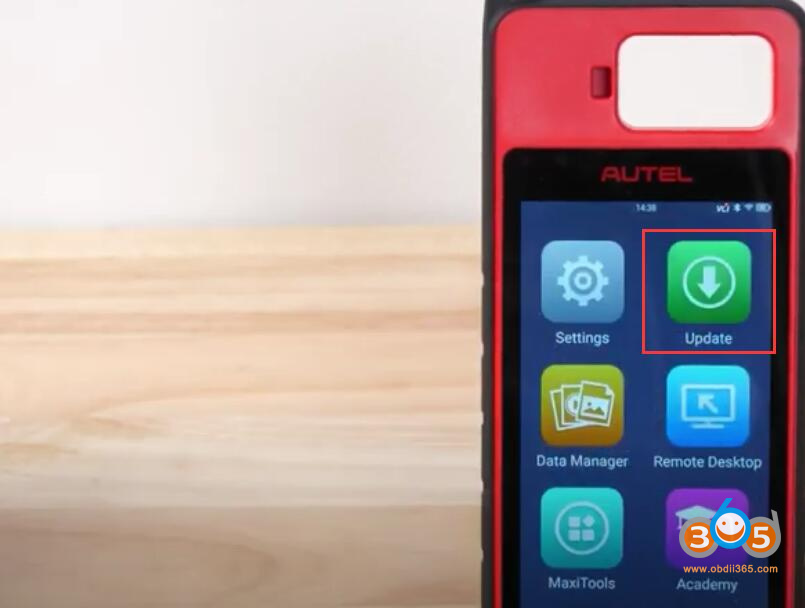
Back to Homepage, select “Update”.
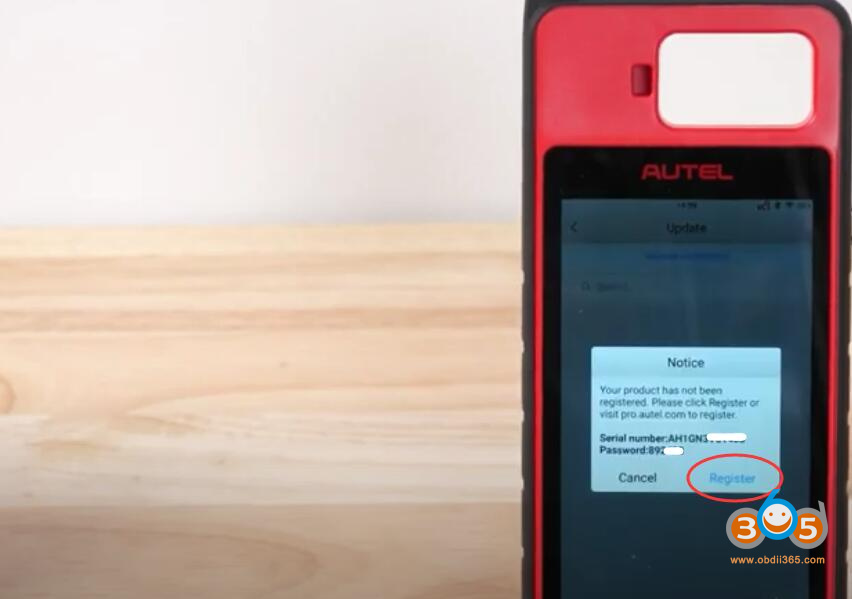
KM100 says the product has not been registered.
Press Register
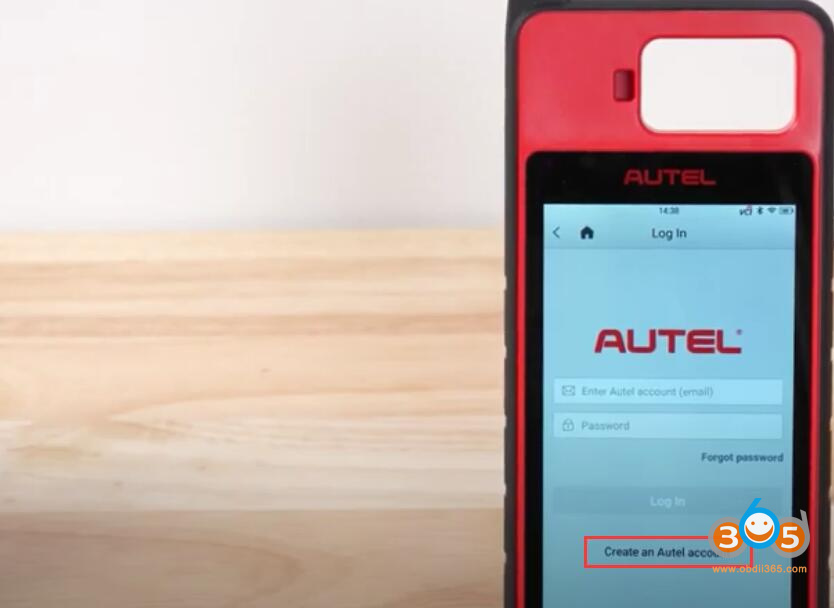
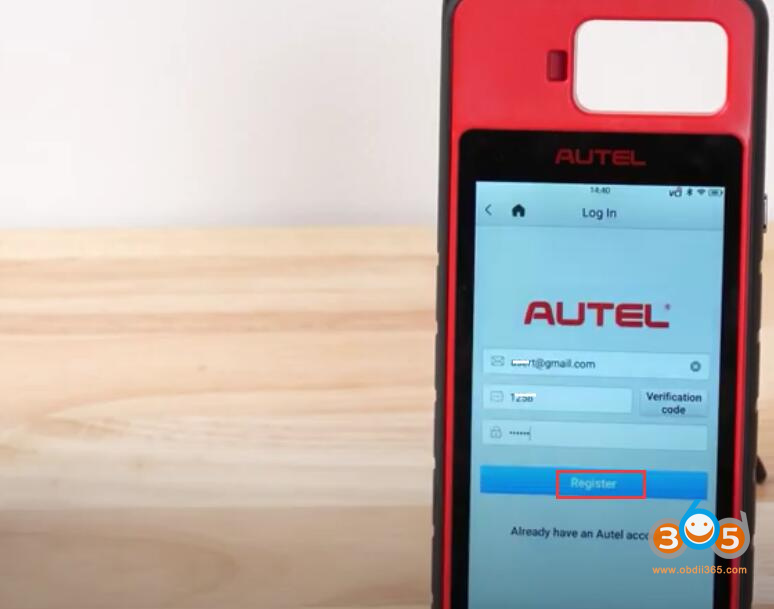
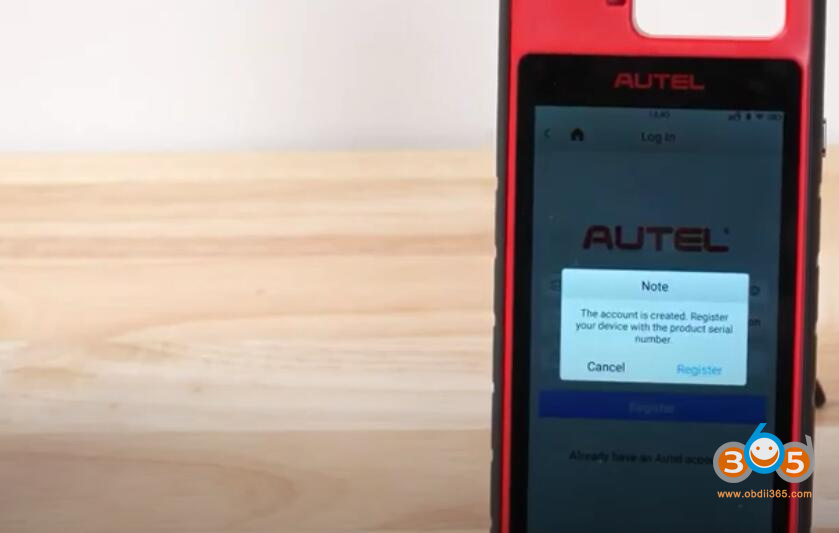
If you don’t have an Autel account, register Autel account with email, and password
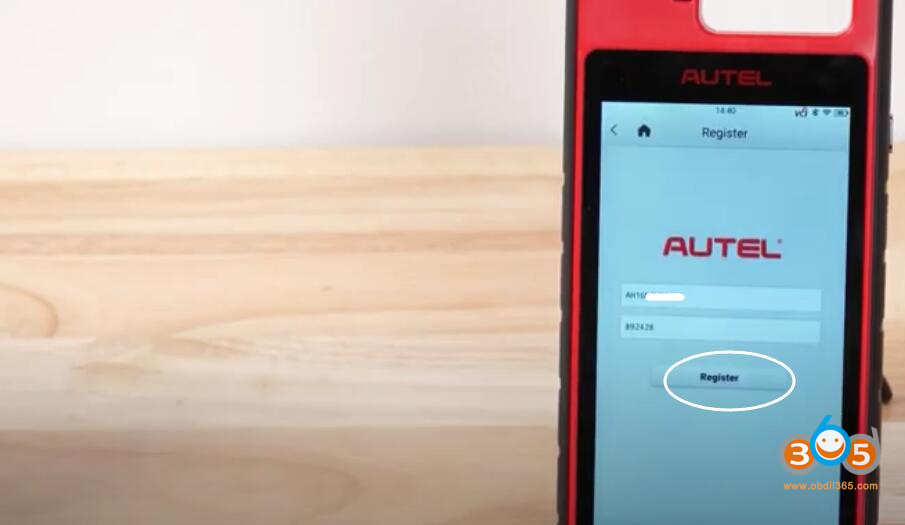
If have Autel account, login and register KM100 with serial number
Part II: Update KM100
After registration, go to Home page-> Update
Download System Program
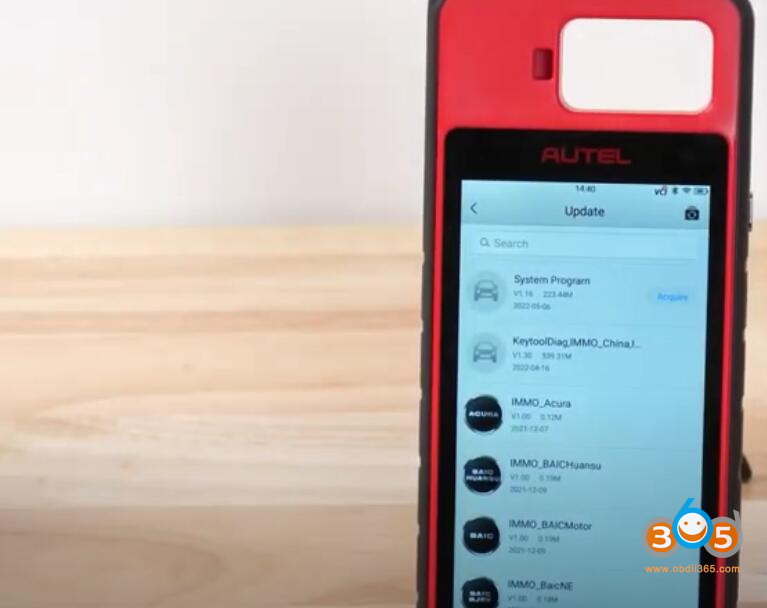
After it’s done, device will reboot automatically.
Back to “Update” again, download “KeytoolDiag”.
Then download all immo programs required.
Part III: Update PLC200 VCI Firmware
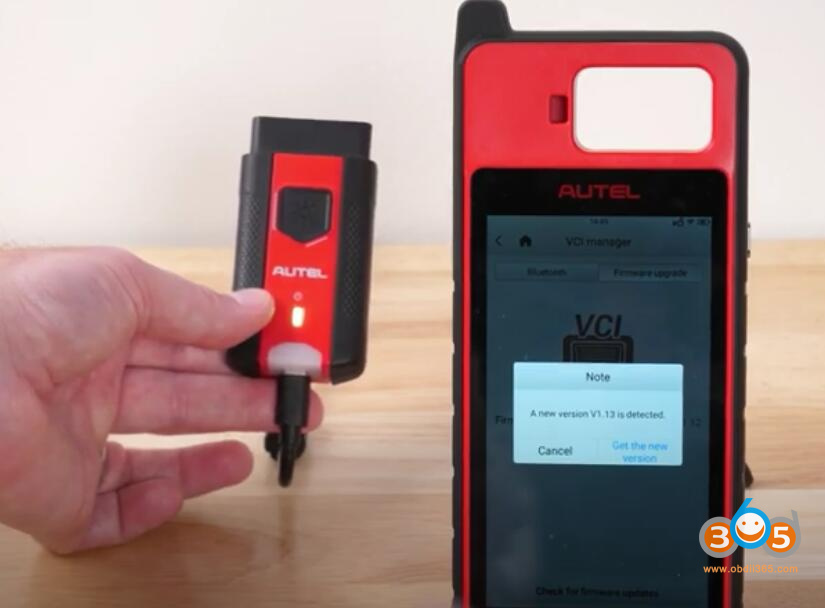
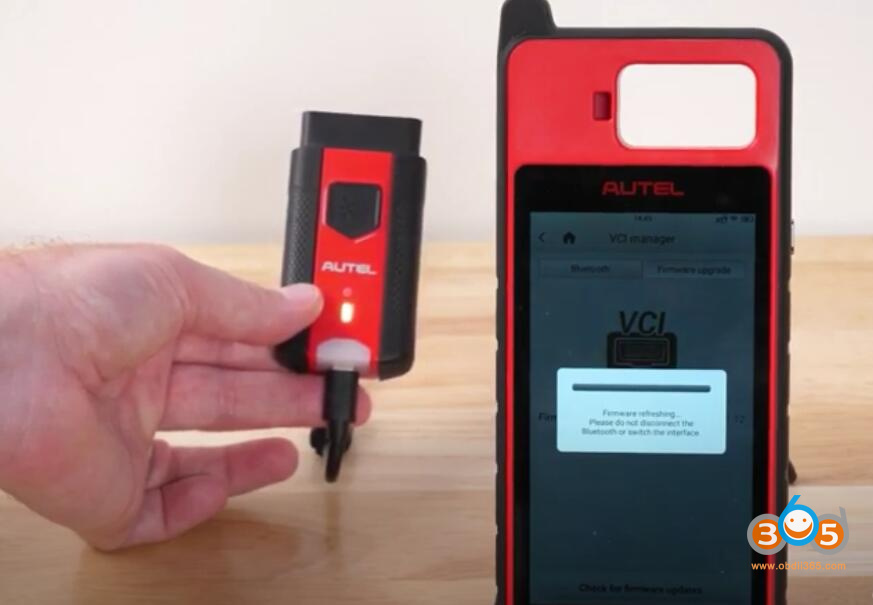
Back to “Settings”, and select “VCI manager”.
Connect VCI to device by USB cable.
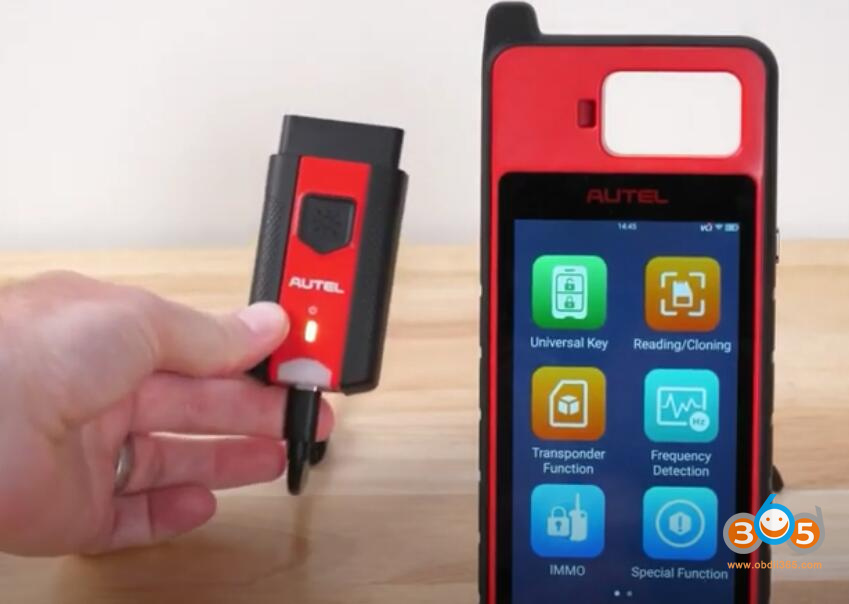
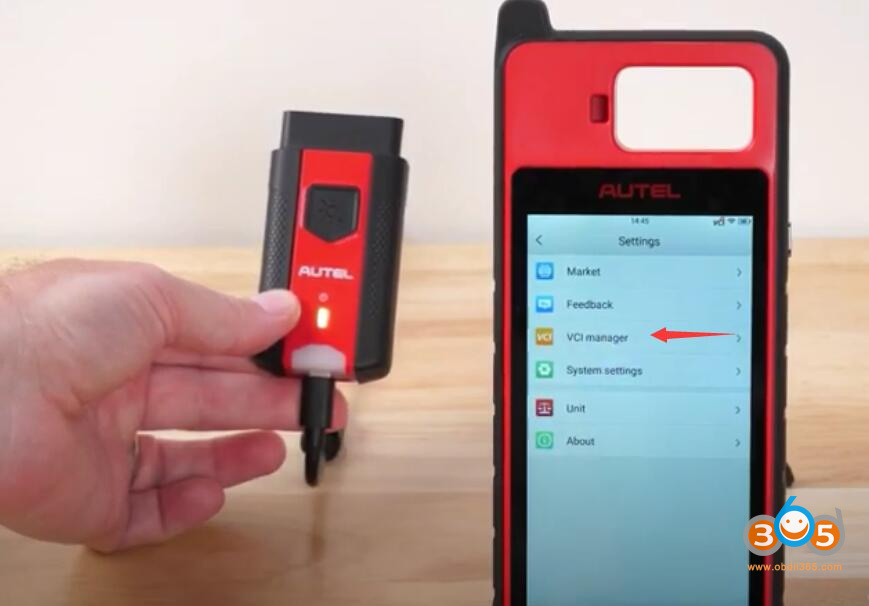
Switch to “Firmware upgrade” and update firmware if there is one available.
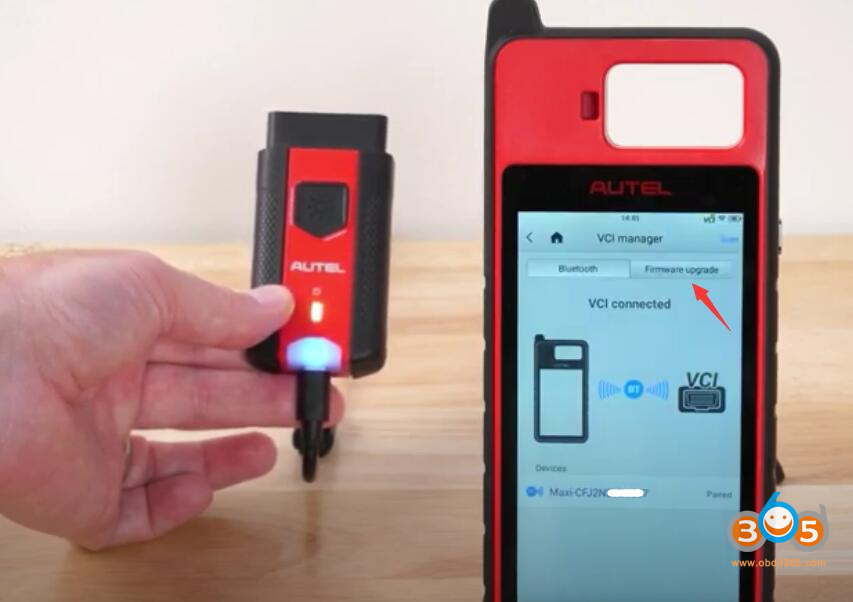
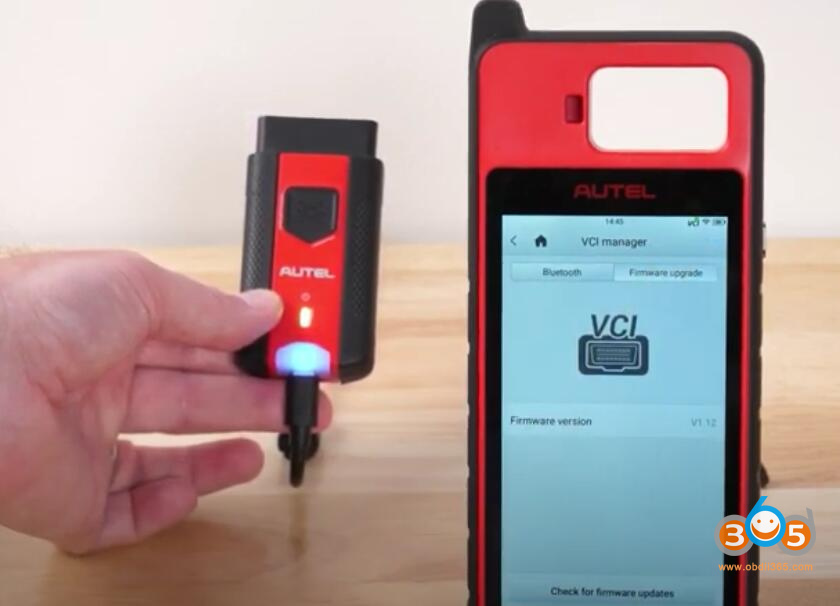
Done.