How to Update Xtool TP200, X300P, X100 Pro2, X300 Plus?
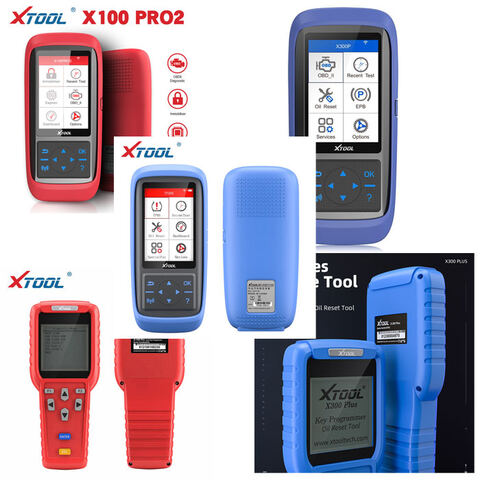
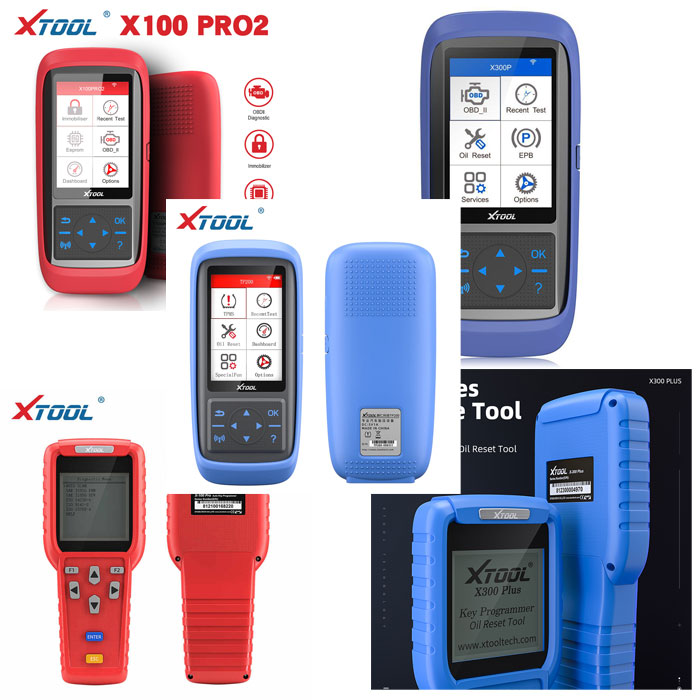
Here’s step-by-step online update guide of xtool products, including TP200, X300P, X100 Pro, X100 Pro2, X300 Plus.
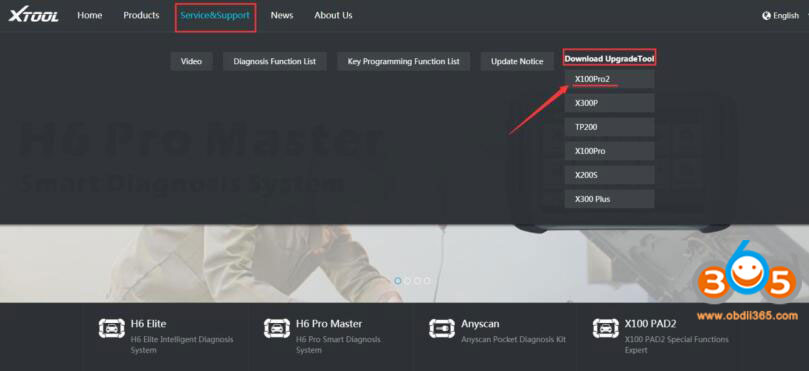
Step 1: Visit Xtool official website http://www.xtooltech.com
Step 2: Select product you desired, download and Install the upgrade tool installation package
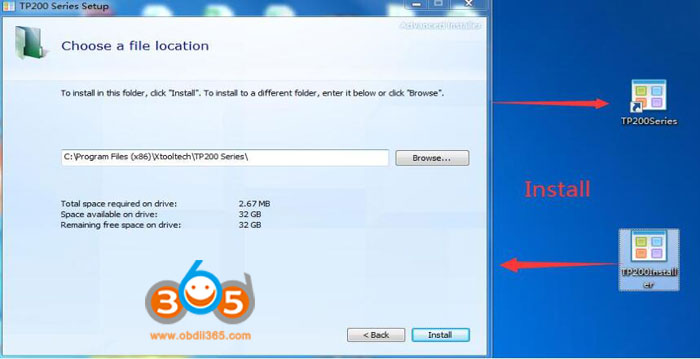
Step 3: Extract the installation package into an upgrade tool
Step 4:
Connect xtool device to Windows computer with Type-c cable; (If the USB device cannot be recognized.
Use this method: 1) insert the TYPE-C connector halfway to make the screen light up. 2) then insert all of the TYPE-C connector to identify the USB device)
Step 5:
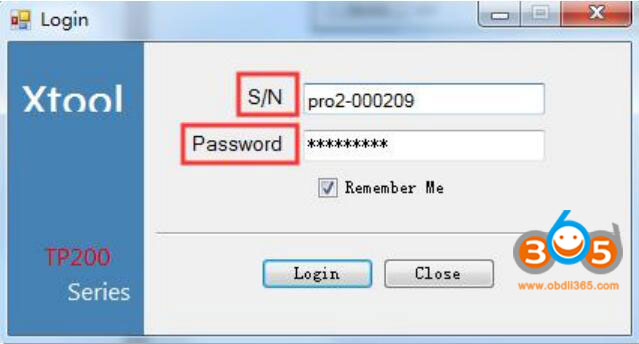
Open the upgrade tool,input the Product SN and Password,then click login;
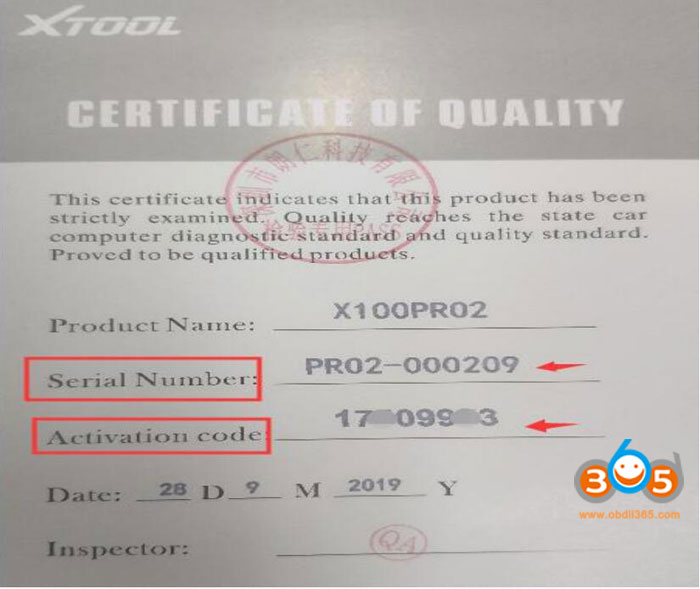
(Certificate of conformity with S / N and password.
Note: The serial number begins with the three letters PRO)
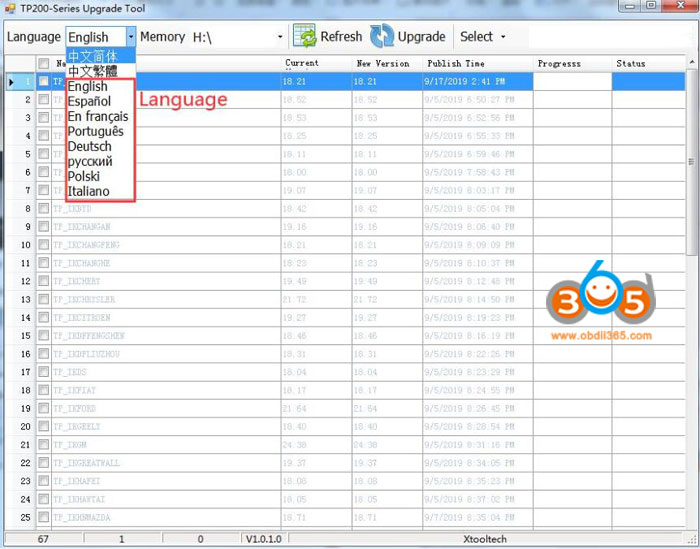
Step 6: Select the required language upgrade;
Step 7: Wait until the upgrade completed.