This guide walks you through the process based on a real-world all-keys-lost scenario on a 2022 or 2023 Toyota Tundra (applicable to models up to 2025). With the right tools and procedure, you can bypass the PIN code requirement and program new smart keys.
Tools used:
Autel MaxiIM IM508 or IM608
Lonsdor FP30 bypass cable (30 pin gateway connector)
APB112 emulator
New key to be programmed
Procedure:
Step 1: Access the Smart Box
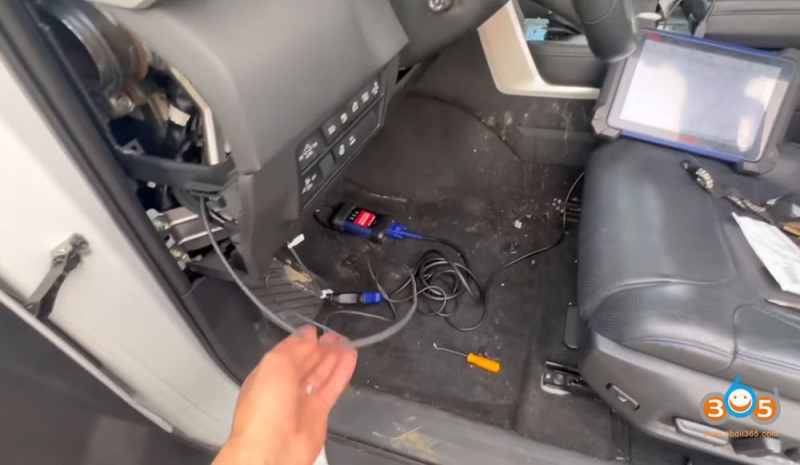
Start by removing the plastic trim panel near the smart box. Once exposed, locate the second box next to the silver unit. You will see a top connector on that box — this needs to be disconnected.
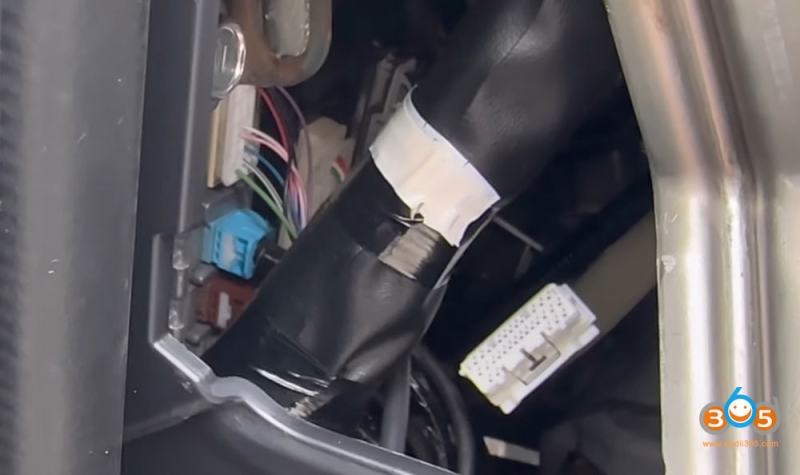
Step 2: Connect the Bypass Cable
After disconnecting the original connector, plug in your bypass cable. This allows you to communicate directly with the smart box without requiring the original key or PIN code.
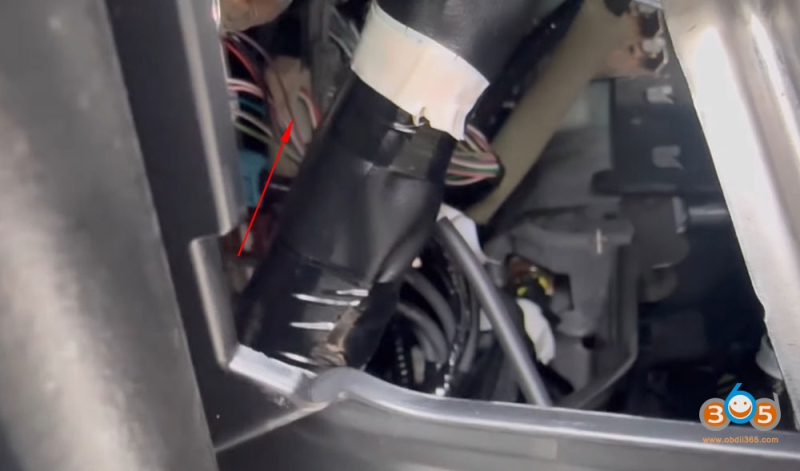
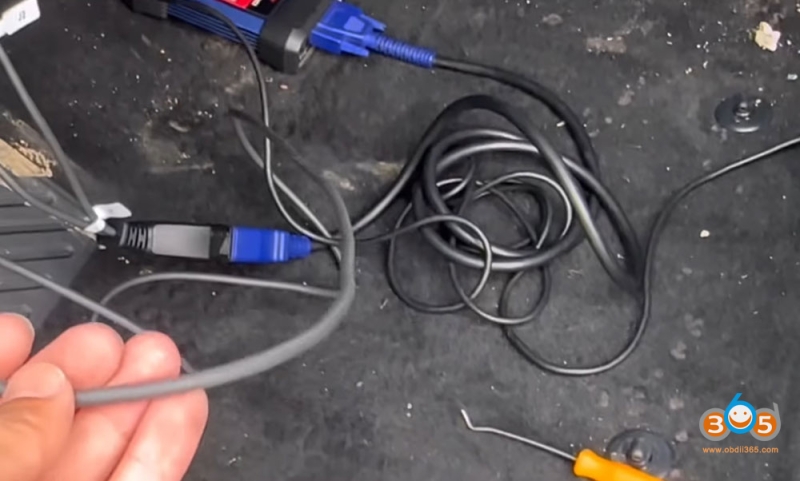
Step 3: Back Up EPROM Data
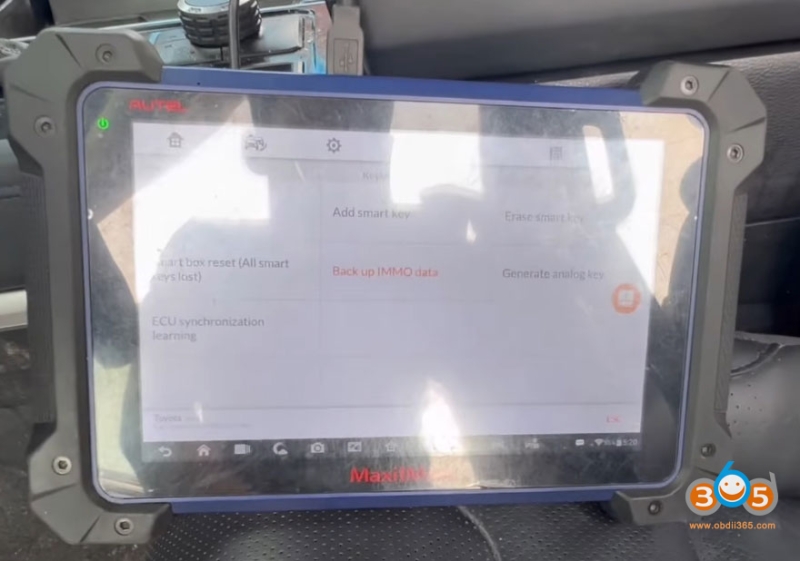
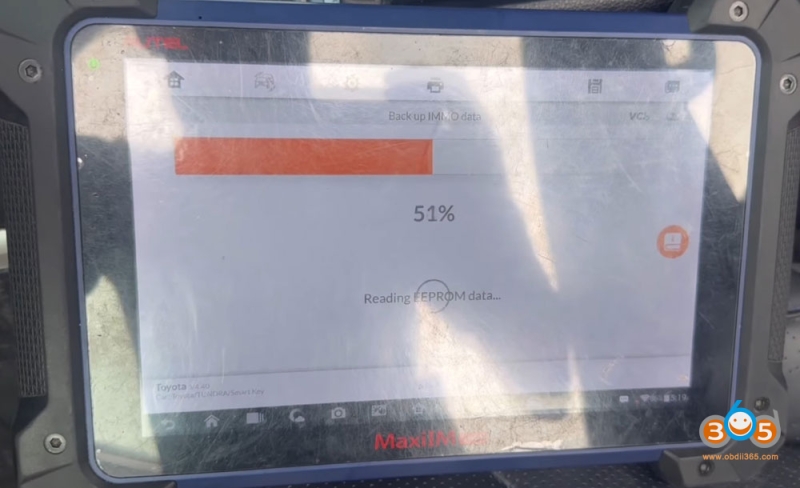
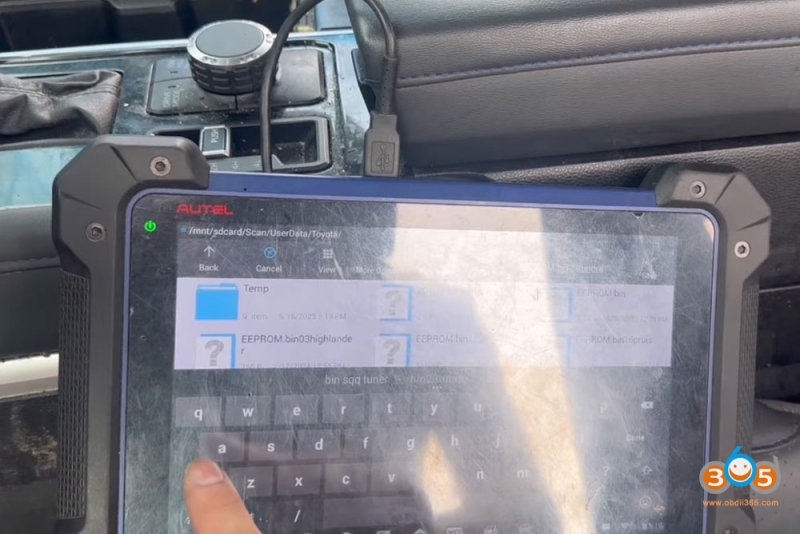
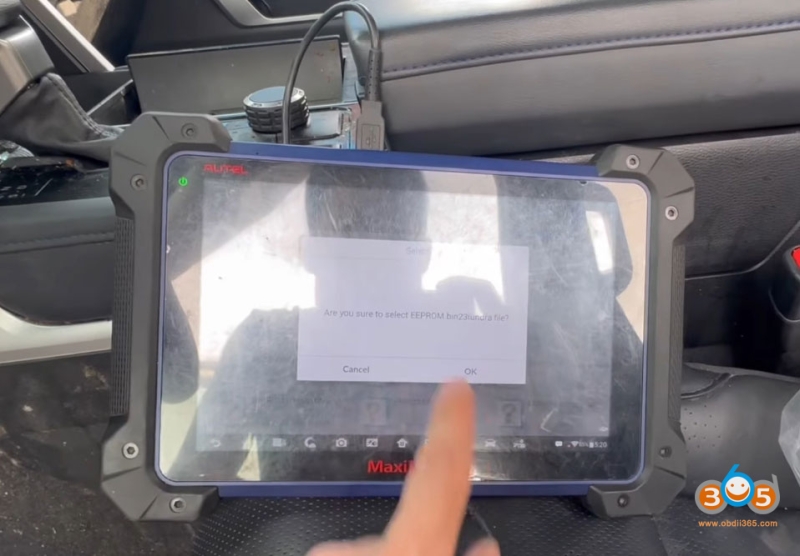
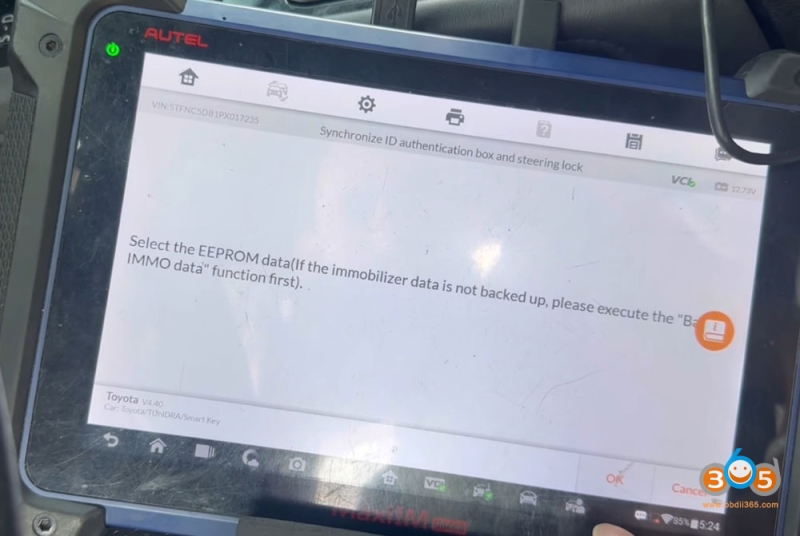
Using your Autel IM608 tool, perform a full backup of the EEPROM data. This is a critical step. Save the file securely.
Step 4: Generate an Analog Key (APB112 Emulator)
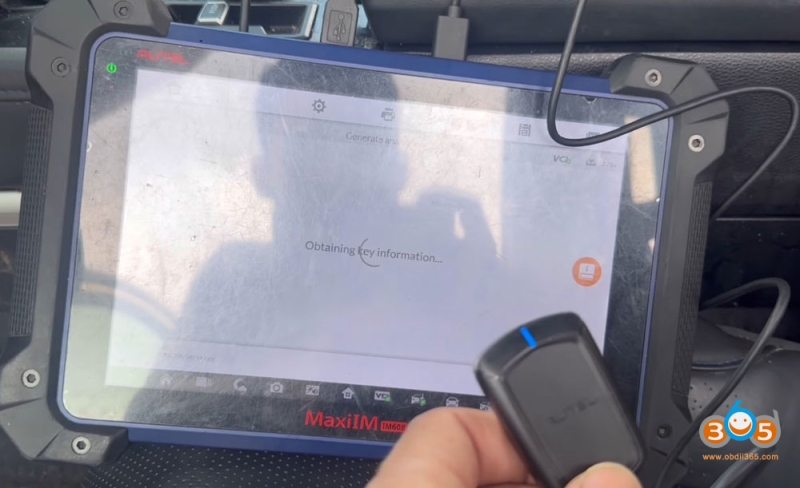
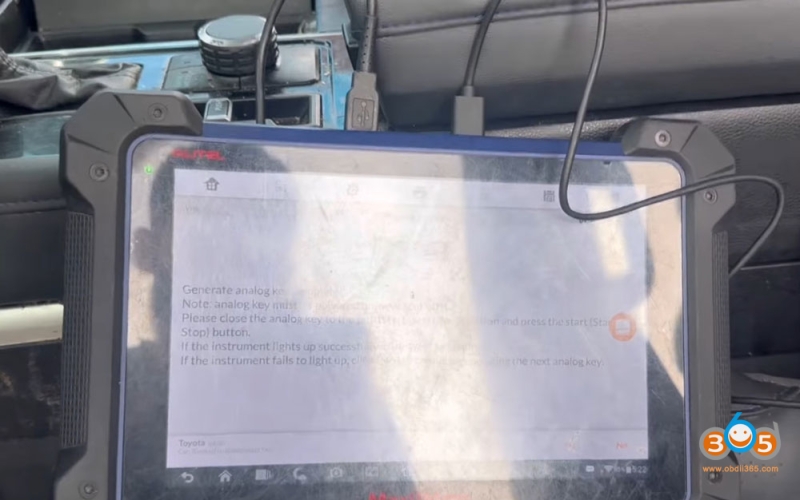
With the backup complete, generate an analog key using your software. Load the saved backup file, then connect your APB112 emulator (adapter). The emulator mimics a valid key and allows the vehicle to recognize a new key during programming.
Step 5: Reconnect the Original Connector
Once the emulator is connected and recognized, unplug the bypass cable and reconnect the original connector back into the smart box. This restores normal communication while keeping the emulator active.
Step 6: Verify Ignition Activation
Turn on the ignition using the emulator. The system will ask whether the ignition turned on. Confirm “yes.” This step ensures that the vehicle’s electronics are responding correctly.
Step 7: Add the New Smart Key
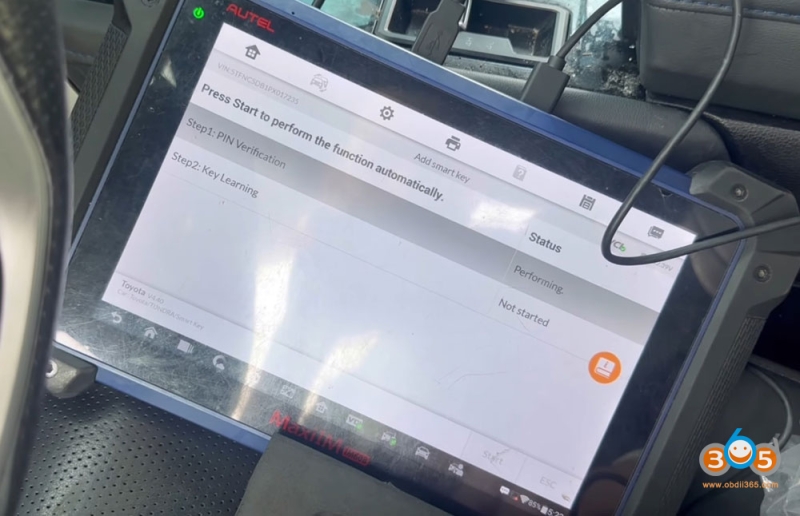
Navigate to the “Add Smart Key” function in your programming tool. The vehicle’s VIN will appear automatically. Confirm it, then hold the new key near the start button or as instructed by your tool. You should hear two beeps, and the tool will display “Succeeded.”
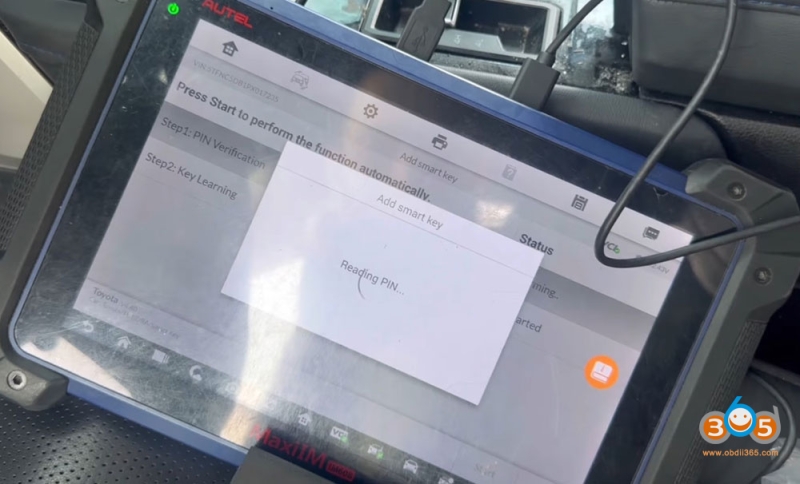
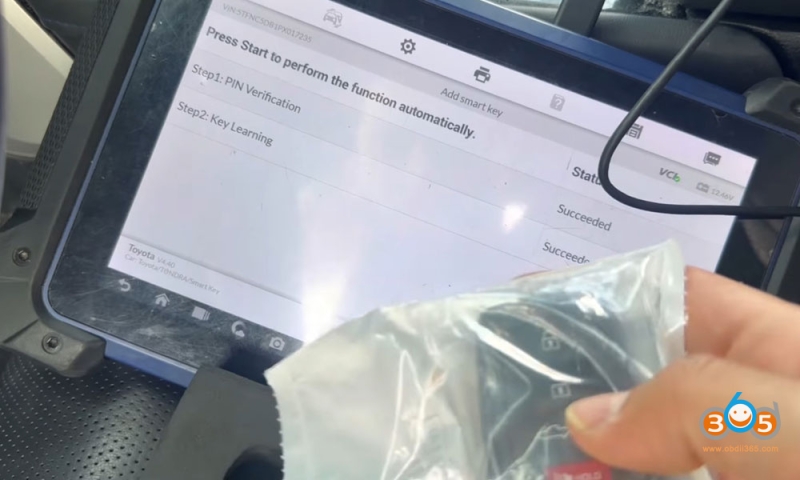
Step 8: Perform Steering Lock Synchronization
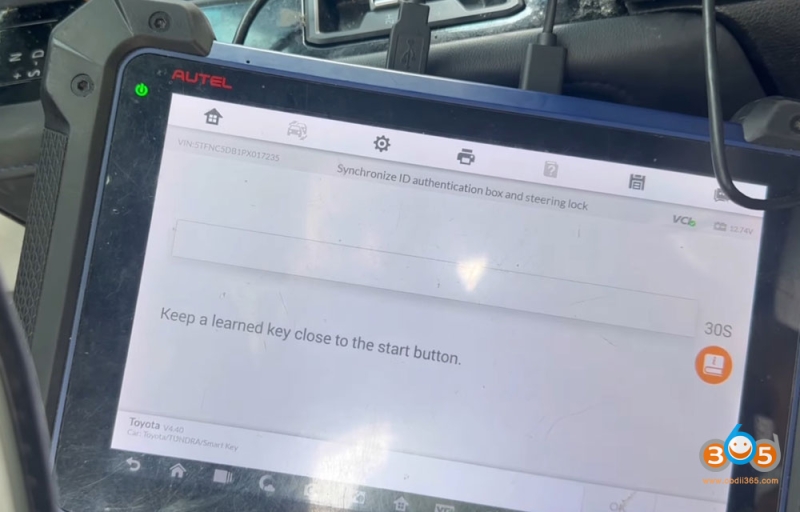
Even after adding the key, the steering lock may not sync automatically. Go to the steering lock sync function in your tool. Turn on the ignition when prompted. The tool will read the PIN code from the backup and complete the synchronization.
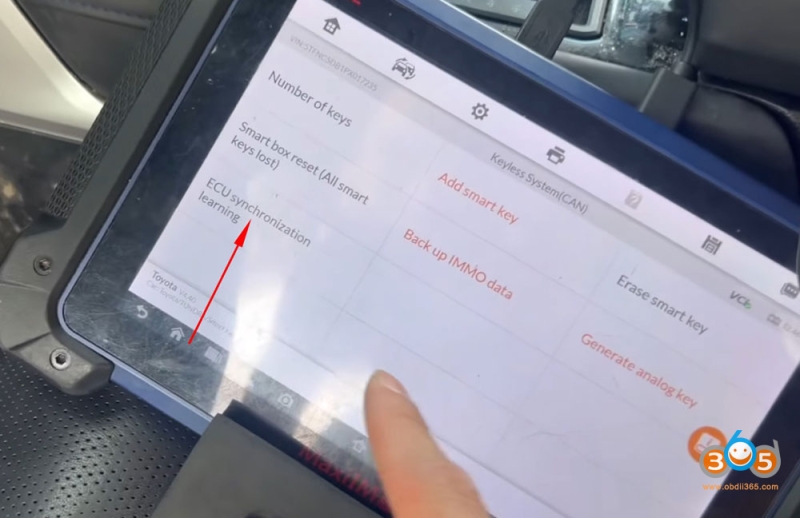
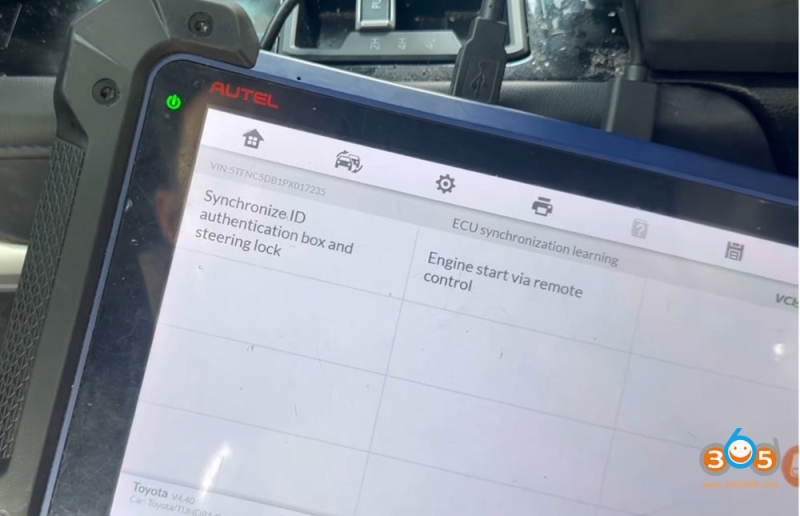
Step 9: Test Key Functions
At this point, test the remote functions. The key should lock and unlock the doors.
Step 10: Final Vehicle Start Check
Before calling the job complete, ensure the vehicle can start. In the example, the truck initially wouldn’t start because the transmission was left in Drive. Always make sure the shifter is in Park or Neutral before attempting to start. Once corrected, the vehicle started normally.